

This edition of Central Dispatch Highlights includes the warning signs of phishing scams and a new enhancement to the carrier mobile app.
Carriers: Find Loads in the Central Dispatch Carrier App
With our latest enhancement to the carrier app, you can search, browse, and filter the load board right from your phone! Learn all about the app and this update in our blog post.
Shippers: See How One Dealer Is Saving Time and Money with Central Dispatch
Tahir Ilyas is using Central Dispatch to save countless hours and hundreds of dollars per car! Watch his story to see how he’s taking advantage of all the tools and services that Central Dispatch has to offer.
Stay Protected from Phishing Scams
Phishing scams in the auto logistics industry are on the rise, and it’s our role as THE logistics marketplace to make sure you know what to look out for. By staying aware and vigilant at every step, you can keep your business safe from dispatch to delivery!
In today’s used vehicle market, having fast and cost-effective vehicle transportation isn’t optional—it’s essential. That’s why more and more dealers like Tahir Ilyas from Ed Voyles Automotive Group are turning to Central Dispatch.
“When I started using Central Dispatch, two years ago I was able to save an average of $400 per car, and my efficiency was so good. As soon as I display my car, maybe in the next hour I get a call from the driver, and the next day I have a vehicle here.”
For Tahir, the difference was night and day. No more slow delivery times or unpredictable costs. Central Dispatch gives him the tools he needs to control every aspect of each load—down to the exact timeline and dollar amount.
“Every load I put through Price Check first, and I take a look at what the price is running for that kind of distance. It’s helped me display each car easily and at the right price. It’s very convenient and very fast.”
But Tahir hasn’t just taken the uncertainty out of shipping, he’s turned it into a competitive advantage. With more secure and reliable transport across the country, he can source cars from markets he couldn’t reach before.
“I can buy vehicles from all over the United States, and I don’t have to worry about the shipping. No matter if I’m getting a car from California, or I’m getting a car from Tennessee, Central Dispatch is very efficient.”
Get Tahir’s full story in the video.
Phishing scams in the auto logistics industry are becoming more common and more sophisticated. But understanding the warning signs, how to defend against them, and where to report scams significantly reduces your risk, and creates a safer marketplace for everyone.
Know the Warning Signs
The most common phishing scam is credential harvesting. Bad actors will impersonate Central Dispatch or another legitimate company via an email or text, then direct you to a fake website designed to steal your login credentials, payment details, or US DOT information. Watch out for these warning signs, so you can identify attacks before they start.
Unusual Sender Email: Phishing emails will always come from lengthy, complex, or otherwise strange-looking email addresses. All legitimate emails from us will come from:
- reply@messages.centraldispatch.com
- do-not-reply@centraldispatch.com
- An official @centraldispatch.com or @coxautoinc.com domain.
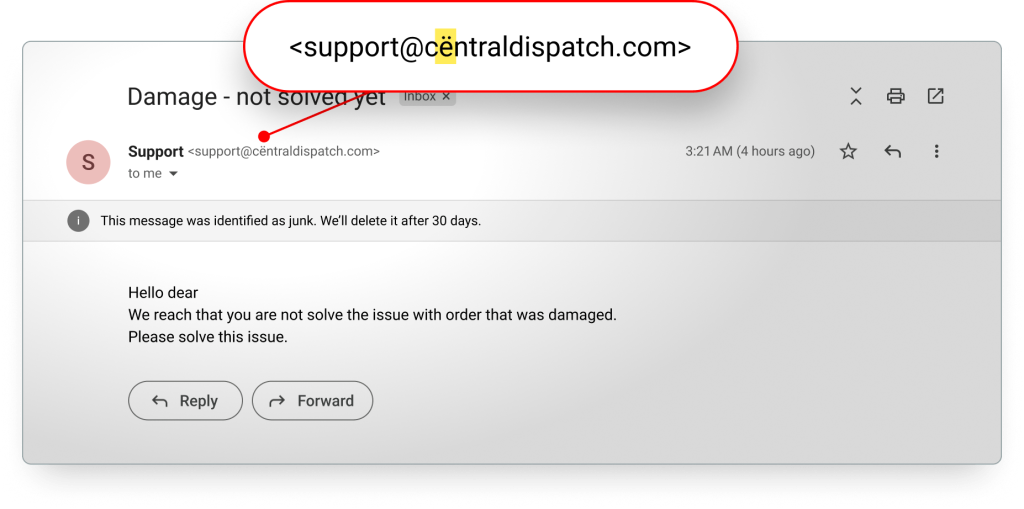
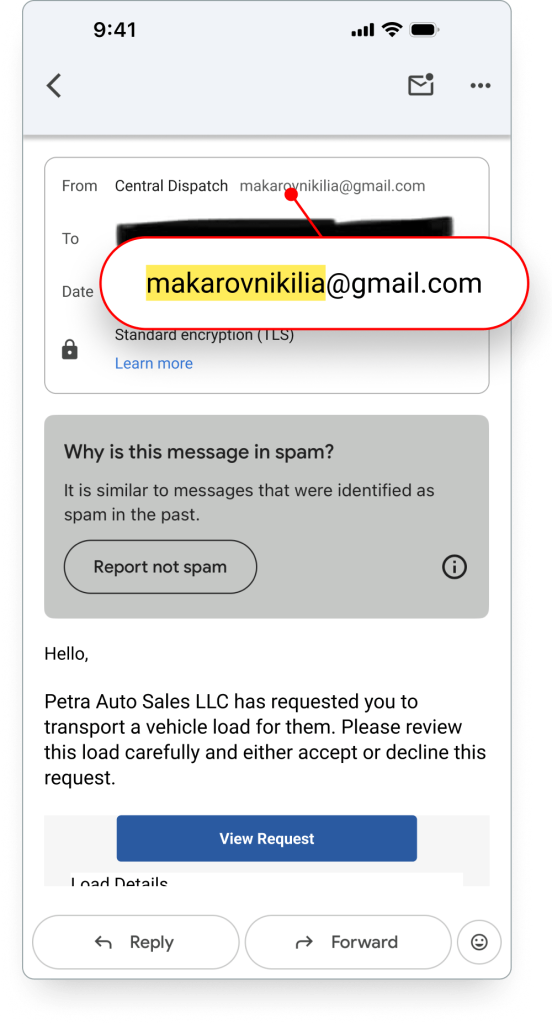
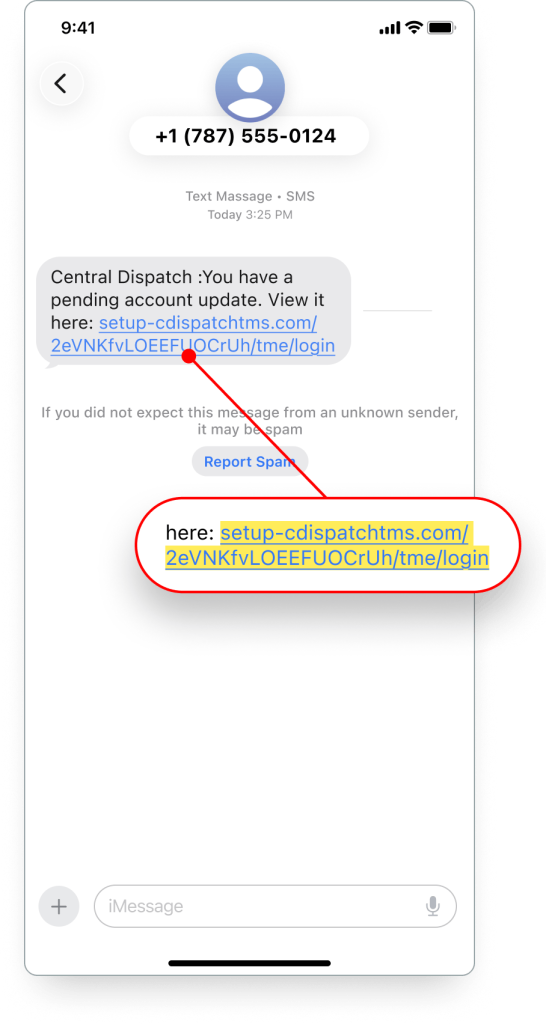
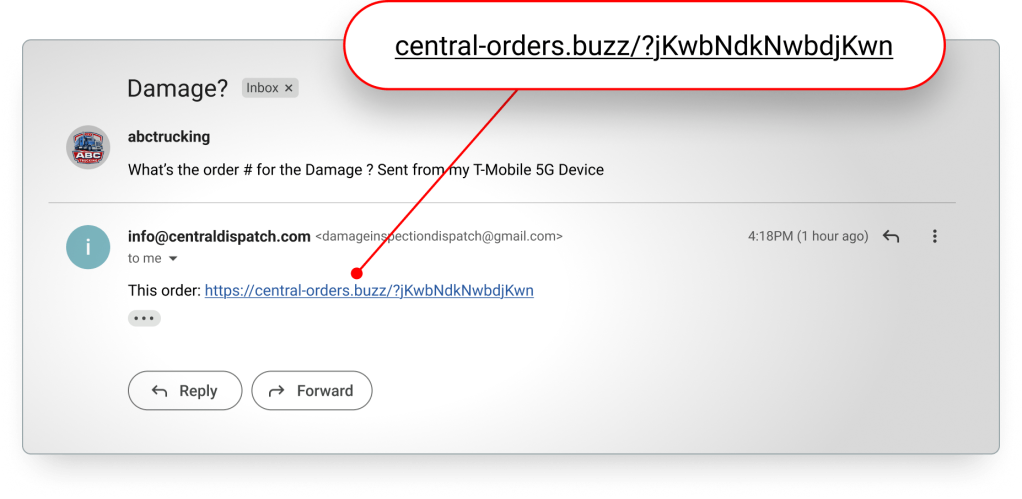
Lookalike Domains: Though scammers can create fake websites that look nearly identical to the official Central Dispatch site or login portal, they always use domains with noticeable character changes, like cëntraldispatch.com.
These fake links can appear in emails or text messages and often look convincing at first glance—but the URL itself will not match Central Dispatch’s official domains.
Legitimate URLs will always contain centraldispatch.com with no special characters or alterations, such as:
- www.centraldispatch.com
- app.centraldispatch.com
- id.centraldispatch.com
Some scammers may leverage legitimate URLs to appear more credible.
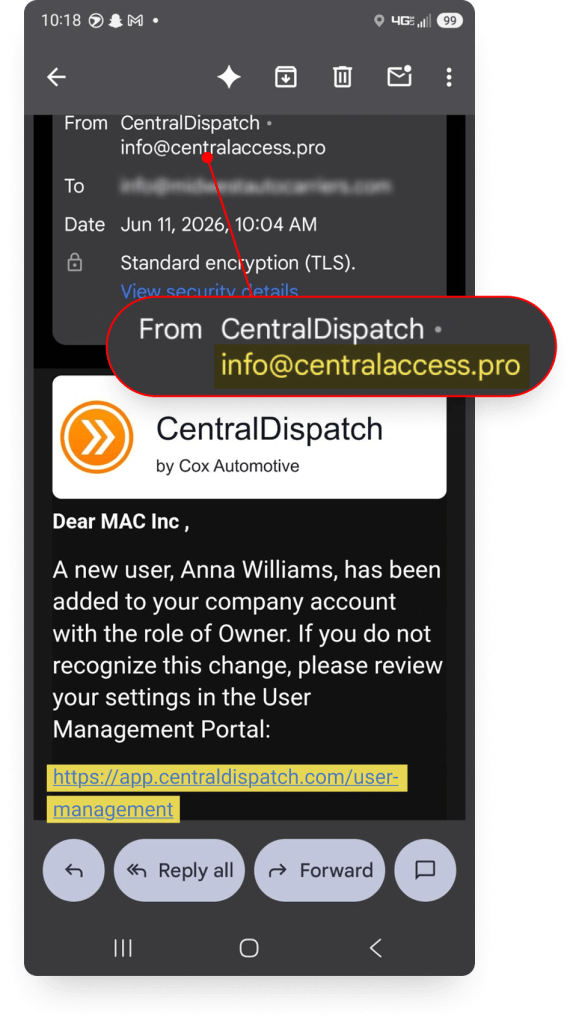
Urgent or Threatening Language: Phishing scams typically use intense language in order to get you to act fast without thinking. Be wary of any messages with sentences like: “Act now or your account will be locked” or “Your service will be discontinued.”
How to Protect Yourself
Use Extreme Caution: We will never ask for passwords, payment details, ACH, or US DOT information through an email or text. Any message requesting you to take actions involving your sensitive information are very likely phishing scams.
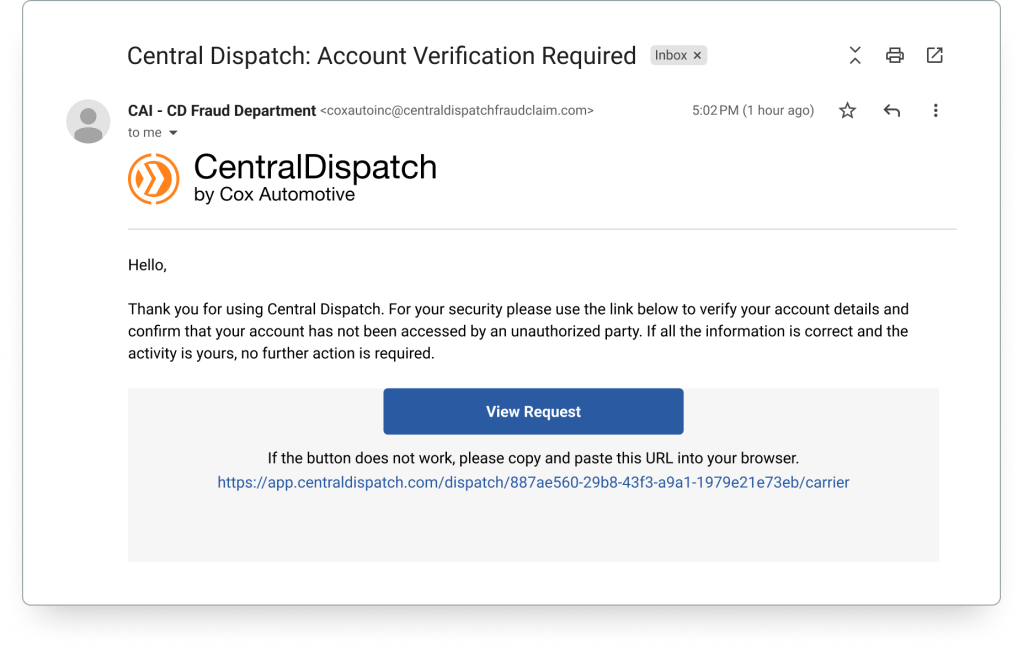
Verify Sender Email & URLs: Closely examine messages before clicking any links or downloading attachments. Hover over the sender’s display email name to reveal the true address and see if it looks unusual. Be sure to double check all domains and URLs for extra letters, special characters, or alterations.
If you have doubts, type “centraldispatch.com” directly into your browser and confirm the requests. This ensures you’ll reach our legitimate web page.
Secure Your Account: To add an extra layer of security to your account, set up User Management. This gives each user in your organization their own set of log in credentials, and lets you control their access to sensitive information—dramatically reducing the risk and impact of stolen credentials. You should never share your Central Dispatch log in credentials with anyone.
Report Suspicious Activity: If you receive a suspicious message, report it to our Marketplace Integrity Team. It helps us track scam patterns, investigate cases, and provide you with more personalized security guidance.
Contact the Marketplace Integrity Team at CentralDispatchFraudClaims@coxautoinc.com or by phone at 800‑928‑7869.
Security isn’t just a technology challenge—it’s a shared responsibility between platforms and the people who use them. So while your awareness remains your strongest defense, we’re continually working behind the scenes to root out bad actors, and create new tools to help you stay safe.
Welcome to Central Dispatch! We’re excited for you to get started shipping vehicles with us. Read this start guide to make sure you have your account set up properly, and you’re ready to take full advantage of everything our platform offers.




 1. Setting Up Your Account
Confirm your company profile
We automatically populate your company profile based on the details you provided at sign up. Be sure to confirm all your info is correct by clicking your name in the top right of the screen, then clicking “Company Profile” from the dropdown menu.
You can also add your business contacts and edit their roles (Owner, Billing, Listing, Dispatch), edit your account preferences, manage your preferred and blocked carrier list, and more.
For more details on setting up your profile, see our user guide >
Set up User Management
User Management gives each employee or contractor in your organization their own Central Dispatch log in — greatly reducing the risk of identity fraud and unauthorized access. It also allows you to assign each team member a role, giving you control over who can access certain features, and who can view certain business information.
Getting started is easy. Just click your name from any page on Central Dispatch and select “Manage Users” from the account dropdown. From this screen, you can add new users, assign their role, or edit any current user.
Adding a new user automatically sends an invitation to the email address you enter for them. Members of your team need to accept the invite before becoming active users.
Get an in-depth look at User Management in this step-by-step video tutorial >
Access and set up billing
To set up your payment methods and billing, click your name at the top right of the screen, then click “Billing” from the dropdown menu. Here you can add or edit your preferred credit or debit cards, pay invoices, view your billing history, toggle on automatic payments, and upgrade or change your subscription.
For more on billing set-up and payment, read our user guide >
Manage your subscription
To view or change your subscription or tier level, go to the “Your Subscription” area in the “Billing” page. There you’ll see the number of vehicles you’ve listed this month, and a progress bar showing you how close you are to your current limit.
Click “Manage Subscriptions” to view all your subscription, tier level, and add-on options. You can make changes in just a few clicks by selecting a new plan, tier, or add-on and hitting “Update Subscription.”
For more on subscriptions and tier levels, read our user guide >
2. Posting & Managing Loads
Post your first load
With your profile, users, and billing set up, you’re ready to start posting loads with us! Click the “Ship Vehicles” tab at the top left of your screen to reach the Create Load page. From there, it only takes a few minutes to fill out all your vehicle information to post to the load board or assign directly to a carrier.
You can also use our “Price Check” tool to bring up a table containing recent loads similar to yours and their listed price, helping you secure a fair, competitive rate. Premium subscribers can use “Price Check Plus” for even more listing insights, and AI-powered pricing recommendations.
Carriers will contact you via the phone number you include under “Listing Role,” so be sure to enter the appropriate number in that field before listing. When contacted, you should also always verify their FMCSA information with our FMCSA Checklist, and look through their insurance documentation. We recommend confirming their details through the FMCSA website to be sure their credentials are legitimate.
Once you’ve selected a carrier, navigate to the “Manage Listings” page to assign the load to them.
For more on posting loads, read about our Create Load Experience >
Managing your loads
Once you’ve dispatched a vehicle to a carrier, managing them throughout the shipping process is easy! Just navigate to the “Manage Listings” page, where you can edit, archive, and delete any current listings. You can also find exactly what you’re looking for fast by filtering by Listing status, pick-up or delivery location, listing ID, or YMM.
If your carrier partner has enabled Real-Time Tracking, you can see your shipments live location on an interactive GPS map, and receive delivery status updates directly from the driver. We recommend requesting all your carrier partners enable Real-Time Tracking for the most streamlined experience possible, and increased peace of mind.
For more on managing loads, view our user guide >

3. Rate your carrier partner
Once a job is complete, use the Transactional Ratings system to rate and review your carrying partner. This system allows you to give each transaction an overall rating, plus ratings in three distinct categories: Timeliness, Communication, and Documentation.
We recommend leaving a written review to give more details on your experience working with them. You can also choose when your review is published, giving you the confidence to share your full experience and provide honest feedback.
Be as fair and thorough as possible when describing your carrier partner’s performance, so other shippers can make better, more informed partnering decisions.
Note: In order to rate a transaction, the load must be in Delivered or Cancelled status.
If the carrier has not updated the status, you can update it manually. See the Manage Loads user guide for detailed steps.
Learn more about Transactional Ratings in this step-by-step video tutorial >

4. Use the Resource Center
Want to fully maximize your Central Dispatch subscription? Be sure to check out our Resource Center, where we’re always adding new content like in-depth video tutorials, thought leadership, and new feature announcements. It’s the best way to keep up to date with the platform, and ensure you’re using every tool to your advantage!
Ready to post your first load? Get started! >
An overview of the My Profile page, including how to edit your contact information, manage verification steps, view company relationships, and access terms of use.
Every User has their own My Profile page:
- Contact and Security Info contains your username and password to log into your account
- Your Company Connections displays the different companies you are associated with on Central Dispatch
- Terms of Use includes the date you accepted the terms
To view your My Profile page, click on your username and My Profile from the drop-down menu.
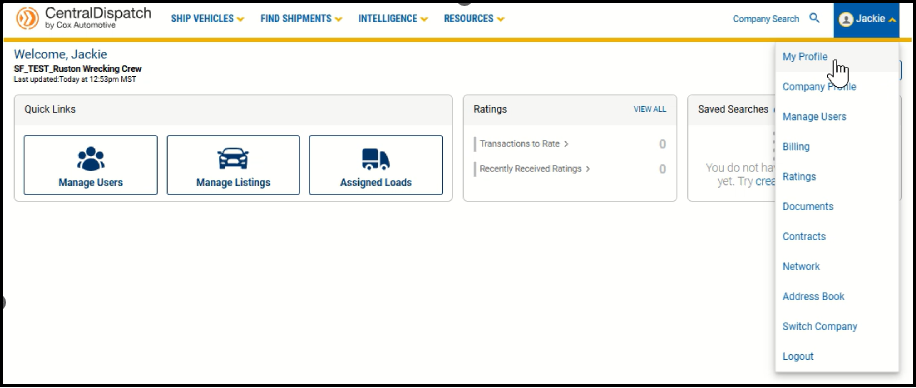
From the Contact and Security Info tab, click EDIT or CHANGE to update profile information.
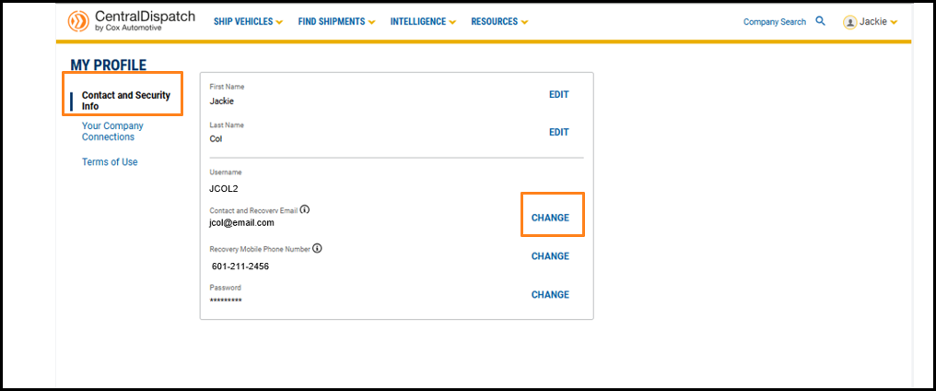
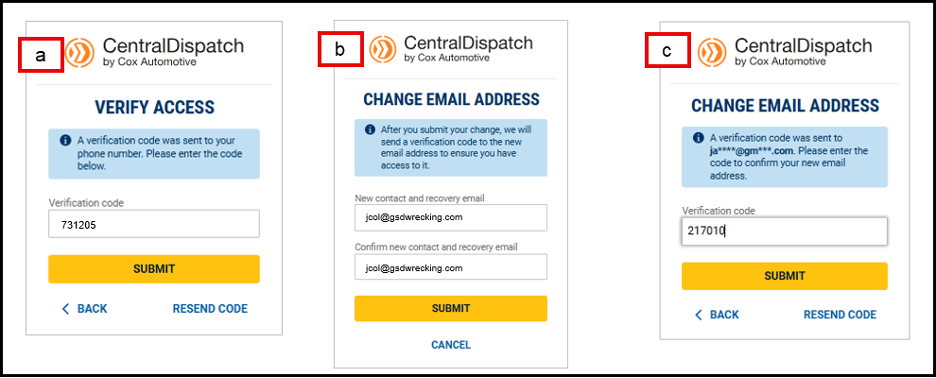
- Making any changes to your My Profile requires verification for the security of your account
- Enter the verification code sent
- Enter your new contact and recovery email (or phone number)
- A verification code will be sent to the added email or phone number to confirm you have access
- Enter code and submit
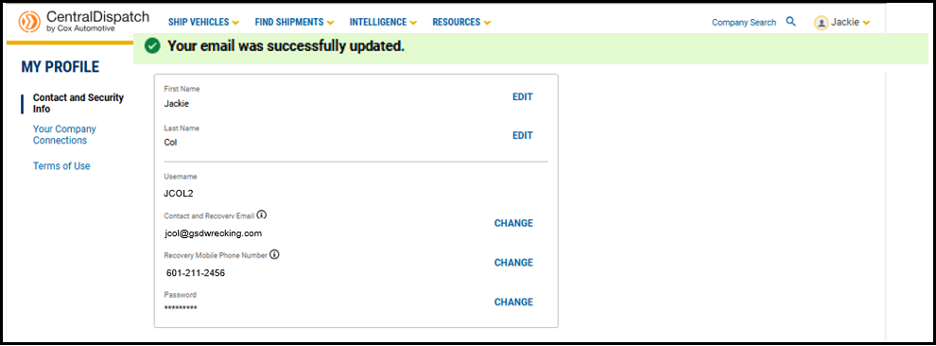
Result: A message will appear displaying the update was successful
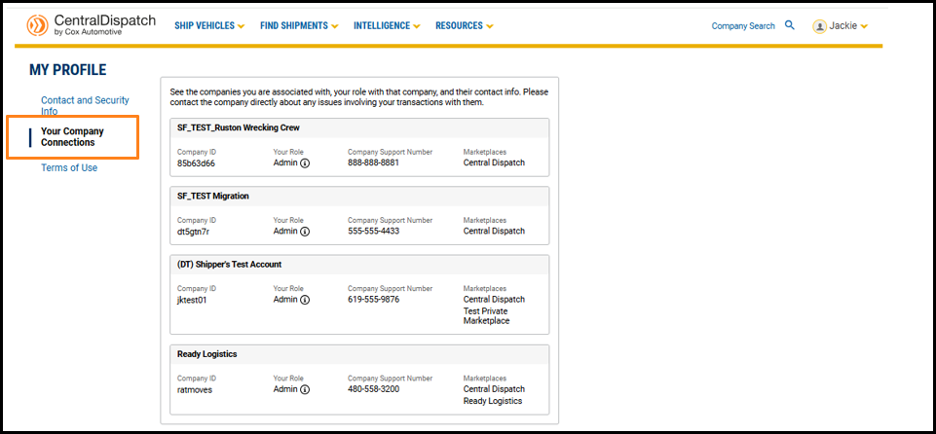
If you are a member of multiple companies, the Your Company Connections tab displays all the companies you are associated with, along with your role.
- The Company Support Number is available, and users are encouraged to reach out to the company directly for help with issues regarding their account or transactions
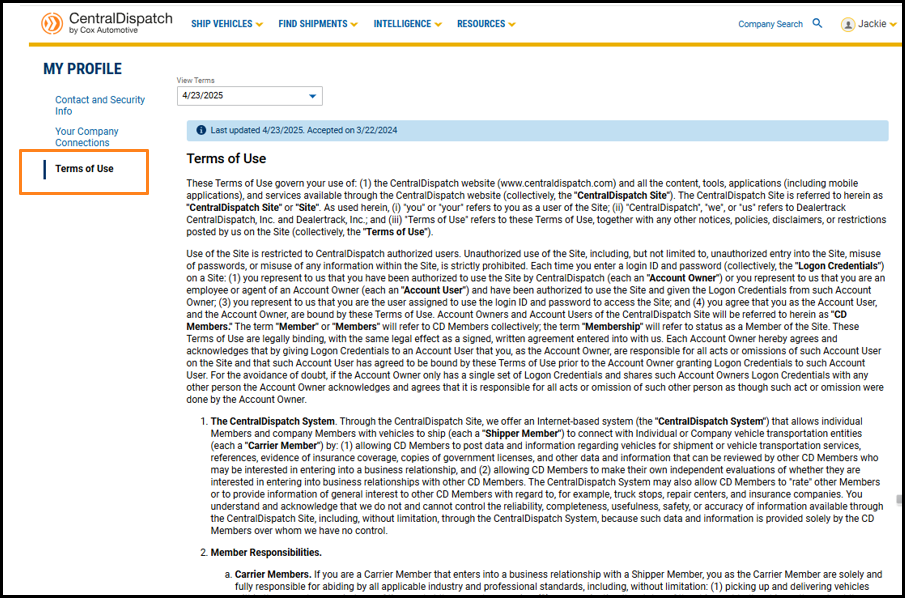
Terms of Use allows you to view the terms of use and the last time they were updated.
Customize your Central Dispatch Dashboard to show widgets that are most relevant to your business. Showcase what’s most important to you, while hiding anything you don’t need to see in order to save time and streamline your view.
To get started, click the Customize button on your dashboard.
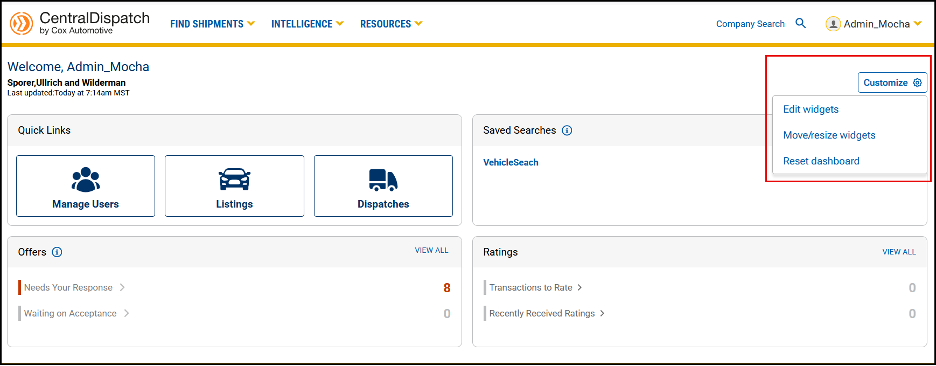
Edit widgets opens a slide out form, allowing users to select which widgets they want to appear on their dashboard. After selecting widgets, click Confirm.

Move/resize widgets allow you to drag and drop the widgets to any position on the dashboard.
- Widgets will automatically resize based on their position on the page
- Click Done to lock the widgets in place
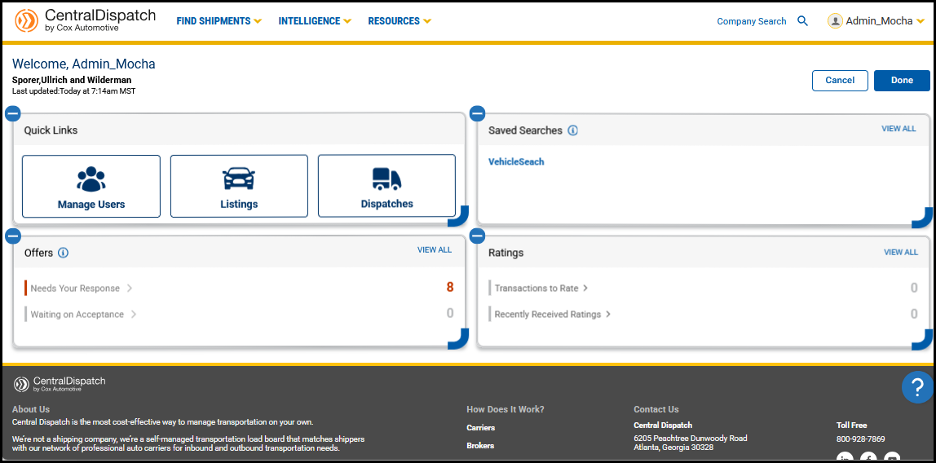
Reset dashboard returns the widgets to their original position.
Premium and Price Check Plus customers will soon have access to an estimated time to dispatch in the Central Dispatch Price Check Plus tool. Estimated time to dispatch will automatically be shown along with each pricing recommendation, allowing shippers to have clearer timing expectations and help determine how to price a load. This enhancement also helps carriers reduce idle time, and helps everyone on our platform forge stronger relationships with partners.
Learn more about the estimated time to dispatch in our latest article and user guide. Learn more about our Premium and Price Check Plus add-ons on our plans page.
This edition of Central Dispatch Highlights focuses on our upcoming Price Check Plus time to dispatch and ID verification enhancements.
View Estimated Time to Dispatch with Price Check Plus
Premium and Price Check Plus customers will soon be able to see an estimated time to dispatch for each pricing recommendation. This will help shippers determine where to price a load based on their scheduling needs, and allow carriers to reduce idle time.
Help Keep the Marketplace Safe with ID Verification
All customers will soon be required to complete ID verification in order to utilize Central Dispatch. ID verification will help us enhance security, reduce fraud, and foster more trust across the marketplace.
Price Check Plus just got even better! Premium customers will soon see a “time to dispatch” with each AI-powered pricing recommendation, indicating the estimated time it will take for a vehicle to ship.
This update will help shippers quickly determine where to price a load based on their timing needs, and spend less time re-listing loads at different prices. For carriers, it means having a clearer idea of timing expectations, reducing idle time, and building stronger business relationships. To get the shortest estimated ship times possible, we recommend posting loads in the morning or during the week, rather than in the evening or on weekends.
The update will automatically appear in the current Price Check Plus tool at launch, no extra action is required from you.
For full details on Price Check and Price Check Plus, read our blog post.
