

Invoices just got easier for carriers, and more transparent for shippers. Carriers can now add incremental expenses right from the mobile app! Whether it’s an unexpected toll, storage fee, or other incidental cost, any charge can be quickly and easily attached to an invoice in real-time, ensuring all expenses are clearly documented and instantly visible to shippers. All in one centralized platform!
No more off-platform communication or confusing bills. Carriers can just open the app, navigate to a load details page, and add a charge with a few taps. Plus, built-in notifications keep both parties up-to-date on invoice changes, while editable charges provide flexibility when updates are needed.
In addition, carriers can now more dynamically interact with the eBOL in the Central Dispatch app, bringing the same functionality available in the web experience. Now, there’s no need to transition back and forth from the web experience to view and interact with inspection data and photos while on-the-go.
View the step-by-step guides on adding invoices and viewing eBOL, and download the Central Dispatch mobile app today!
Introducing an all-new way to access your Central Dispatch account. With the authenticator app, you receive a time-based sign-in code that’s instantly accessible right from your phone!
Why We’re Doing This
The authenticator app gives you a secure way to complete multi-factor authentication (MFA) without relying on email or SMS, and provides a reliable alternative when text message codes aren’t available. It’s part of our commitment to protecting users, and ensuring everyone can easily access their account.
What it Means for International Users
Users outside the United States, Canada, and Puerto Rico (whose phone numbers do not support text verification) will be required to enroll in the authenticator app.
What it Means for Domestic Users
Domestic users can choose to enroll as a preferred verification method, or as an alternative method in case of issues or outages with text codes.
Sign in via the authenticator app will be rolling out to users starting in April through late May. Learn more about the app and how to use it in our user guide.
The authenticator app provides a MFA (multi-factor authentication) process for users that do not have access to a supported phone number for SMS verification and as an additional option for users other than SMS verification.
Central Dispatch does not support SMS verification for international phone numbers, users outside of the U.S., Canada, and Puerto Rico. These users are currently verifying using email; the authenticator app is a more secure process.
Table of Contents:
- Authenticator App Overview
- First time log in for users after Authenticator App rollout
- When verifying using an Authenticator App
- Installing an Authenticator App
Authenticator App Overview
- The authenticator app is offered as an alternative to phone-based MFA.
- Domestic Users (U.S., Canada, Puerto Rico)
- Users are required to have a recovery phone number listed in My Profile
- Users can also enroll in the authenticator app as an alternative option, if they do not want to use their phone
- Note: If the user is not enrolled in the authenticator app, they cannot change the MFA method to authenticator app during login (example, Verizon goes down, user cannot switch to authenticator app instead of phone number during log in.) The user would need to enroll in the authenticator app through My Profile.
- Users Outside the U.S., Canada, or Puerto Rico
- Phone numbers outside of the U.S., Canada, Puerto Rico are not supported for MFA.
- Users are automatically taken to the authenticator app page when logging in.
- Email verification will not be available
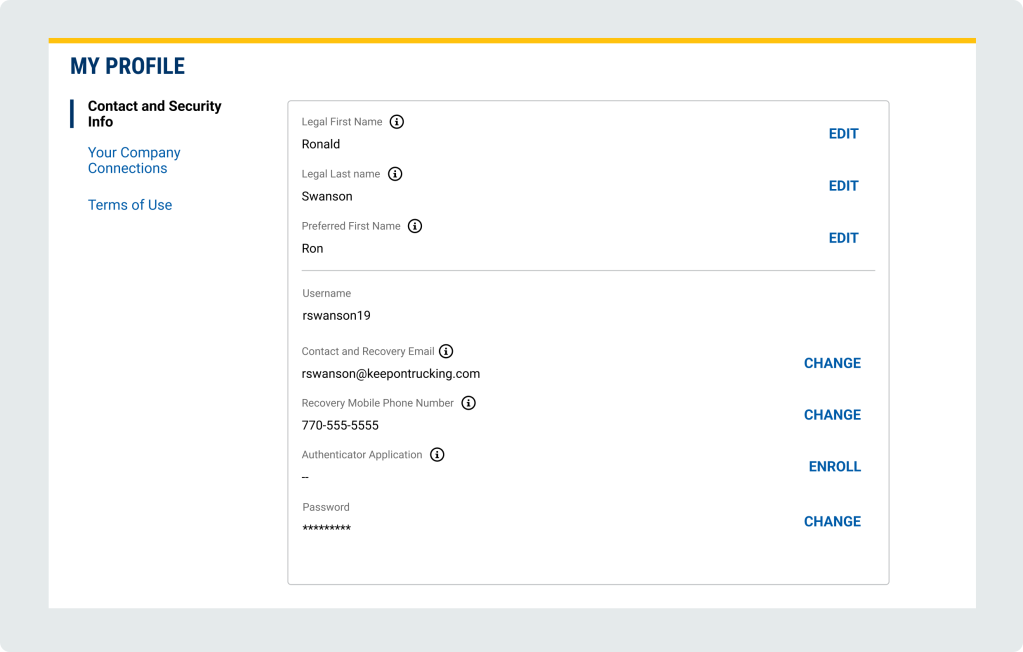
My Profile – Contact and Security Info
- Legal First Name and Legal Last Name: must match what is present on driver’s license, passport or other legal documents
- Preferred First Name: used in communications to clients and on users’ profile
- Username: used to log in to an account
- Recovery email: will only use to verify account if authenticator app or phone number is not available. Will not be displayed on account or shared
- Recovery phone number: Only used to verify or recover the account. Will not be displayed on account or shared
- Authenticator Application: Used to verify or recover the account for or users outside of U.S., Canda, Puerto Rico. domestic users. Can be used as an alternative to phone numbers for domestic users.
- Password: Used to log in to an account
First time log in for users after Authenticator App rollout:
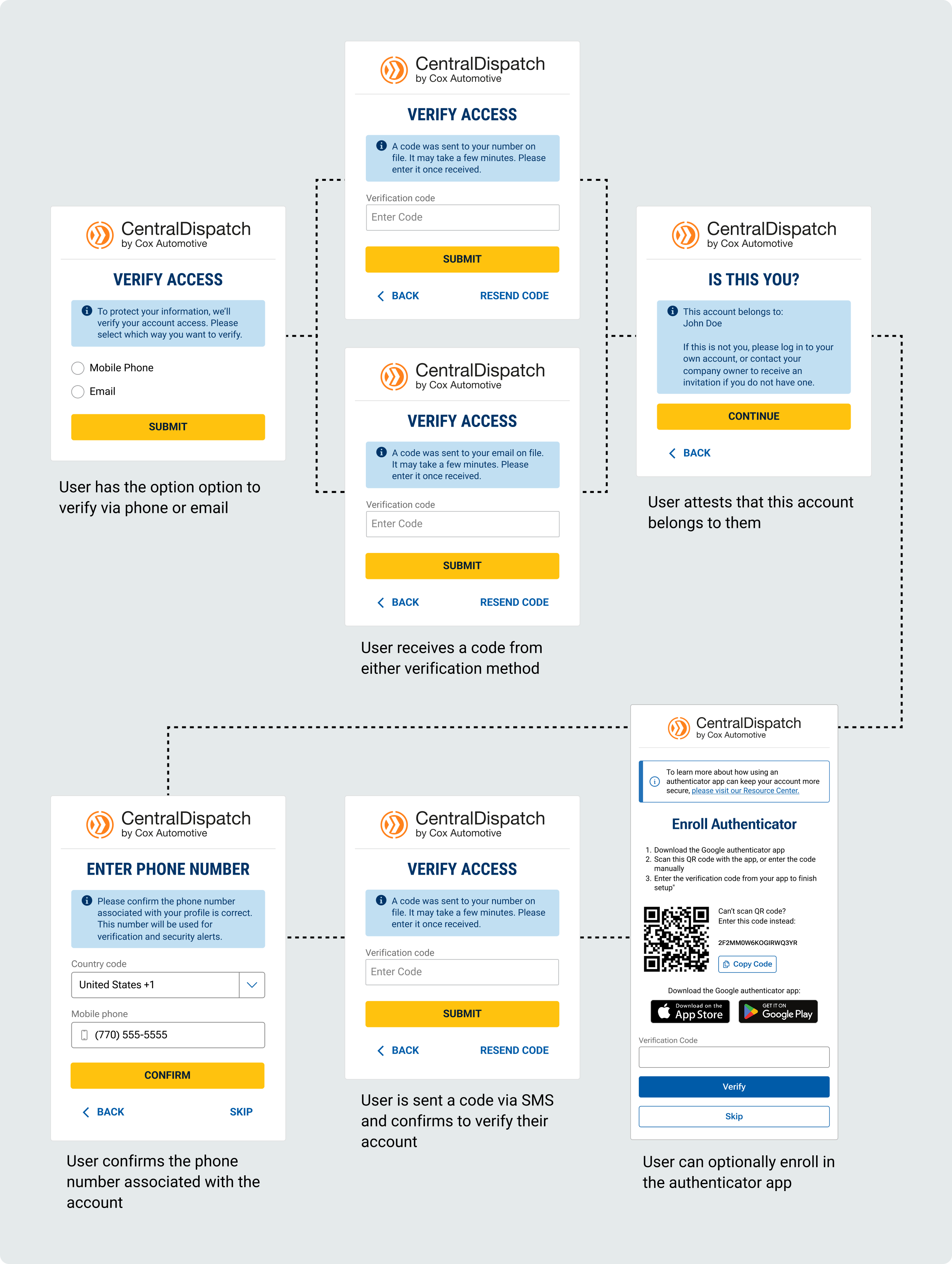
Scenario 1: User has a phone number listed in My Profile:
- User will verify account using the recovery email or recovery phone number in My Profile
- After successful verification the user will be taken to the authenticator app screen and can enroll, user can also Skip enrollment in app
- Note: if users skip enrolling in authenticator app, they can enroll at any time through My Profile
- Note: if users skip enrolling in authenticator app, they can enroll at any time through My Profile
- After the initial log-in after authenticator app roll-out
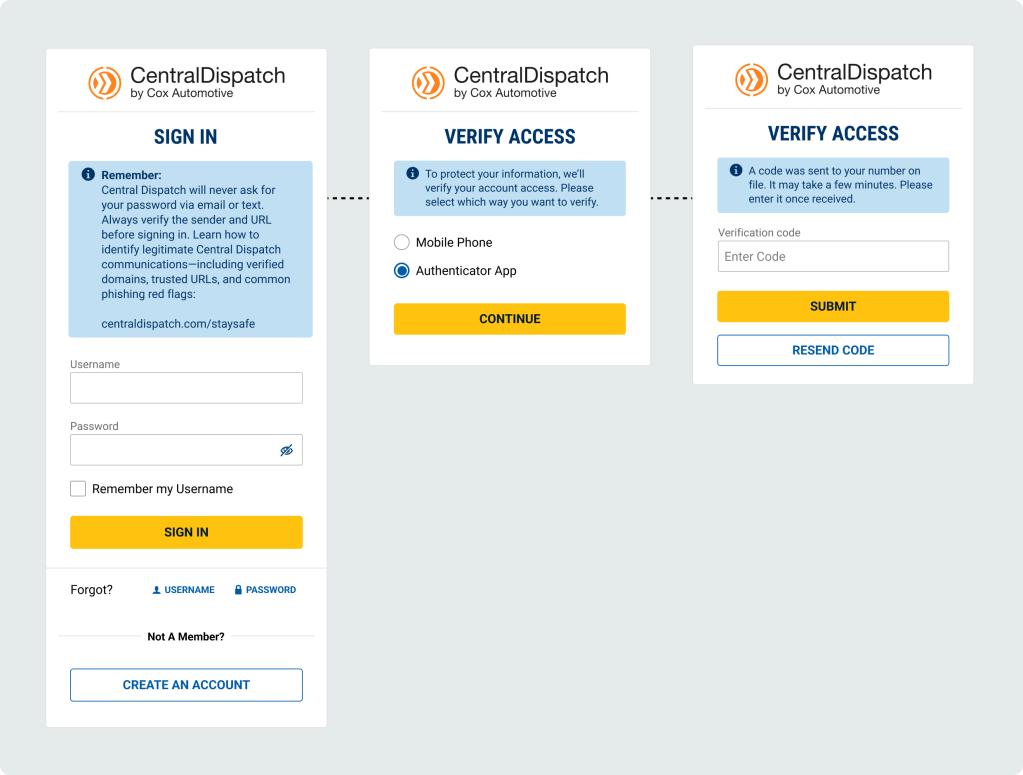
- Users that enrolled in authenticator app will have option to verify using authenticator app or Mobile Phone
- Users that did not enroll in authenticator app will automatically have verification code sent to mobile phone (will not see middle screen)
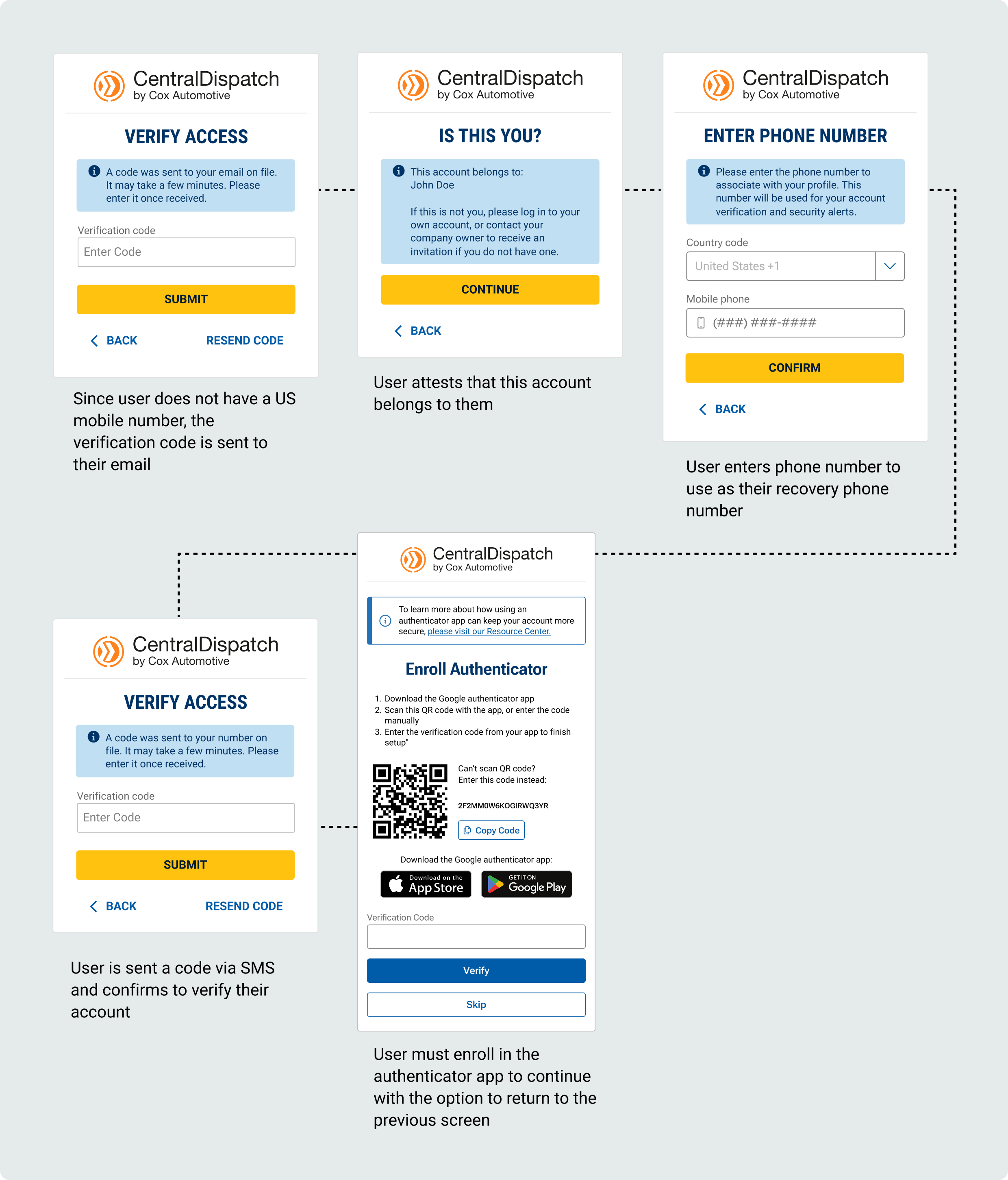
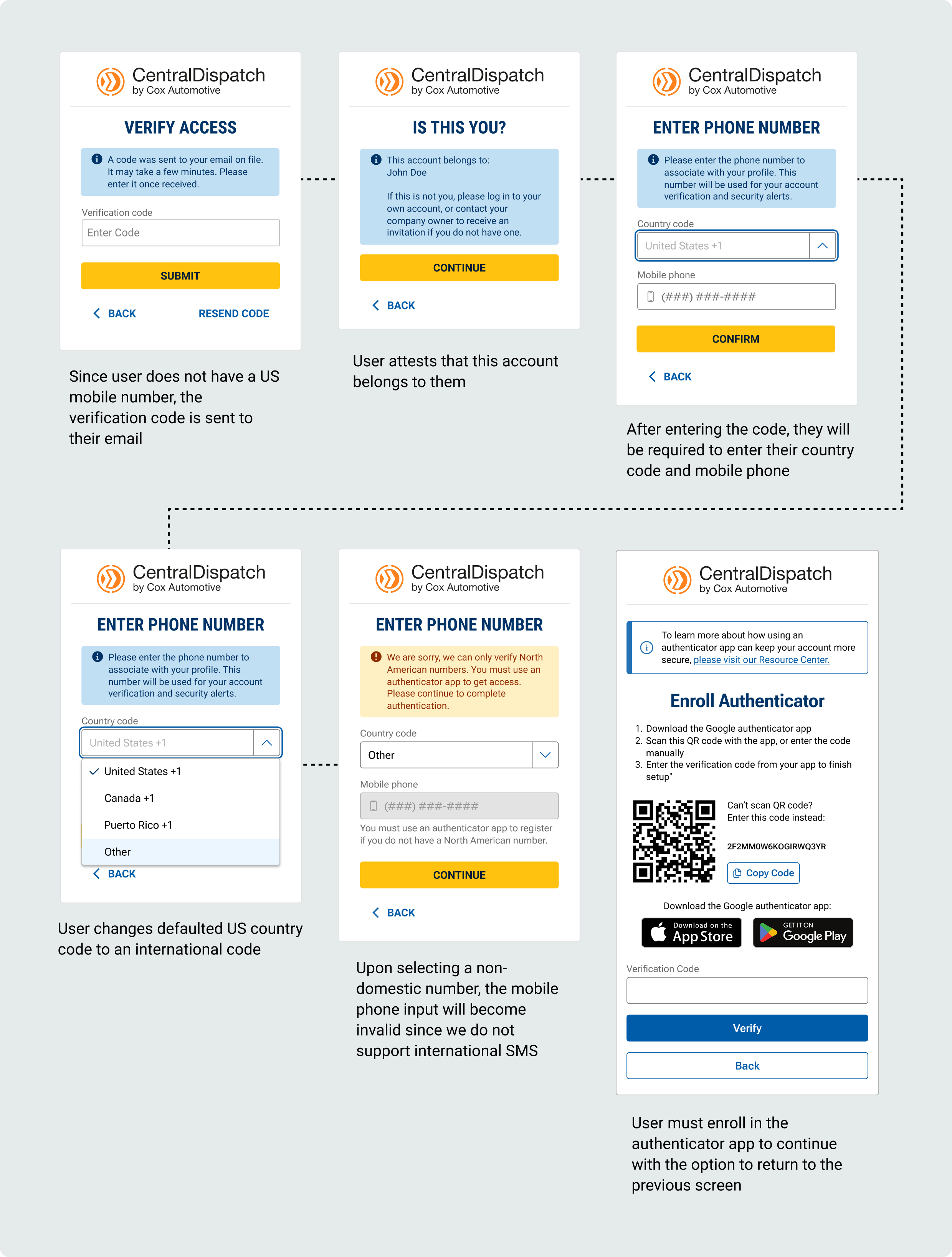
Scenario 2: User does not have a phone number listed in My Profile, but is a domestic user with a phone inside the U.S., Canada, or Puerto Rico
- User will verify account using the recovery email in My Profile
- After successfully entering the verification code, the user will be taken to a confirmation screen to attest the account belongs to them
- Users will be asked to enter a recovery phone number to their profile by entering the country code for the phone number
- Since country code is U.S., Canada, or Puerto Rice, the user will be taken to the authenticator app screen and can enroll, user can also Skip enrollment in app
- Note: if users skip enrolling in authenticator app, they can enroll at any time through My Profile
- Note: if users skip enrolling in authenticator app, they can enroll at any time through My Profile
- After the initial log-in after authenticator app roll-out
- Users that enrolled in authenticator app will have option to verify using authenticator app or Mobile Phone
- Users that did not enroll in authenticator app will automatically have verification code sent to mobile phone (will not see middle screen)
Scenario 3: User does not have a phone number listed in My Profile and is outside the U.S., Canada, or Puerto Rico
- User will verify account using the recovery email in My Profile
- After successfully entering the verification code, the user will be taken to a confirmation screen to attest the account belongs to them
- Users will be asked to enter a recovery phone number to their profile by entering the country code for the phone number
- If the Other code is selected, the user will not be able to enter the mobile phone number with a message that we do not support international SMS
- User will be taken to the Enroll Authenticator screen
- User will not be able to skip enrolling in authenticator
- User will not be able to skip enrolling in authenticator
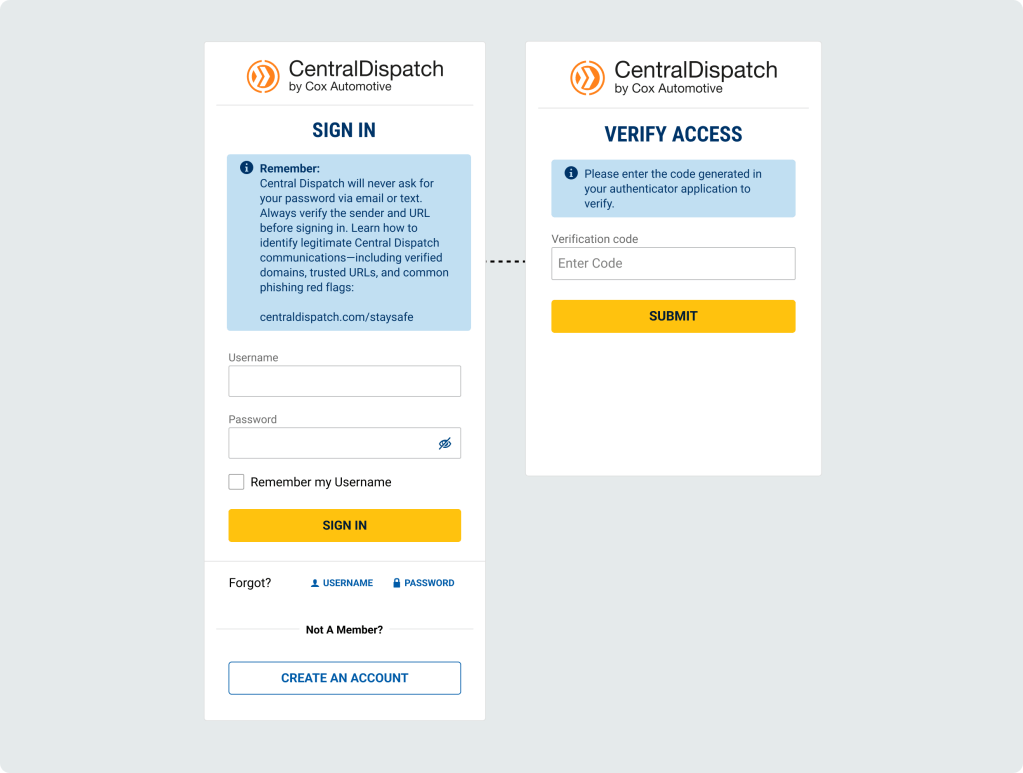
- After the initial log-in after authenticator app roll-out
- Users with a mobile number outside of the U.S., Canada, Puerto Rico will be automatically taken to the screen and instructed to enter the code generated in their authenticator app to verify
When verifying using an Authenticator App:
When prompted for a verification code:
- Open the Authenticator app
- Find your account name
- Use the 6‑digit number shown
- The number changes every 30 seconds — this is normal
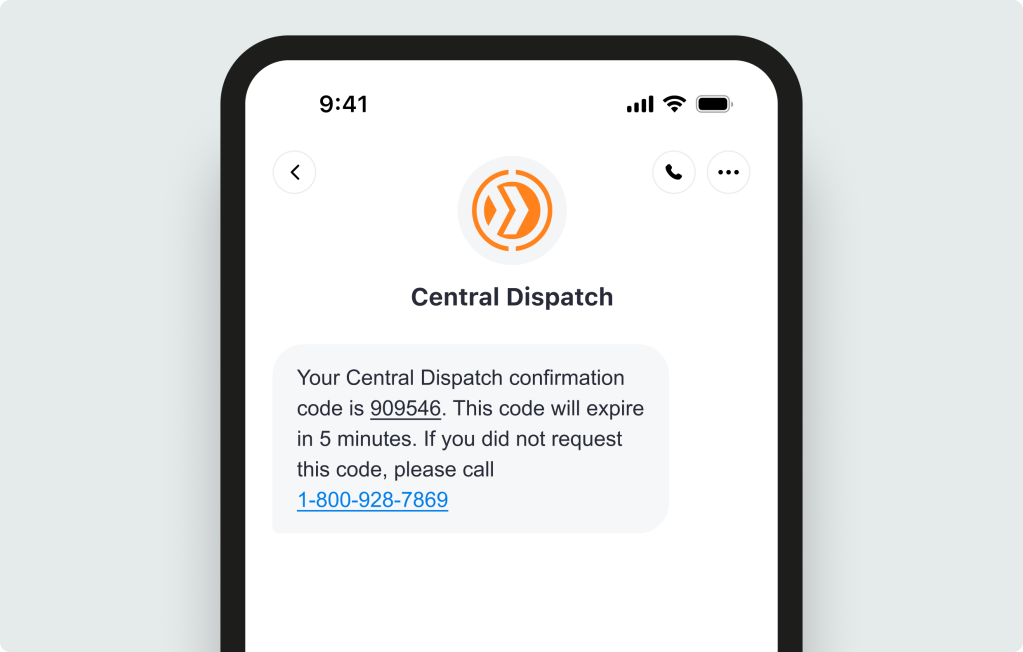
SMS Verification text message:
Installing an Authenticator App
Step 1: Download the App
On your phone:
- Scan the QR code on the Enroll Authenticator screen or open the App Store (iPhone) or Google Play Store (Android)
- The QR code will direct user to Google Authenticator, but user is able to use authenticator of their choice
- Download the app
Step 2: Open the App
- Open the app
- Allow notifications (if asked)
- Allow camera access (if asked)
This helps the app work correctly
Step 3: Set Up Your Account (One Time Only)
In the app:
- Tap Add account, Begin setup, or the + sign
- Google authenticator will ask for users Gmail account, users do not need to use a Gmail account, can add any email address (example, Gmail, outlook, etc)
- Follow the on‑screen steps to finish setup
Step 4: Get Your Code When Signing In
When prompted for a verification code:
- Open the Authenticator app
- Find your account name
- Use the 6‑digit number shown
- The number changes every 30 seconds — this is normal
Quick Tips
- You do not need internet to see the code
- If a code expires, wait for the next one
- Keep the app installed — you’ll use it each time
Recorded at the NADA Show 2026
Transcript:
Matt Newton, Director of Product, Central Dispatch:
Hey everybody, I’m Matt Newton, Director of Product for Central Dispatch. Today, I want to show you how Central Dispatch is leading the automotive industry in a new standard of trust and security with government ID‑backed verification for our user base of more than 60,000 users across the platform.
Fraud in the automotive transportation industry has become more frequent, more sophisticated, and more costly. As the industry becomes more digital, fraud has emerged as a growing challenge for dealers, brokers, and carriers. To combat this risk and strengthen overall marketplace security, Central Dispatch now requires all users to verify their identities—ensuring every user is linked to a real, trusted individual.
Central Dispatch is the first logistics marketplace to implement platform‑wide identity verification, reinforcing our position as the most trusted and secure marketplace in the industry. What does this mean for you? It means you can have greater confidence in who you’re working with on Central Dispatch.
ID verification also helps us identify situations where users may have multiple usernames. With this process, we can enforce a one‑user, one‑username standard while still ensuring individuals have all the access they need within the platform.
The verification process is simple. All that’s required is a smartphone or tablet with a camera and a government‑issued ID. Users scan their ID, take a quick selfie, confirm their information, and that’s it.
All new and existing users are required to complete ID verification to continue accessing the Central Dispatch marketplace. Users who do not complete verification will no longer be able to access the platform.
To support this rollout, we’ve partnered with Socure and other leaders in the digital identity verification space. These partners work with more than 3,000 organizations, allowing us to apply proven best practices directly within our platform. Our identity verification experience supports IDs from more than 180 countries, including driver’s licenses, passports, national IDs, and green cards—ensuring our diverse, global user base can complete the process quickly and easily.
ID verification builds on, but does not replace, the other security measures Central Dispatch has implemented. These include enhanced multi‑factor authentication at login and when making changes to user or company profiles, as well as notifications for profile updates or when a new device accesses an account.
We’ve also introduced a new carrier scorecard designed for dealers. This scorecard provides a snapshot of carrier information sourced directly from FMCSA, along with transactional ratings that reflect carrier performance on Central Dispatch.
Together, these security measures—combined with ID verification—form the foundation of a more secure, trusted marketplace and support a safe, end‑to‑end experience on Central Dispatch.
Thank you for your time, and I hope you enjoy the rest of your time here at NADA.
Features:
- A Cleaner design, making it easy to find the information you need available on Central Dispatch.com and the mobile app
- Vehicle information is located along the left side of the invoice, which includes pick-up and delivery dates, invoice date, origin and destination, and vehicle information
- Load ID, along with Shipper and Carrier information, is located at the top
- Payment terms is located in the main section
- Note: Users with a Driver role will not see load price on the invoice
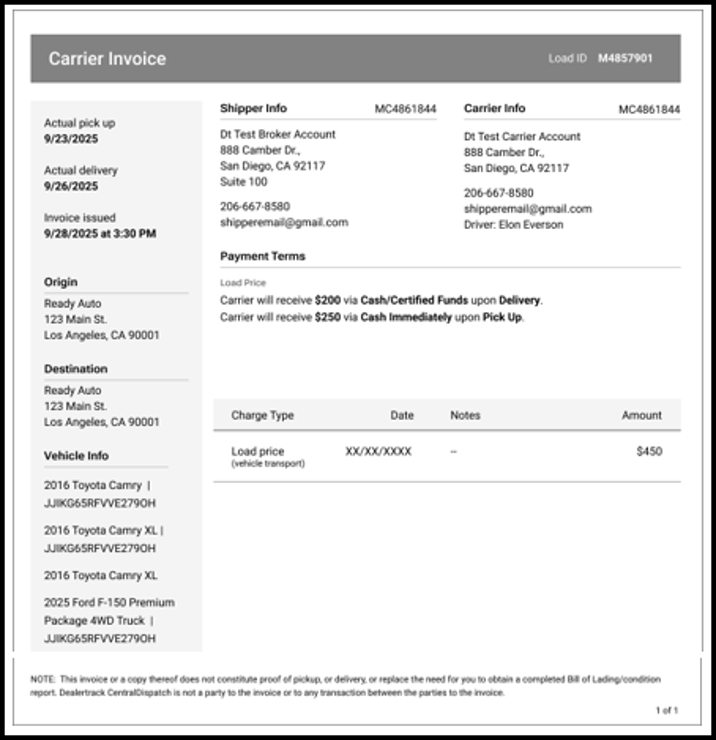
Note: The Notes and Contract Terms sections were removed since they are relevant to the dispatch function, and are part of the Dispatch Sheet.
Overview
The Assigned Loads tab allows shippers to view, update, and manage loads that have been assigned to a carrier. From this tab, you can track dispatch status, access load details, manage documents, and take action on active, archived, or cancelled dispatches.
At the top of the page, you can easily switch between:
- Assigned Loads (loads assigned to a carrier)
- Listings (loads not assigned to a carrier)
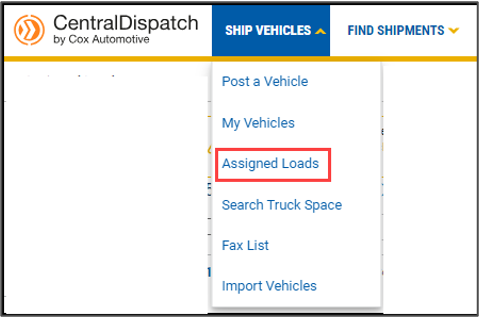
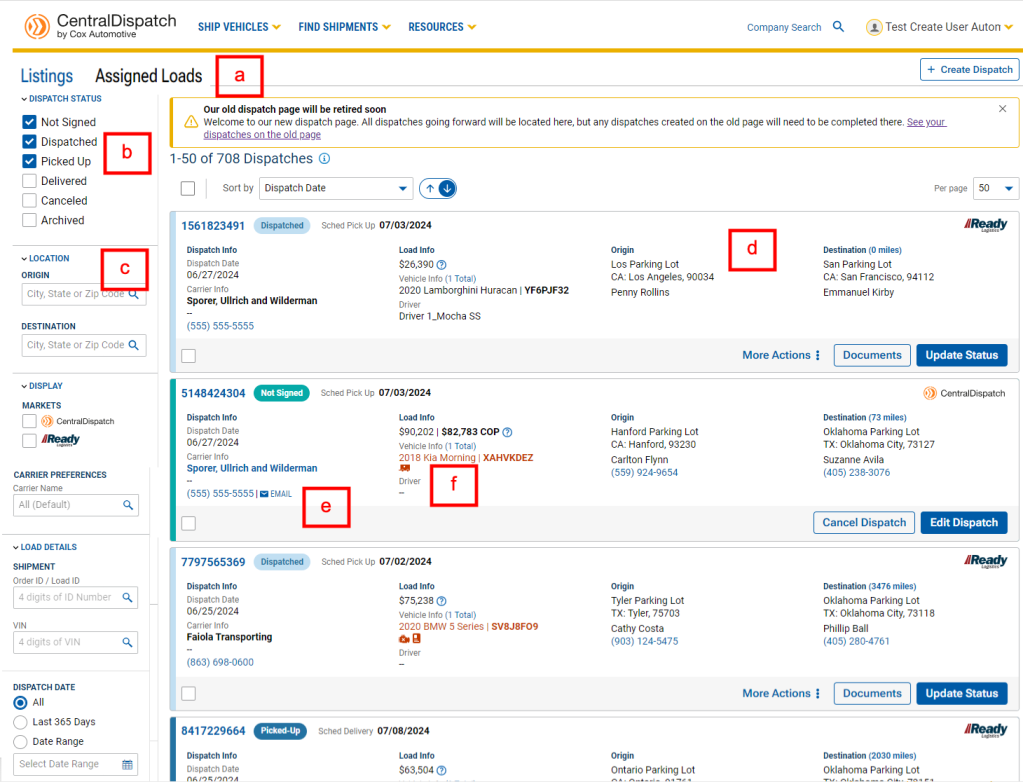
Assigned Loads Page
The Assigned Loads page displays dispatches that have been created and assigned to a carrier.
- Tabs available to easily switch between pages
- Filter listings by DISPATCH STATUS
- Additional filter selections
- LOCATION: Enter pick-up/dropoff locations
- MARKETS: Custom views based on the marketplace, if the user belong to multiple
- CARRIER PREFERENCES: Filter for a specific carrier
- LOAD DETAILS: Filter by Load ID or VIN
- DISPATCH DATE: Filter by date
- Carrier contact information, including a link to send an email
- Any critical tags for a load, including INOP, Enclosed, OS, TWIC
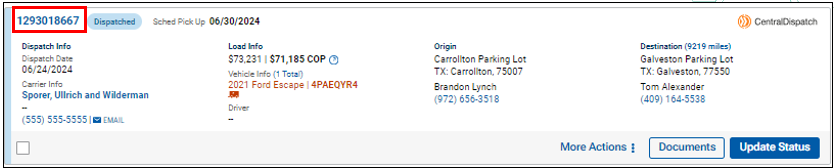
Dispatch Sheet (Transport Order)
Click on the load number to view dispatch details.
•May also be known as the Dispatch Sheet or Transport Order
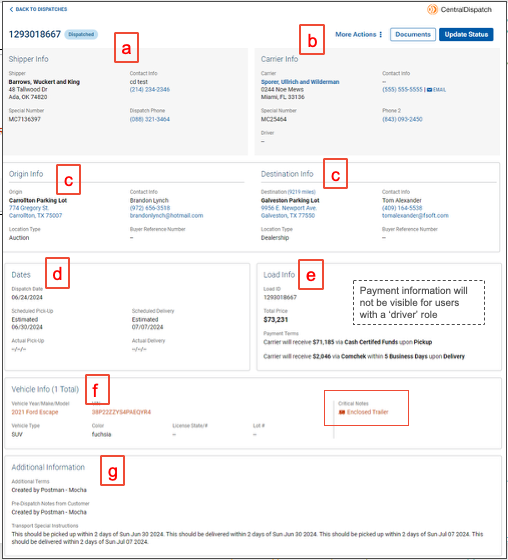
Information available on the Dispatch Sheet:
- Load number and dispatch status
- Action buttons (based on status) to view documents, update status, cancel
- Origin and destination info
- Dates
- Load information
- Vehicle information, including any critical notes, such as enclosed, inop, OS, TWIC
- Additional information, including notes for the carrier
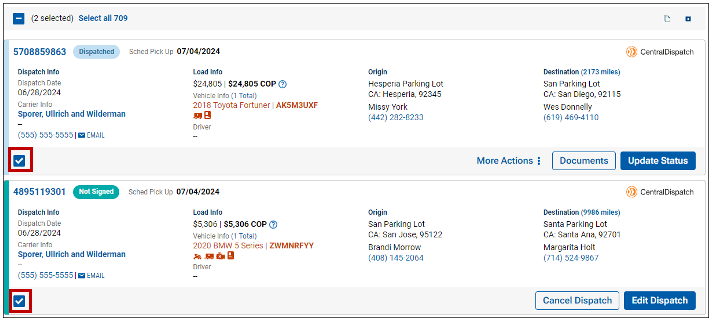
Check box is available on all dispatch listings for easy Bulk Actioning:
- Downloading documents
- Archiving dispatches
Action Buttons Based on Dispatch Status
Dispatches in Not Signed status can be cancelled or modified, and you can view documents (i.e. Dispatch Sheet).
- Modifying a dispatch increases vehicle quota count if additional vehicles are added to the load, or the VIN or YMM are changed

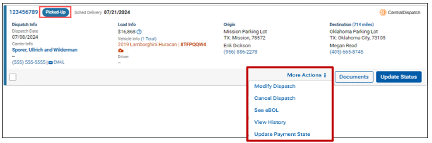
Actions available for dispatches in Picked Up status include Modify Dispatch, Cancel Dispatch, view/send eBOL for pickup if available, view change history, and Update Payment Status.
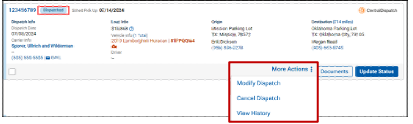
Actions available for dispatches in Dispatched status include Modify Dispatch, Cancel Dispatch, and view change history.
- Modifying dispatch increases vehicle quota count if additional vehicles are added to the load, or the VIN or YMM are changed
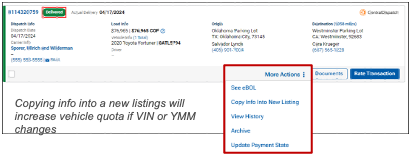
Actions available for dispatches in Delivered status include view/send eBOL if the app was used, Copy Info Into New Listing, view change history, archive listing, Update Payment Status.
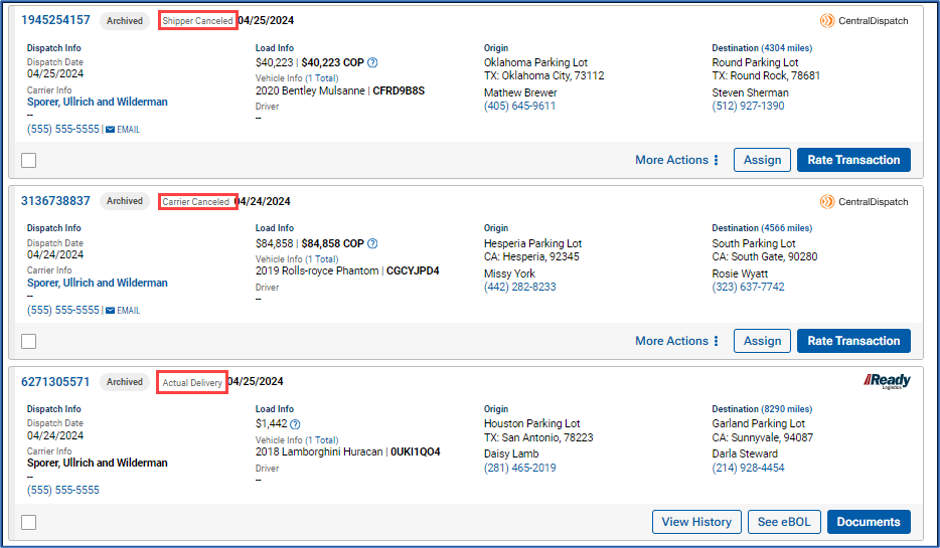
Archived Dispatches
Displays status of dispatch when archived
Cancelled Dispatches
Status displays if cancelled by carrier or shipper
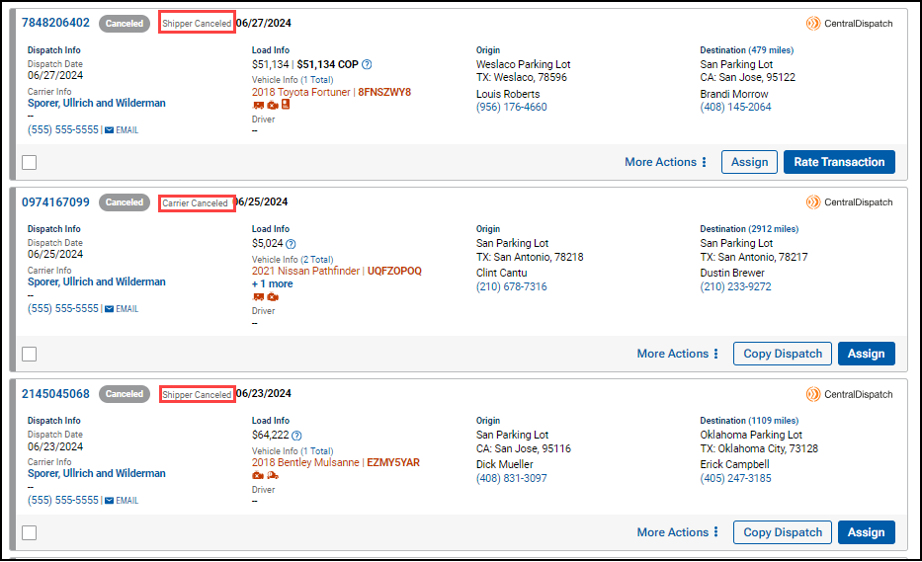
- Action buttons available on Archived and Cancelled status based on status when cancelled or archived
- The Assign button is available on loads that were cancelled prior to being archived, and can be assigned to a carrier
- The Rate Transaction button is available if eligible to rate. If it is past the rating period, the button will be visible, but no rating will be available when clicked
- The Documents button is only available if the load was delivered, which includes the dispatch sheet, eBOL, and invoice
- More Actions:
- View History to view all changes to a transaction
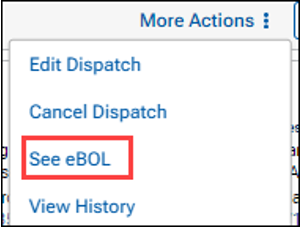
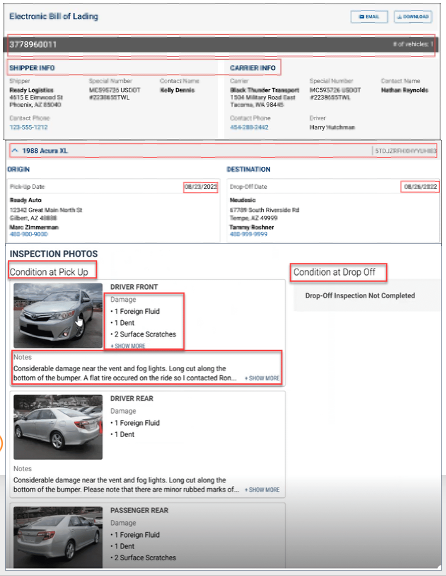
- The See eBOL button is available if delivered, and the eBOL can be viewed, emailed, or downloaded
- Update Payment State if the load is not cancelled by the carrier
- Copy Info Into New Listing will not affect vehicle count quota if relisted with the same vehicle and no changes
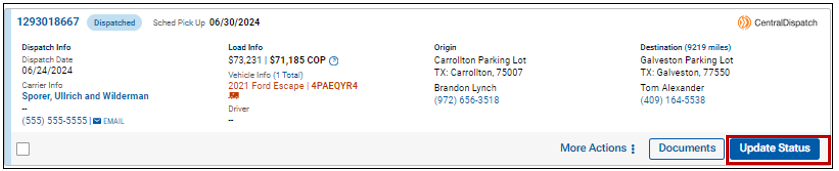
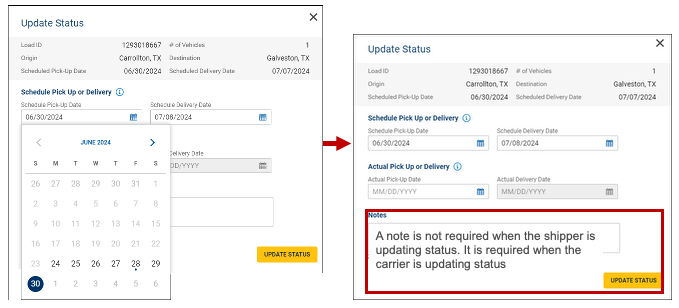
Update Dates by Clicking on Update Status Button:
- Click calendar to select available dates in bold
- Click Update Status
- The Scheduled Pick up Date cannot be later than Scheduled Delivery Date – if changing both, the delivery date will need to be updated prior to updating the scheduled pick-up date
- The Actual Pick-up Date must be entered prior to the Actual Delivery Date
Documents Button
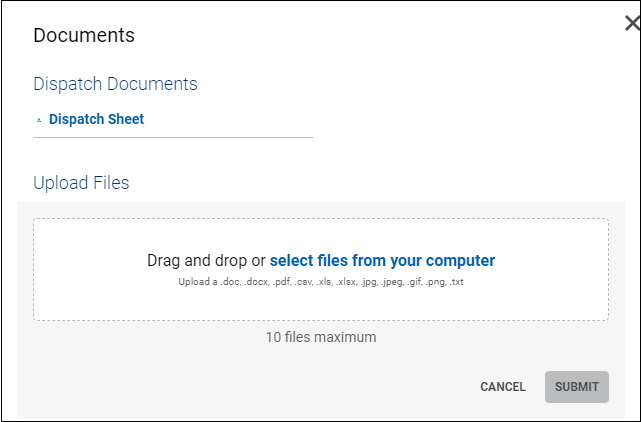
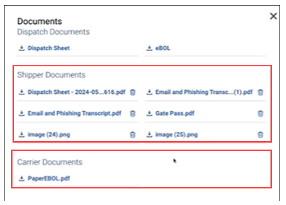
- View and download documents attached to the order, such as the Dispatch Sheet, Vehicle Release, or eBOL
- Upload up to 10 documents with no size limit to the order, which will be visible to the carrier
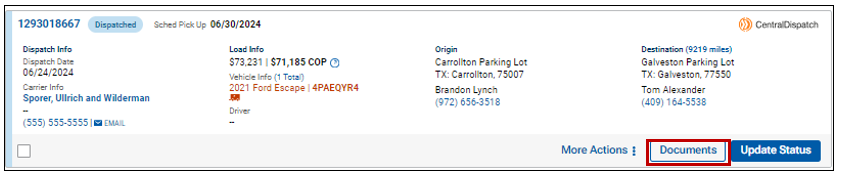
- The shipper and carrier can each upload up to 10 documents, no size limit
- View documents or download documents uploaded by the carrier or shipper
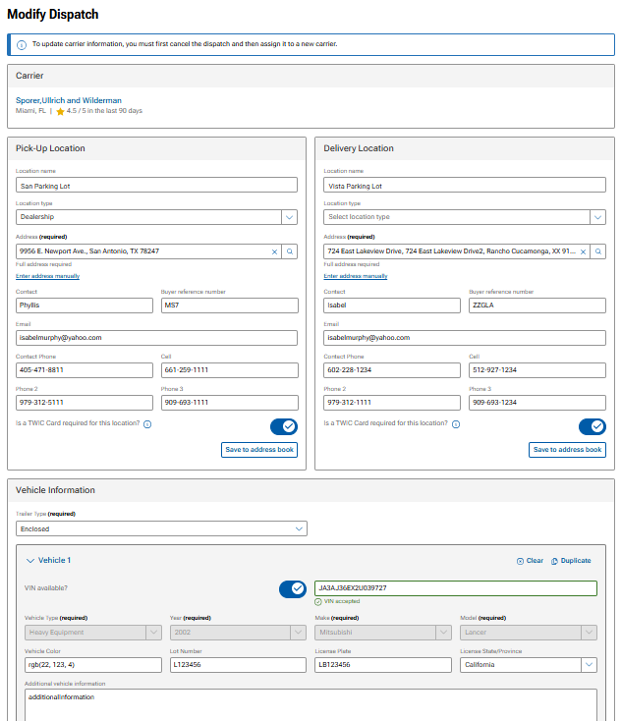
Modify Dispatch
The Modify Dispatch button is available for loads that have not been delivered, cancelled, or archived
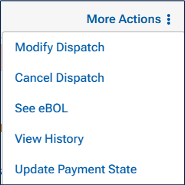
- The Modify Dispatch button will open to a Modify Dispatch page to update information
- Modifying dispatch increases vehicle quota count if additional vehicles are added to the load, or the VIN or YMM are changed
- If the status is Dispatched, carrier information cannot be updated, and the dispatch will need to be cancelled to updated to do so
- Updated information will update on the Dispatch Sheet
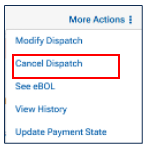
Cancel Dispatch
Shippers can cancel loads that are in Not Signed, Dispatched, or Picked Up status
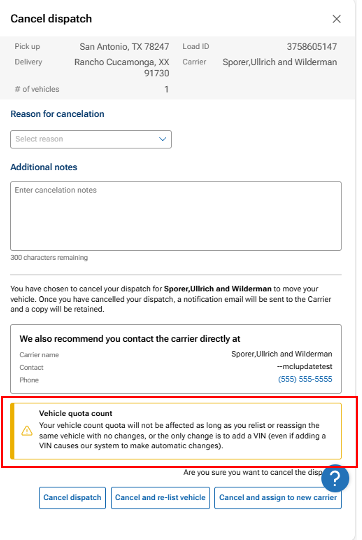
A slide out opens to select the reason for cancel, add a note, and choose to cancel, relist, or assign to a new carrier
- Cancel Dispatch
- Will not decrease vehicle quota count
- Cancel and re-list vehicle will open the Create Load page to post to the load board
- Cancel and assign to new carrier will open the Create Load page to assign to a carrier
Vehicle quota count will not be affected as long as the same vehicle is listed with no changes
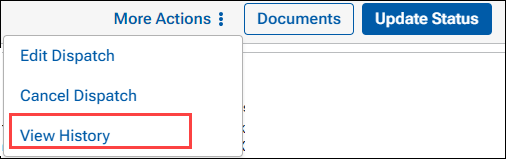
View History
This button is available on loads, except loads in the “Not Signed” status
- Displays events for the load, including dispatch date, status changes, and any updates to the scheduled pick-up and delivery
- Note with dispatch
- Actual Pick Up Date entered
- Delivery Date change
- 2nd Delivery Date change
- History displays changes based on the role of the user
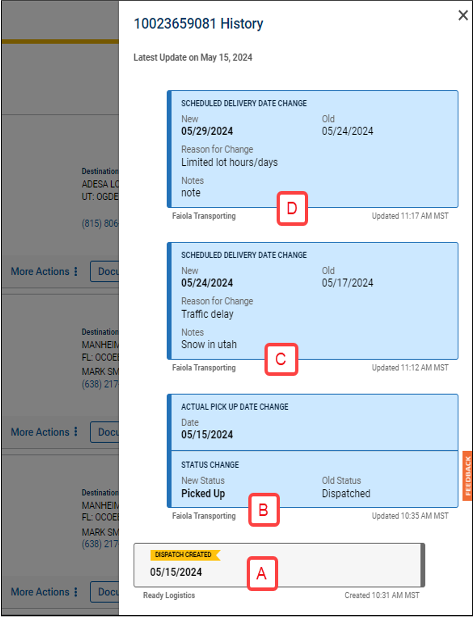
View History is available for both the Carrier view and the Shipper view.
View History is available for both the Carrier view and the Shipper view.
- The type of change
- Updated status and information
- The carrier or shipper who created the change
- The date and time of change
Updates made by the viewer (carrier or shipper) will appear in the blue shaded boxes. Updates made by the other party will appear in gray boxes. In the example, the carrier made the updates in blue.
Events are added to the View History panel in real-time.
See eBOL
If the carrier used the mobile app to take inspection photos at pick-up and delivery, the See eBOL button will be available.
- Loads in Picked-Up status
- Loads in Delivered status

Manager User Access
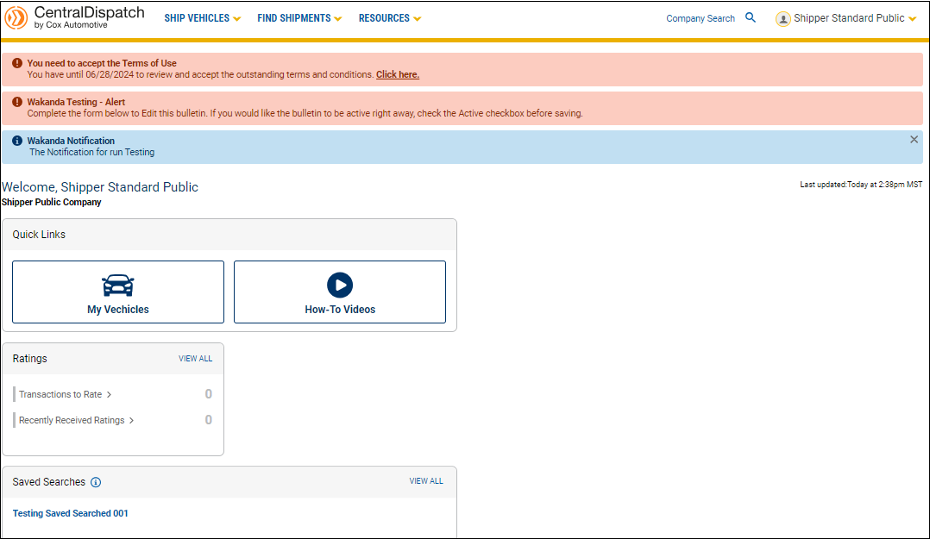
View and access is based on user role
View of Standard role – without Manager User access
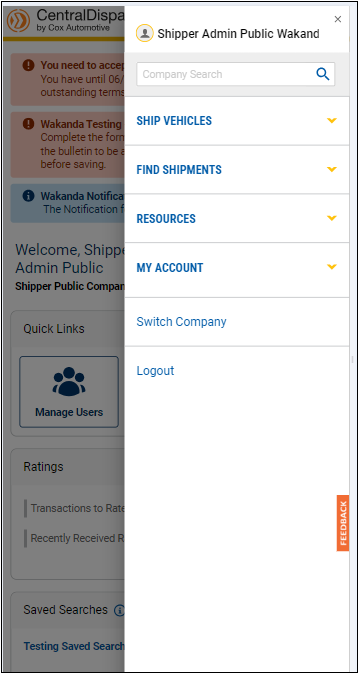
View on smaller device – Cell phone or tablet
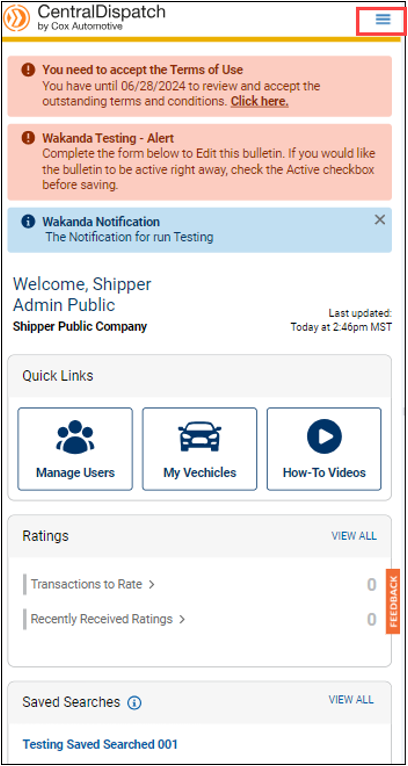
•Scroll up/down page
- Click on hamburger menu to view pages,
Central Dispatch Head of Business, Lainey Sibble, joins other experts to discuss the current state and future of fraud prevention in the automotive logistics industry, including vehicle custody and identity verification.
This edition of Central Dispatch Highlights includes the warning signs of phishing scams and a new enhancement to the carrier mobile app.
Carriers: Find Loads in the Central Dispatch Carrier App
With our latest enhancement to the carrier app, you can search, browse, and filter the load board right from your phone! Learn all about the app and this update in our blog post.
Shippers: See How One Dealer Is Saving Time and Money with Central Dispatch
Tahir Ilyas is using Central Dispatch to save countless hours and hundreds of dollars per car! Watch his story to see how he’s taking advantage of all the tools and services that Central Dispatch has to offer.
Stay Protected from Phishing Scams
Phishing scams in the auto logistics industry are on the rise, and it’s our role as THE logistics marketplace to make sure you know what to look out for. By staying aware and vigilant at every step, you can keep your business safe from dispatch to delivery!
In today’s used vehicle market, having fast and cost-effective vehicle transportation isn’t optional—it’s essential. That’s why more and more dealers like Tahir Ilyas from Ed Voyles Automotive Group are turning to Central Dispatch.
“When I started using Central Dispatch, two years ago I was able to save an average of $400 per car, and my efficiency was so good. As soon as I display my car, maybe in the next hour I get a call from the driver, and the next day I have a vehicle here.”
For Tahir, the difference was night and day. No more slow delivery times or unpredictable costs. Central Dispatch gives him the tools he needs to control every aspect of each load—down to the exact timeline and dollar amount.
“Every load I put through Price Check first, and I take a look at what the price is running for that kind of distance. It’s helped me display each car easily and at the right price. It’s very convenient and very fast.”
But Tahir hasn’t just taken the uncertainty out of shipping, he’s turned it into a competitive advantage. With more secure and reliable transport across the country, he can source cars from markets he couldn’t reach before.
“I can buy vehicles from all over the United States, and I don’t have to worry about the shipping. No matter if I’m getting a car from California, or I’m getting a car from Tennessee, Central Dispatch is very efficient.”
Get Tahir’s full story in the video.
