How to Add Invoice Expenses in the Mobile App
Allowing carriers to add incremental expenses to an invoice on the Central Dispatch Marketplace from the mobile app provides transparency and allows carriers to manage their entire book of business on Central Dispatch, including incidental charges.
1. Carriers are able to add incremental expenses from the mobile app.
Carriers can add an expense to an invoice up to 30 days after delivery or cancellation
- Adding expenses from the mobile app:
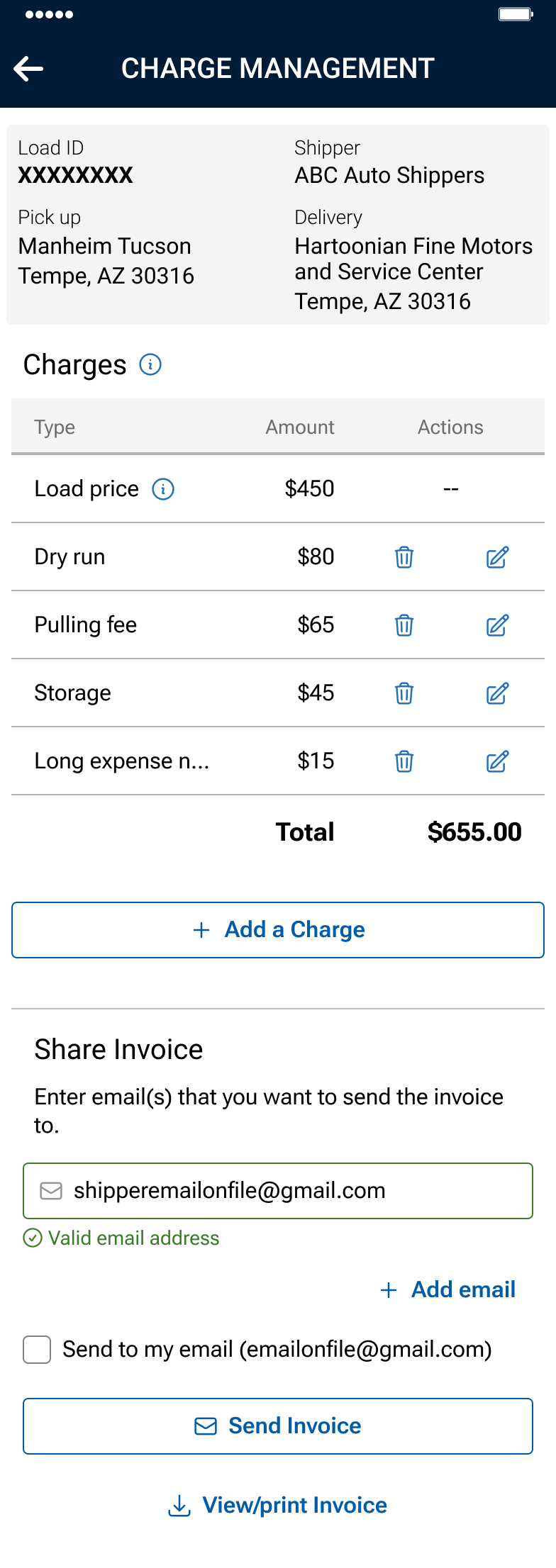
- From the Load Details screen, users with the role of Owner, Admin, and Driver can click the More menu button, and then click Manage Charges from the drop down.
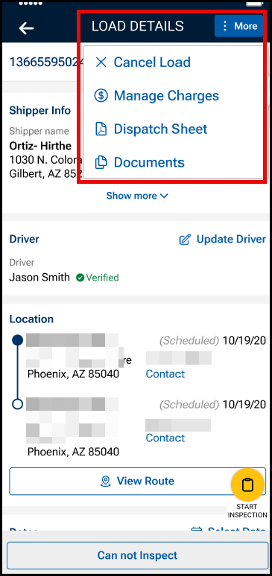
- From the Load Details screen, users with the role of Owner, Admin, and Driver can click the More menu button, and then click Manage Charges from the drop down.
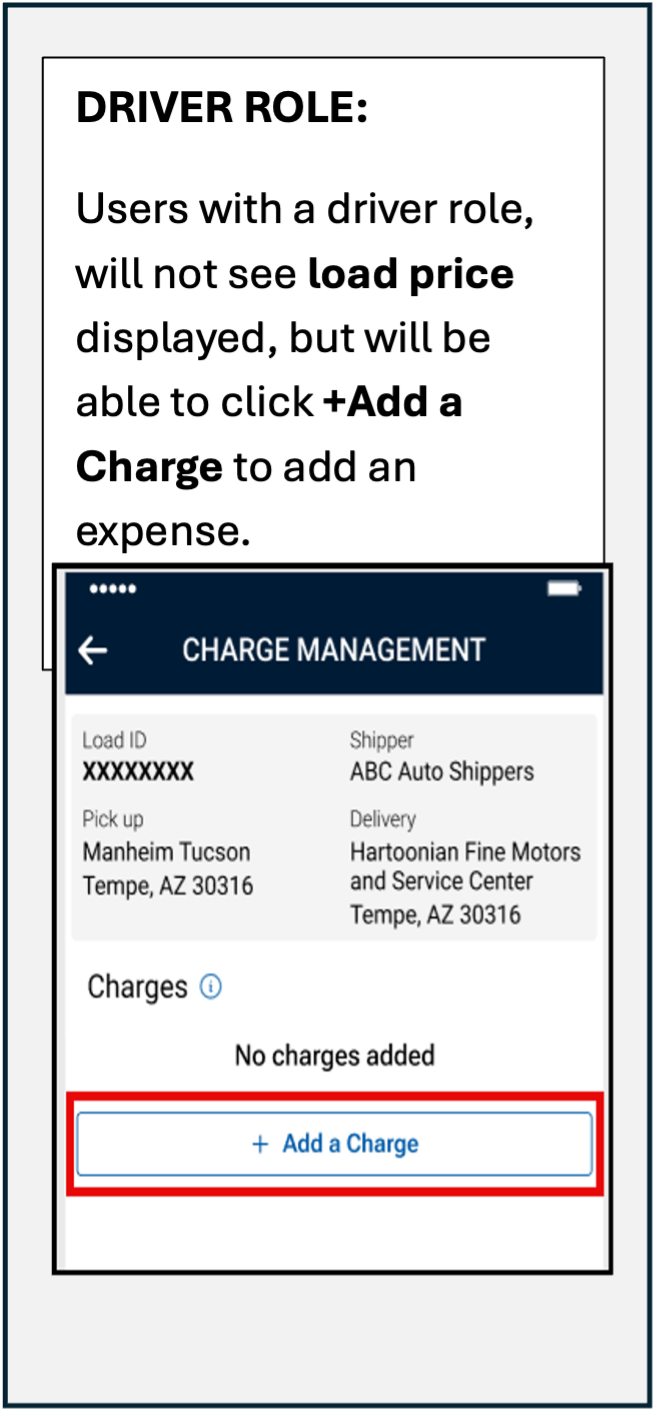
- Click the +Add a Charge button to add an expense to the invoice
- Users can add up to 8 expenses per invoice
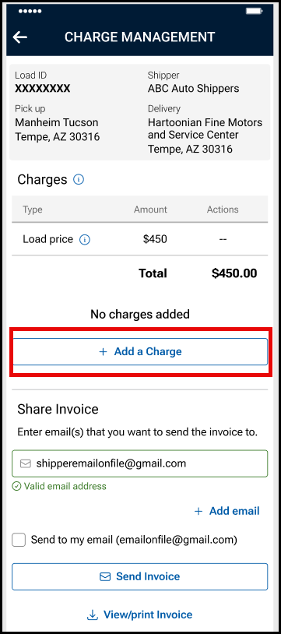
- Users can add up to 8 expenses per invoice
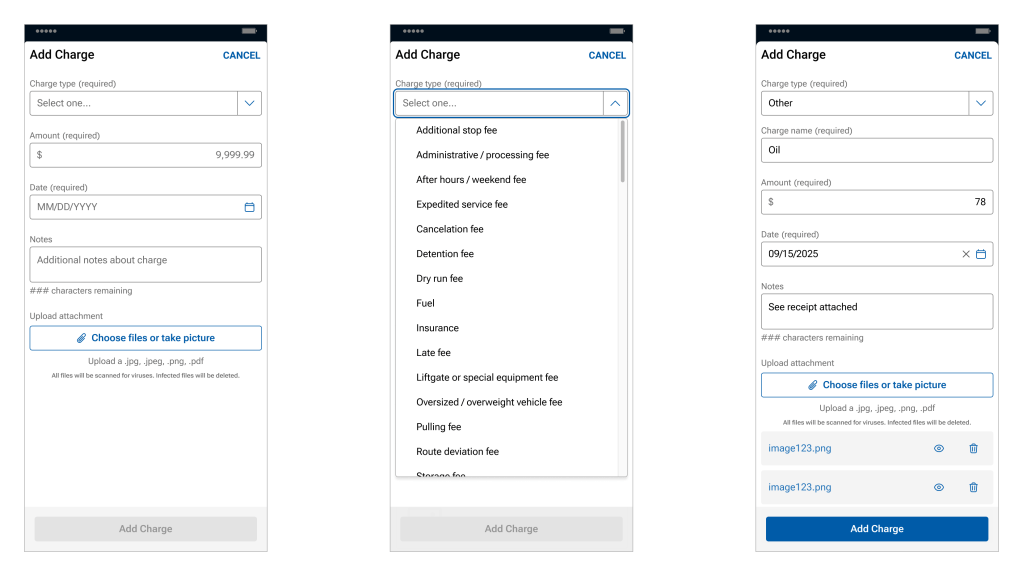
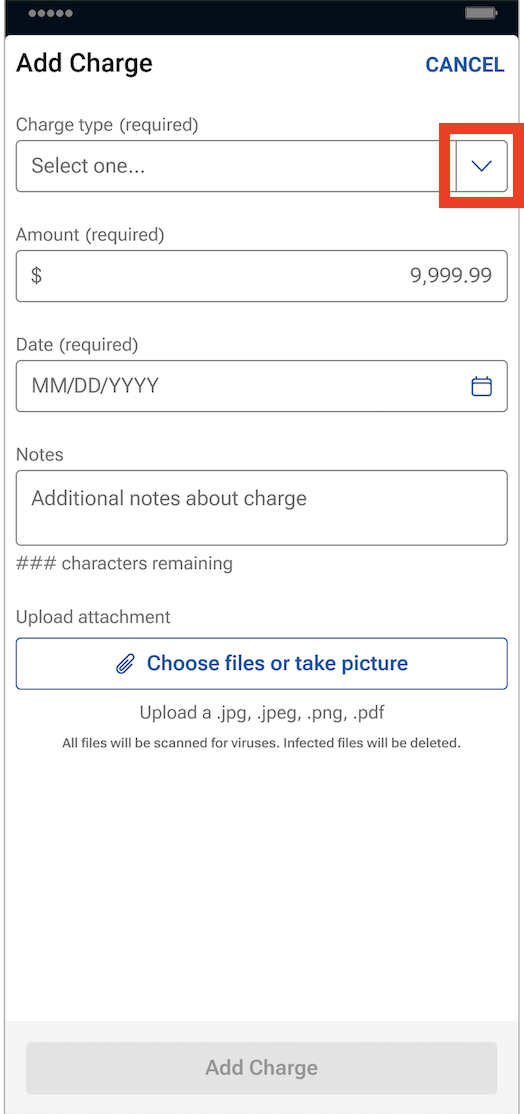
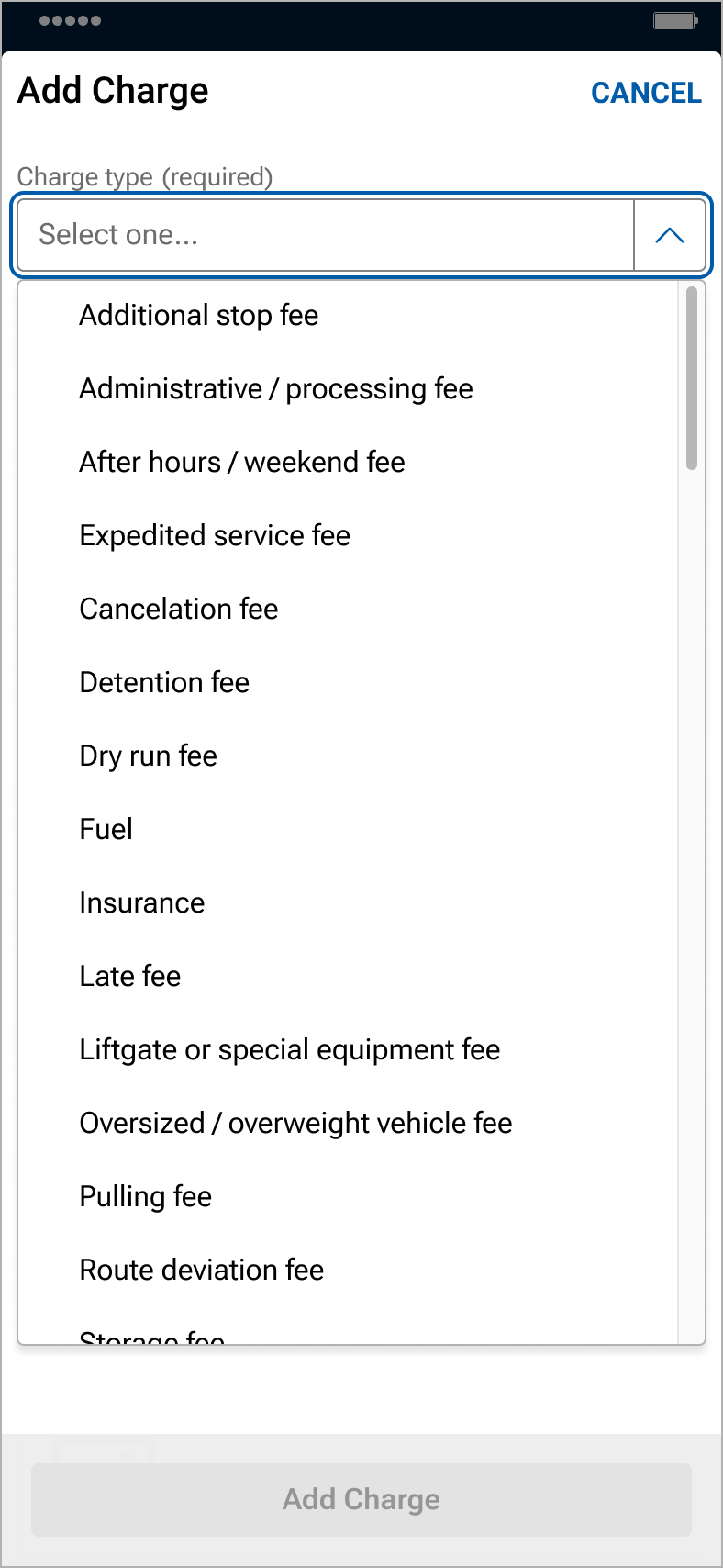
- Use the drop down menu to select the Charge type
- An option of “other” is available in the drop down
- An option of “other” is available in the drop down
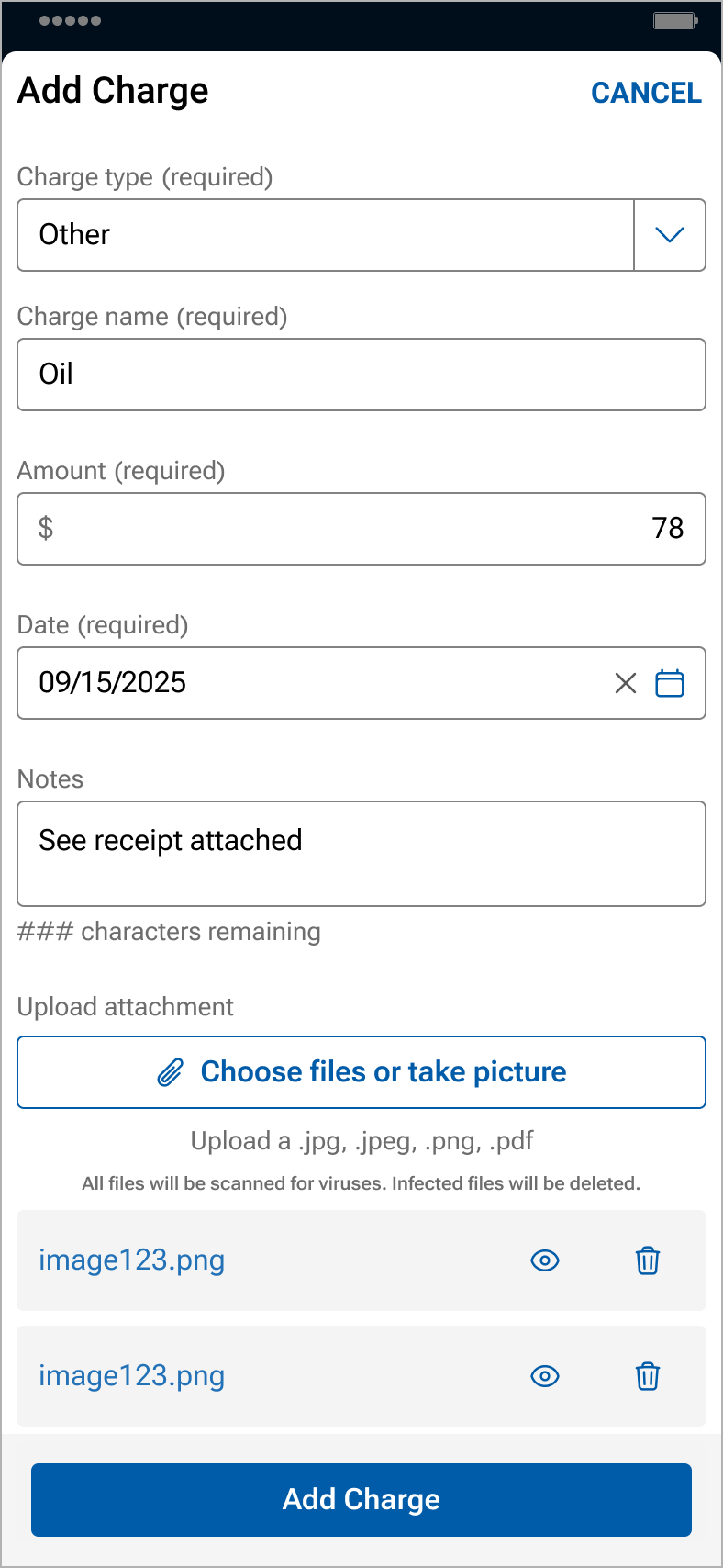
- Enter expense information, including the charge name, the amount and date of the expense, and then click Add Charge
- The additional notes field is optional
- Up to 5 files can be uploaded from your files, camera roll, or by taking pictures
- NOTE: Back-up documentation can also be uploaded and added in Central Dispatch.com.
- NOTE: Back-up documentation can also be uploaded and added in Central Dispatch.com.
- Invoices, including expenses, can be viewed by the shipper and carrier on the web browser and the mobile app
- Carriers can delete or modify an expense by clicking on the icon in the expense line
- Carriers can email, download, view, or print the invoice
 Driver role: Will not display load price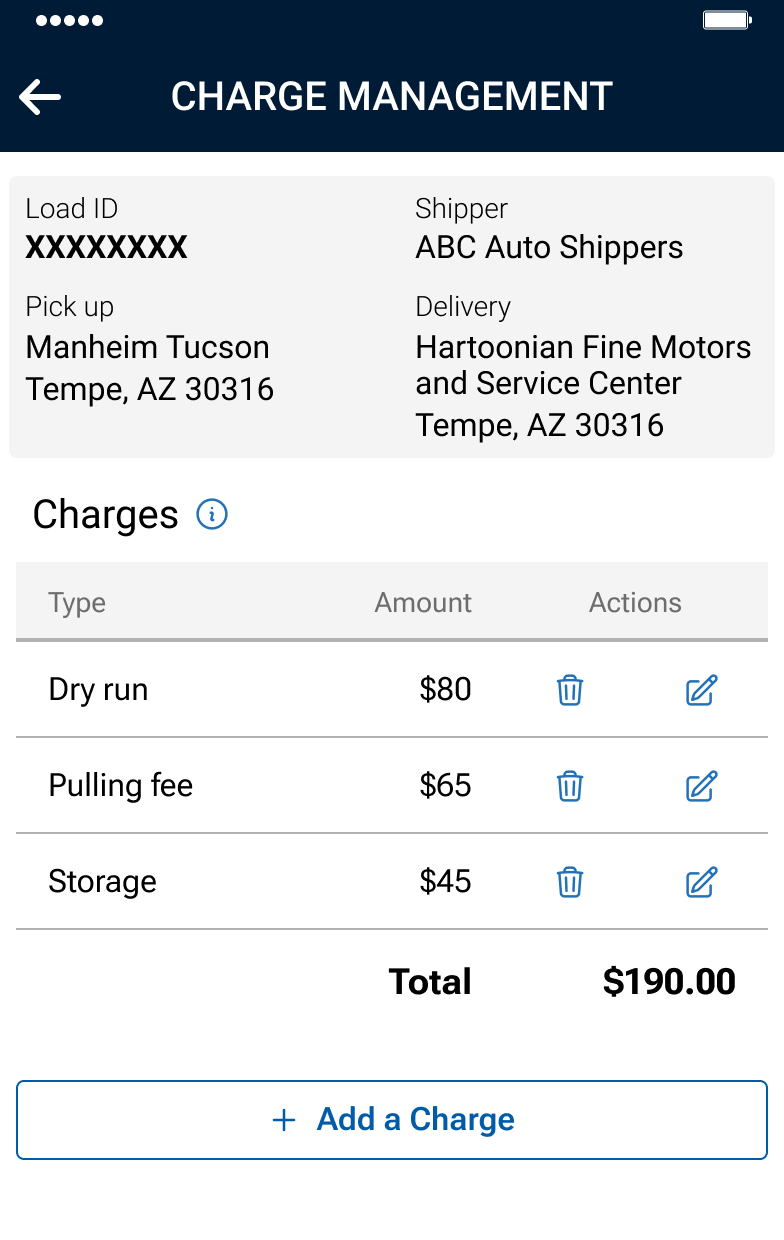
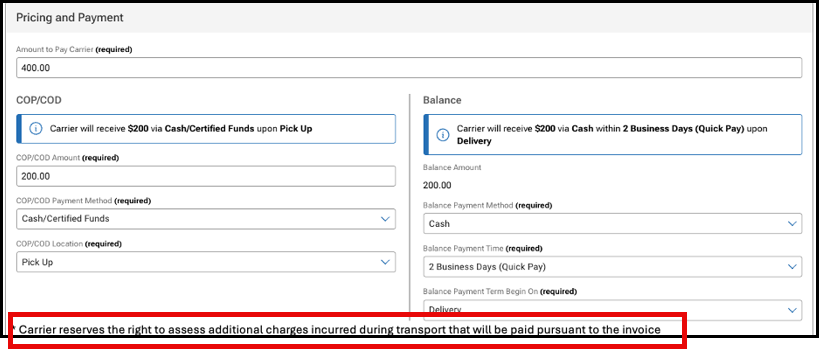
2. When creating loads or dispatching, a notice is displayed to the shipper regarding the carrier’s right to add expenses to the load.
Carriers reserve the right to assess additional charges incurred during transport that will be paid pursuant to the invoice.
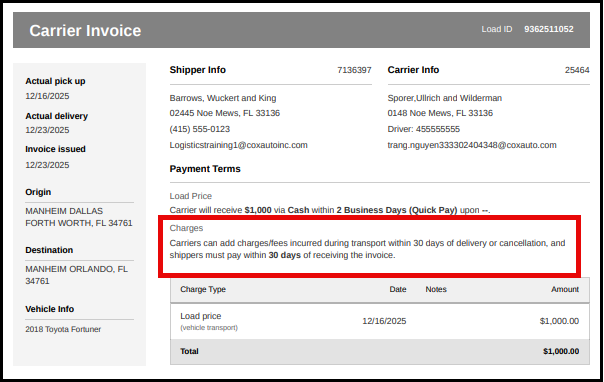
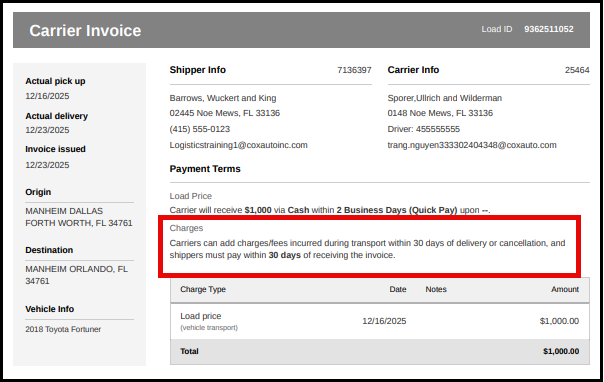
3. A disclaimer will display on the invoice notifying carriers and shippers about adding expenses and the timing
NOTE: Users with a Driver role will not see load price when viewing the invoice
FAQs
Carriers on occasion incur expenses when transporting vehicles, and we want to provide a process on the platform to add transparency for both shippers and carriers rather than communicating the expenses off platform
Adding expenses to an invoice on the web will be a fast follower. Expenses can only be added by a carrier from the Central Dispatch mobile app to start.
Yes, expenses are added based on the load, not individual vehicles in a load.
Expenses are added to the load rather than to a specific vehicle in a load. You are able to add a note when adding expenses, and can indicate the Vin the expense is associated with in that field.
If the shipper does not agree with an expense that was submitted, we encourage them to reach out to the carrier directly to discuss the expense.
If the shipper does not pay the expense, we encourage the carrier to reach directly to the shipper to discuss as they currently do with load payment.
There is not a dispute process since Central Dispatch is not party to the transaction. We encourage the carrier and the shipper to work together to resolve any questions regarding expenses.
If you are not able to resolve the dispute with the other party to the transaction, you can include details in the rating system if the rating window is open. If you do not want to do business with the shipper or carrier in the future, you are able to put the company on your blocked list.
Yes, the carrier can delete or modify an expense from the load page on the mobile app for up to 30 days after the load is delivered or cancelled. The shipper is not able to delete or modify an expense.
The carrier can add expenses up to 30 days after the load has been delivered or cancelled. This information is displayed on the invoice.