

Set Up Multi-Factor Authentication (MFA) Using an Authenticator App
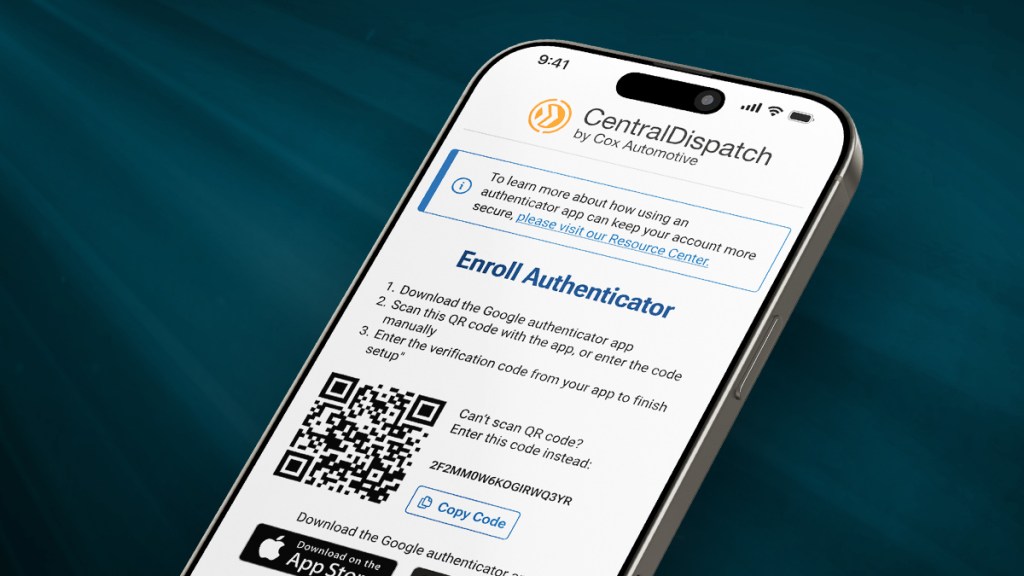
The authenticator app provides a MFA (multi-factor authentication) process for users that do not have access to a supported phone number for SMS verification and as an additional option for users other than SMS verification.
Central Dispatch does not support SMS verification for international phone numbers, users outside of the U.S., Canada, and Puerto Rico. These users are currently verifying using email; the authenticator app is a more secure process.
Table of Contents:
- Authenticator App Overview
- First time log in for users after Authenticator App rollout
- When verifying using an Authenticator App
- Installing an Authenticator App
Authenticator App Overview
- The authenticator app is offered as an alternative to phone-based MFA.
- Domestic Users (U.S., Canada, Puerto Rico)
- Users are required to have a recovery phone number listed in My Profile
- Users can also enroll in the authenticator app as an alternative option, if they do not want to use their phone
- Note: If the user is not enrolled in the authenticator app, they cannot change the MFA method to authenticator app during login (example, Verizon goes down, user cannot switch to authenticator app instead of phone number during log in.) The user would need to enroll in the authenticator app through My Profile.
- Users Outside the U.S., Canada, or Puerto Rico
- Phone numbers outside of the U.S., Canada, Puerto Rico are not supported for MFA.
- Users are automatically taken to the authenticator app page when logging in.
- Email verification will not be available
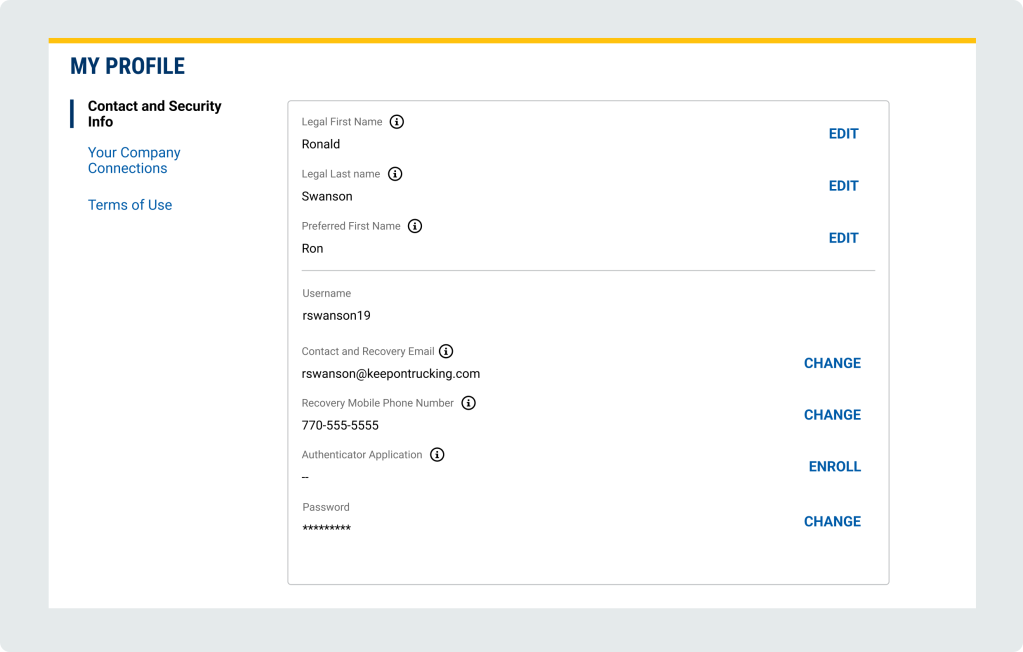
My Profile – Contact and Security Info
- Legal First Name and Legal Last Name: must match what is present on driver’s license, passport or other legal documents
- Preferred First Name: used in communications to clients and on users’ profile
- Username: used to log in to an account
- Recovery email: will only use to verify account if authenticator app or phone number is not available. Will not be displayed on account or shared
- Recovery phone number: Only used to verify or recover the account. Will not be displayed on account or shared
- Authenticator Application: Used to verify or recover the account for or users outside of U.S., Canda, Puerto Rico. domestic users. Can be used as an alternative to phone numbers for domestic users.
- Password: Used to log in to an account
First time log in for users after Authenticator App rollout:
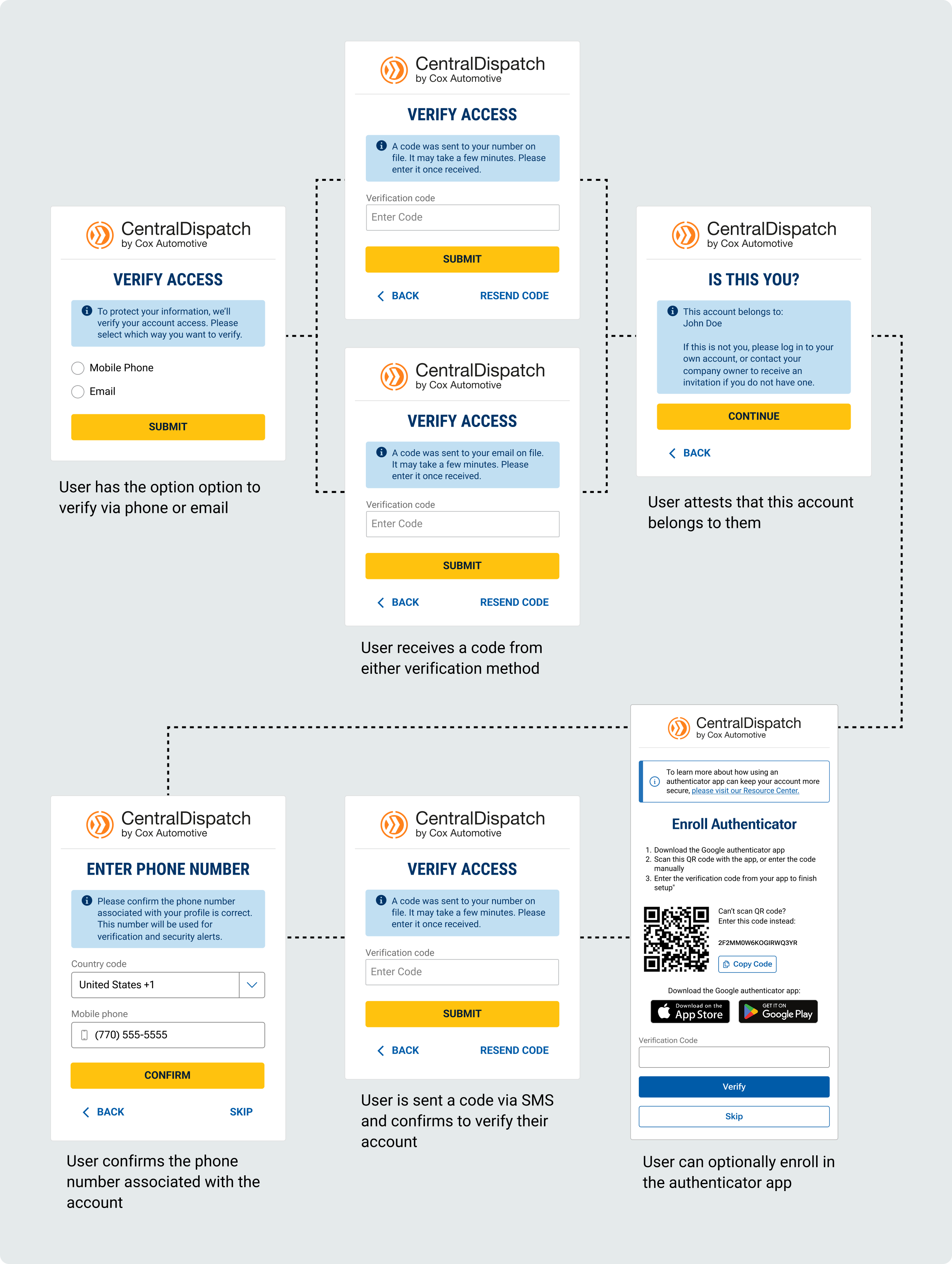
Scenario 1: User has a phone number listed in My Profile:
- User will verify account using the recovery email or recovery phone number in My Profile
- After successful verification the user will be taken to the authenticator app screen and can enroll, user can also Skip enrollment in app
- Note: if users skip enrolling in authenticator app, they can enroll at any time through My Profile
- Note: if users skip enrolling in authenticator app, they can enroll at any time through My Profile
- After the initial log-in after authenticator app roll-out
- Users that enrolled in authenticator app will have option to verify using authenticator app or Mobile Phone
- Users that did not enroll in authenticator app will automatically have verification code sent to mobile phone (will not see middle screen)
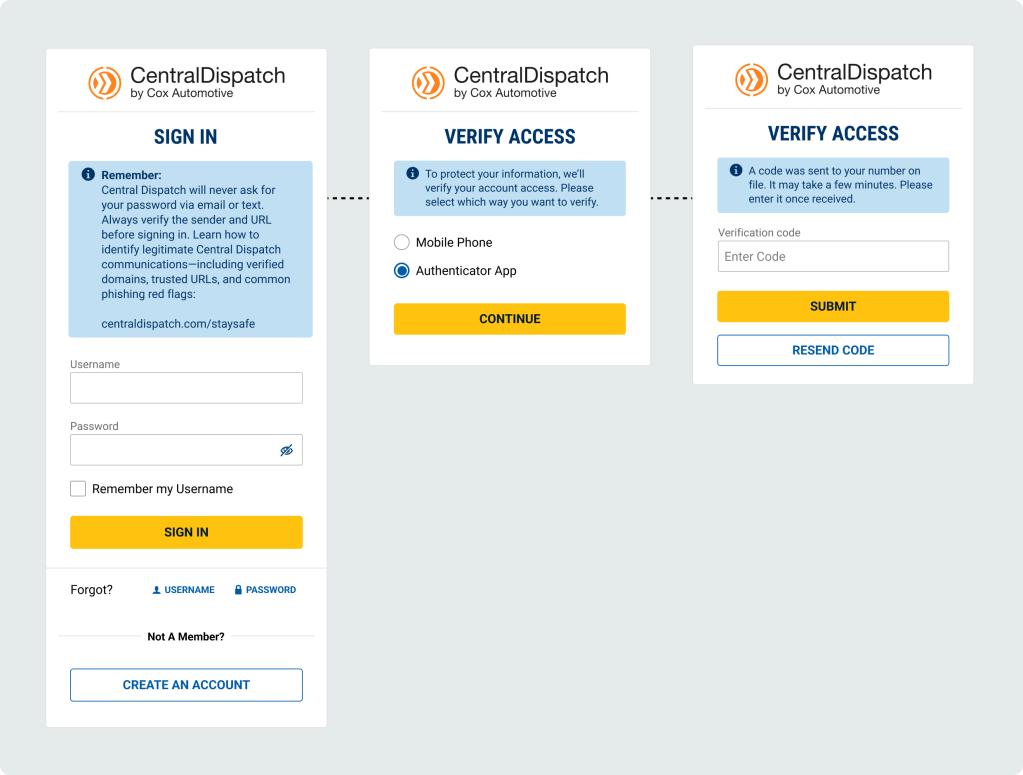
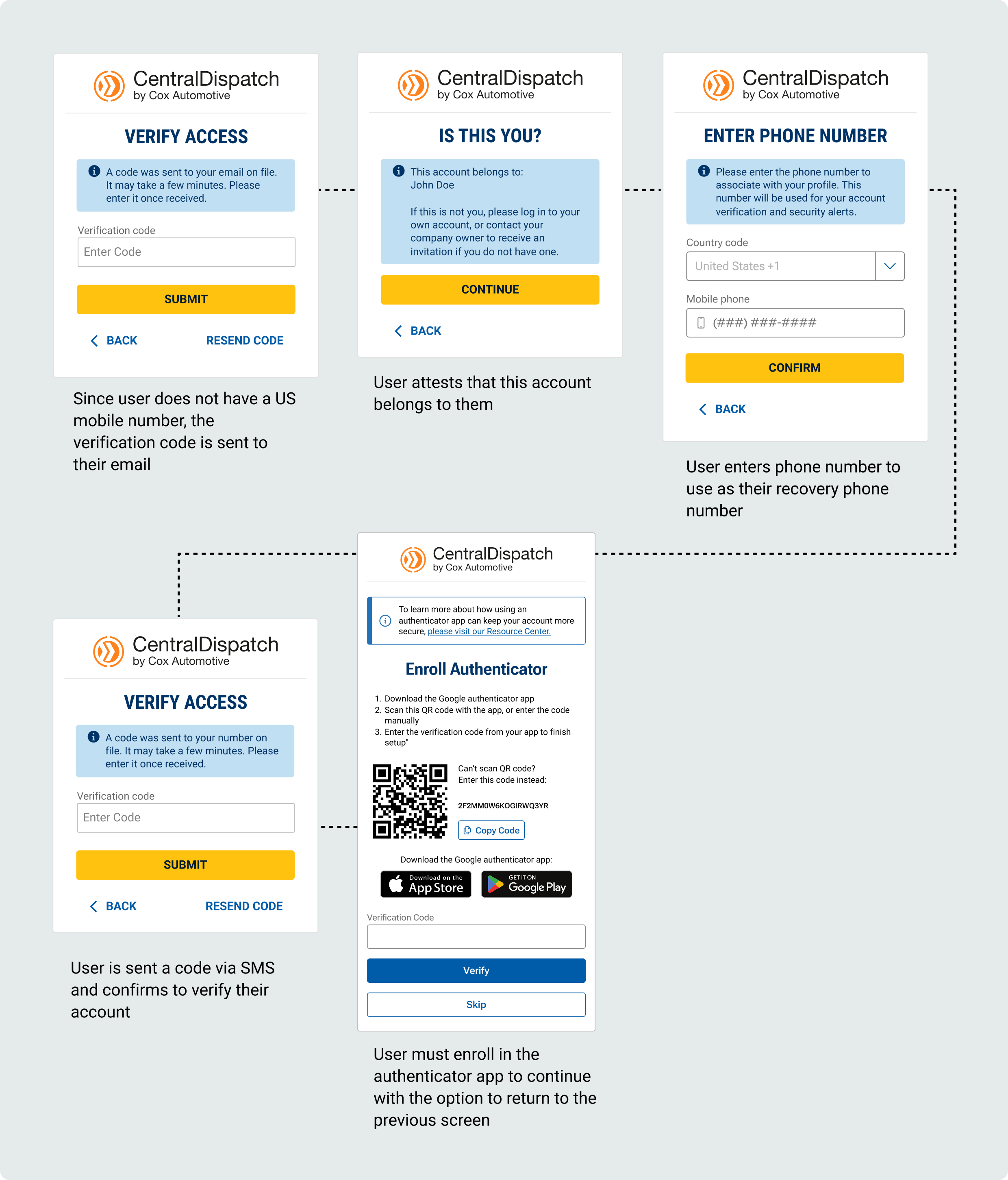
Scenario 2: User does not have a phone number listed in My Profile, but is a domestic user with a phone inside the U.S., Canada, or Puerto Rico
- User will verify account using the recovery email in My Profile
- After successfully entering the verification code, the user will be taken to a confirmation screen to attest the account belongs to them
- Users will be asked to enter a recovery phone number to their profile by entering the country code for the phone number
- Since country code is U.S., Canada, or Puerto Rice, the user will be taken to the authenticator app screen and can enroll, user can also Skip enrollment in app
- Note: if users skip enrolling in authenticator app, they can enroll at any time through My Profile
- Note: if users skip enrolling in authenticator app, they can enroll at any time through My Profile
- After the initial log-in after authenticator app roll-out
- Users that enrolled in authenticator app will have option to verify using authenticator app or Mobile Phone
- Users that did not enroll in authenticator app will automatically have verification code sent to mobile phone (will not see middle screen)
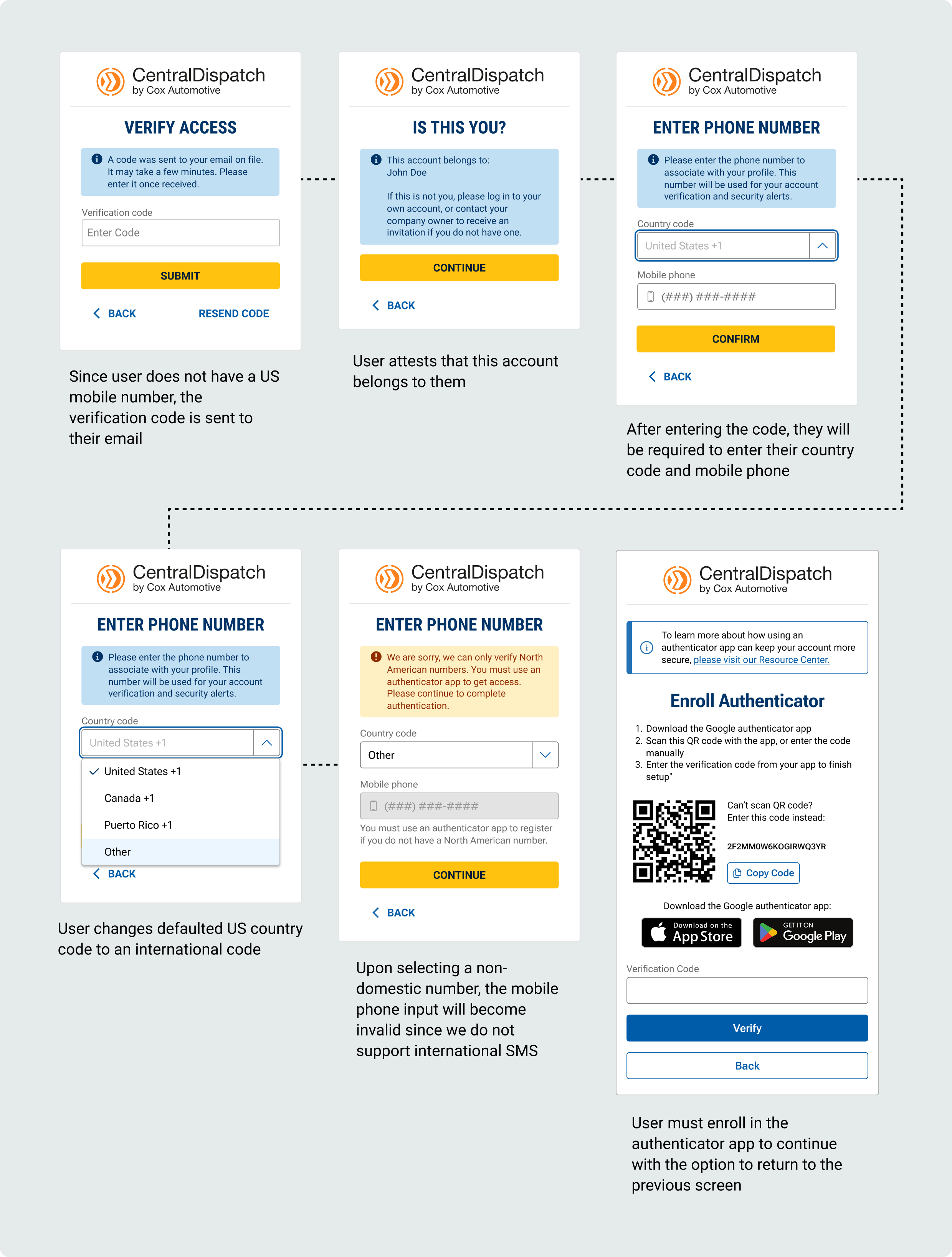
Scenario 3: User does not have a phone number listed in My Profile and is outside the U.S., Canada, or Puerto Rico
- User will verify account using the recovery email in My Profile
- After successfully entering the verification code, the user will be taken to a confirmation screen to attest the account belongs to them
- Users will be asked to enter a recovery phone number to their profile by entering the country code for the phone number
- If the Other code is selected, the user will not be able to enter the mobile phone number with a message that we do not support international SMS
- User will be taken to the Enroll Authenticator screen
- User will not be able to skip enrolling in authenticator
- User will not be able to skip enrolling in authenticator
- After the initial log-in after authenticator app roll-out
- Users with a mobile number outside of the U.S., Canada, Puerto Rico will be automatically taken to the screen and instructed to enter the code generated in their authenticator app to verify
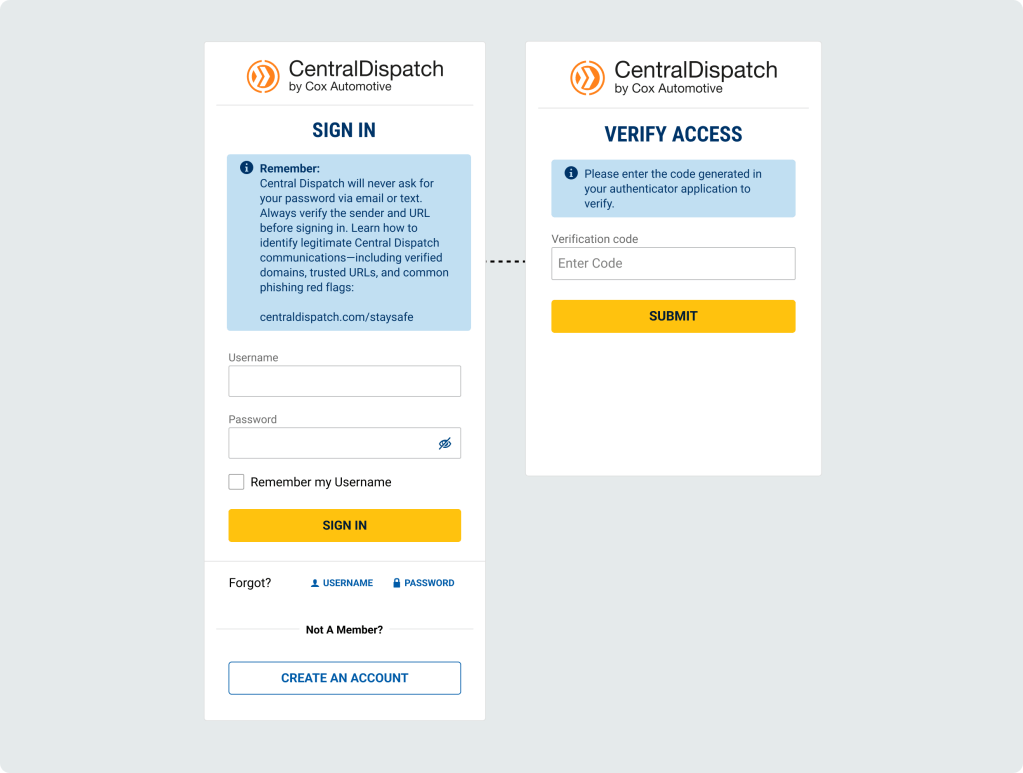
When verifying using an Authenticator App:
When prompted for a verification code:
- Open the Authenticator app
- Find your account name
- Use the 6‑digit number shown
- The number changes every 30 seconds — this is normal
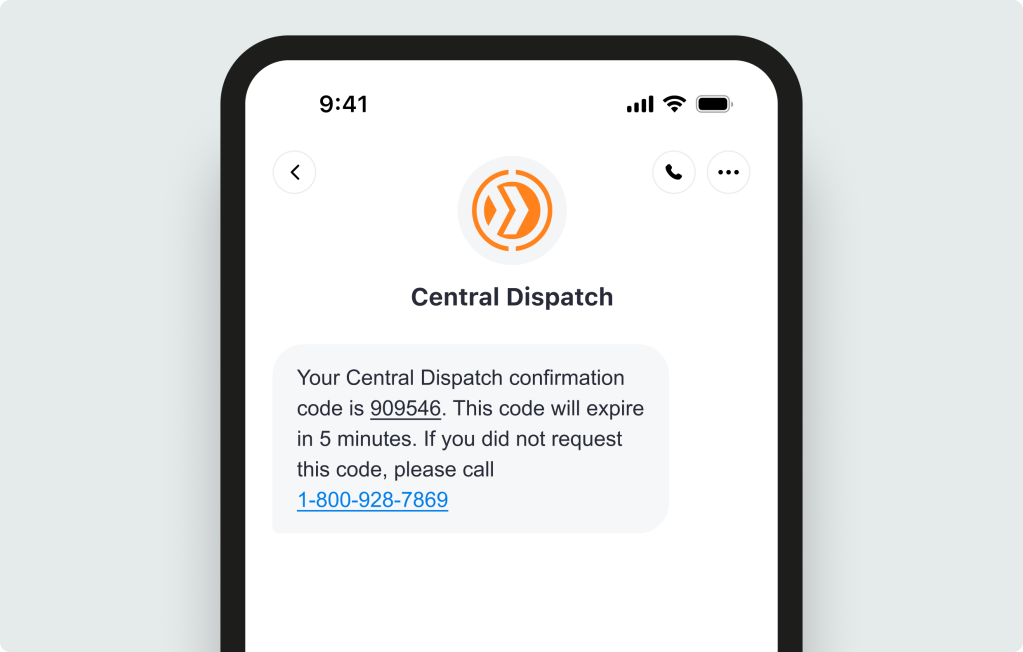
SMS Verification text message:
Installing an Authenticator App
Step 1: Download the App
On your phone:
- Scan the QR code on the Enroll Authenticator screen or open the App Store (iPhone) or Google Play Store (Android)
- The QR code will direct user to Google Authenticator, but user is able to use authenticator of their choice
- Download the app
Step 2: Open the App
- Open the app
- Allow notifications (if asked)
- Allow camera access (if asked)
This helps the app work correctly
Step 3: Set Up Your Account (One Time Only)
In the app:
- Tap Add account, Begin setup, or the + sign
- Google authenticator will ask for users Gmail account, users do not need to use a Gmail account, can add any email address (example, Gmail, outlook, etc)
- Follow the on‑screen steps to finish setup
Step 4: Get Your Code When Signing In
When prompted for a verification code:
- Open the Authenticator app
- Find your account name
- Use the 6‑digit number shown
- The number changes every 30 seconds — this is normal
Quick Tips
- You do not need internet to see the code
- If a code expires, wait for the next one
- Keep the app installed — you’ll use it each time

