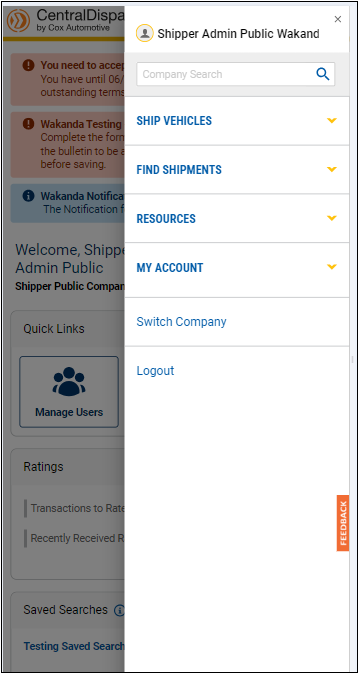
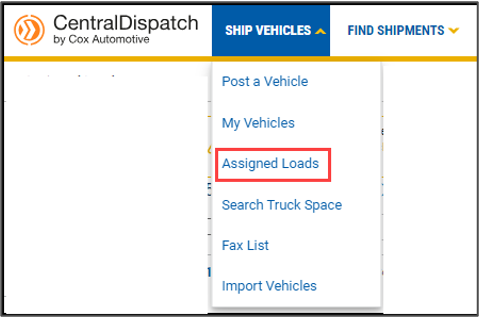
Assigned Loads Tab
Overview
The Assigned Loads tab allows shippers to view, update, and manage loads that have been assigned to a carrier. From this tab, you can track dispatch status, access load details, manage documents, and take action on active, archived, or cancelled dispatches.
At the top of the page, you can easily switch between:
- Assigned Loads (loads assigned to a carrier)
- Listings (loads not assigned to a carrier)
Assigned Loads Page
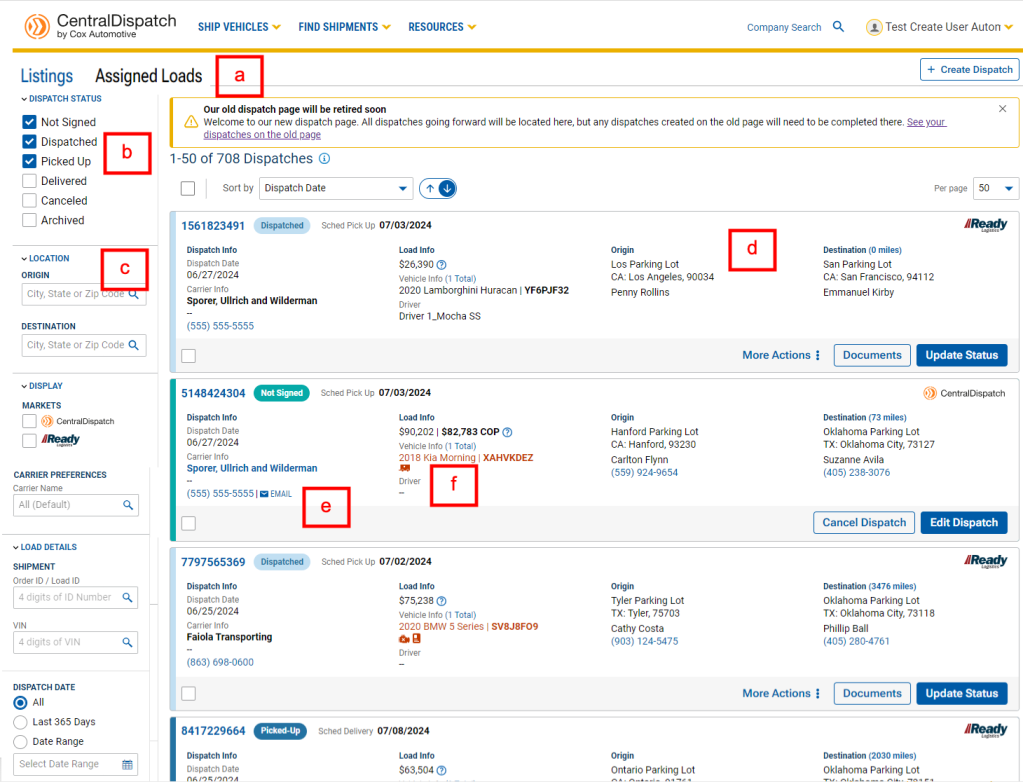
The Assigned Loads page displays dispatches that have been created and assigned to a carrier.
- Tabs available to easily switch between pages
- Filter listings by DISPATCH STATUS
- Additional filter selections
- LOCATION: Enter pick-up/dropoff locations
- MARKETS: Custom views based on the marketplace, if the user belong to multiple
- CARRIER PREFERENCES: Filter for a specific carrier
- LOAD DETAILS: Filter by Load ID or VIN
- DISPATCH DATE: Filter by date
- Carrier contact information, including a link to send an email
- Any critical tags for a load, including INOP, Enclosed, OS, TWIC
Dispatch Sheet (Transport Order)
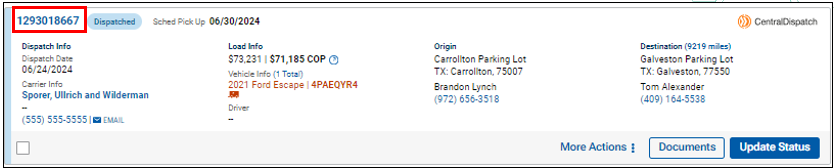
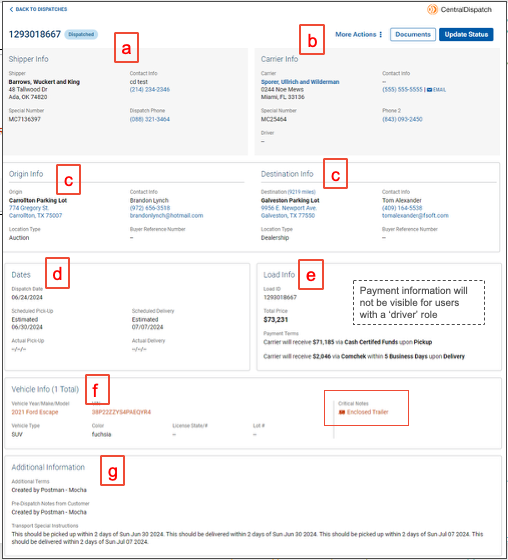
Click on the load number to view dispatch details.
•May also be known as the Dispatch Sheet or Transport Order
Information available on the Dispatch Sheet:
- Load number and dispatch status
- Action buttons (based on status) to view documents, update status, cancel
- Origin and destination info
- Dates
- Load information
- Vehicle information, including any critical notes, such as enclosed, inop, OS, TWIC
- Additional information, including notes for the carrier
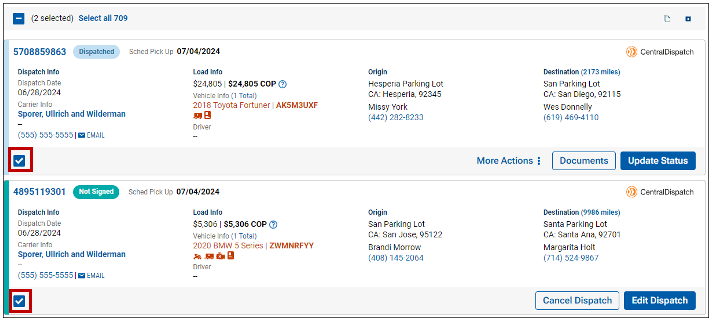
Check box is available on all dispatch listings for easy Bulk Actioning:
- Downloading documents
- Archiving dispatches
Action Buttons Based on Dispatch Status
Dispatches in Not Signed status can be cancelled or modified, and you can view documents (i.e. Dispatch Sheet).
- Modifying a dispatch increases vehicle quota count if additional vehicles are added to the load, or the VIN or YMM are changed

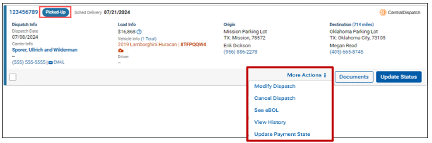
Actions available for dispatches in Picked Up status include Modify Dispatch, Cancel Dispatch, view/send eBOL for pickup if available, view change history, and Update Payment Status.
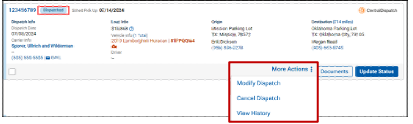
Actions available for dispatches in Dispatched status include Modify Dispatch, Cancel Dispatch, and view change history.
- Modifying dispatch increases vehicle quota count if additional vehicles are added to the load, or the VIN or YMM are changed
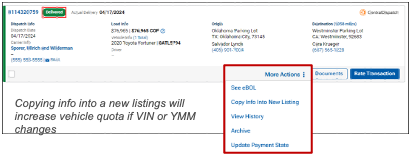
Actions available for dispatches in Delivered status include view/send eBOL if the app was used, Copy Info Into New Listing, view change history, archive listing, Update Payment Status.
Archived Dispatches
Displays status of dispatch when archived
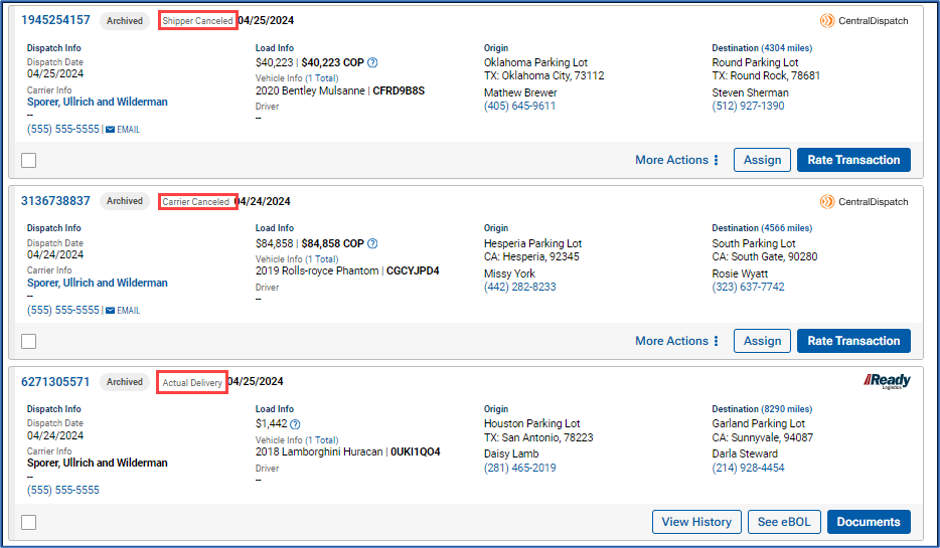
Cancelled Dispatches
Status displays if cancelled by carrier or shipper
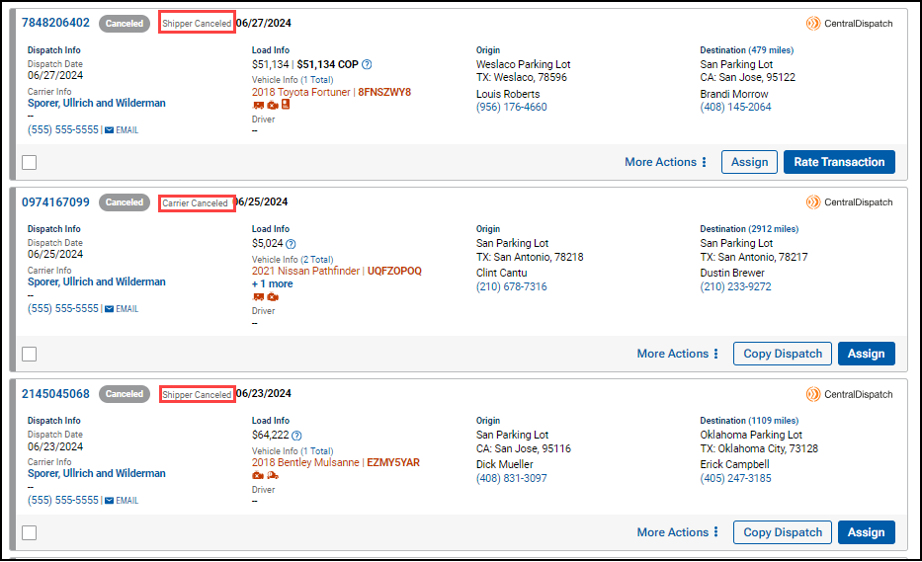
- Action buttons available on Archived and Cancelled status based on status when cancelled or archived
- The Assign button is available on loads that were cancelled prior to being archived, and can be assigned to a carrier
- The Rate Transaction button is available if eligible to rate. If it is past the rating period, the button will be visible, but no rating will be available when clicked
- The Documents button is only available if the load was delivered, which includes the dispatch sheet, eBOL, and invoice
- More Actions:
- View History to view all changes to a transaction
- The See eBOL button is available if delivered, and the eBOL can be viewed, emailed, or downloaded
- Update Payment State if the load is not cancelled by the carrier
- Copy Info Into New Listing will not affect vehicle count quota if relisted with the same vehicle and no changes
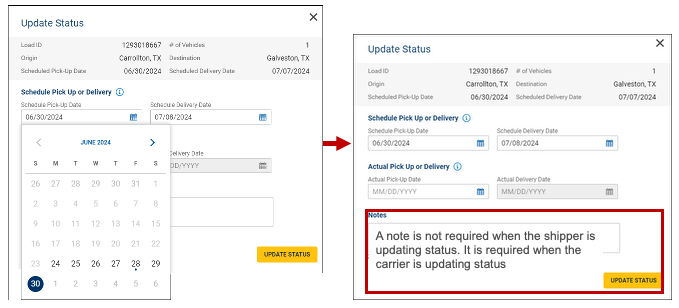
Update Dates by Clicking on Update Status Button:
- Click calendar to select available dates in bold
- Click Update Status
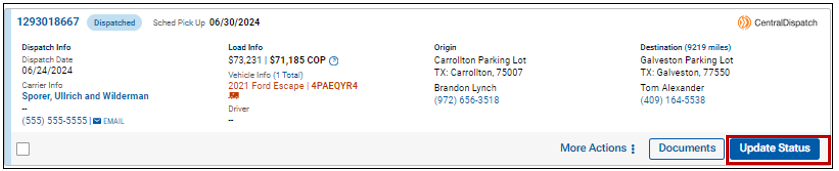
- The Scheduled Pick up Date cannot be later than Scheduled Delivery Date – if changing both, the delivery date will need to be updated prior to updating the scheduled pick-up date
- The Actual Pick-up Date must be entered prior to the Actual Delivery Date
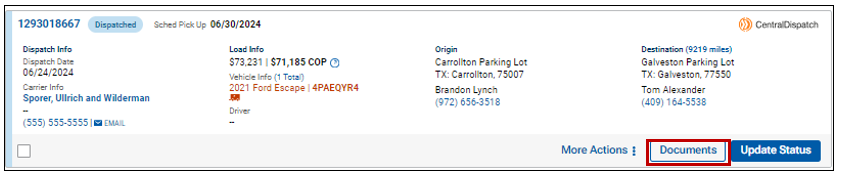
Documents Button
- View and download documents attached to the order, such as the Dispatch Sheet, Vehicle Release, or eBOL
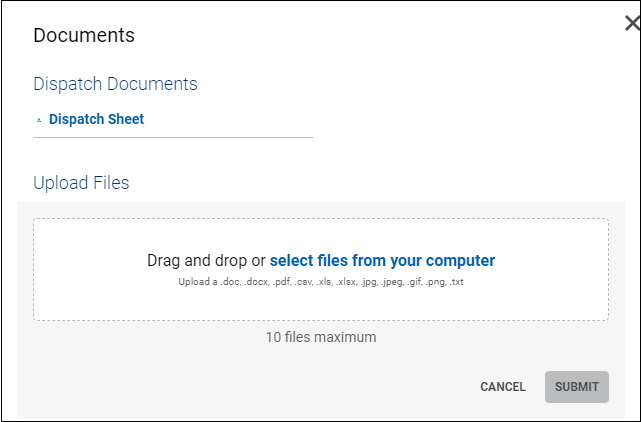
- Upload up to 10 documents with no size limit to the order, which will be visible to the carrier
- The shipper and carrier can each upload up to 10 documents, no size limit
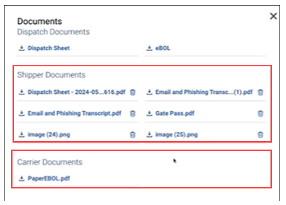
- View documents or download documents uploaded by the carrier or shipper
Modify Dispatch
The Modify Dispatch button is available for loads that have not been delivered, cancelled, or archived
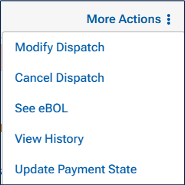
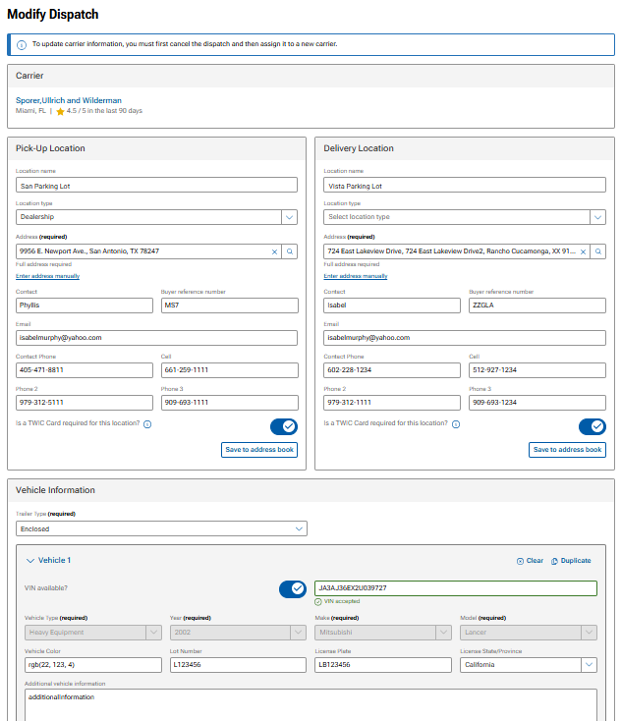
- The Modify Dispatch button will open to a Modify Dispatch page to update information
- Modifying dispatch increases vehicle quota count if additional vehicles are added to the load, or the VIN or YMM are changed
- If the status is Dispatched, carrier information cannot be updated, and the dispatch will need to be cancelled to updated to do so
- Updated information will update on the Dispatch Sheet
Cancel Dispatch
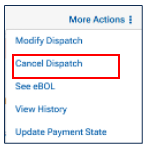
Shippers can cancel loads that are in Not Signed, Dispatched, or Picked Up status
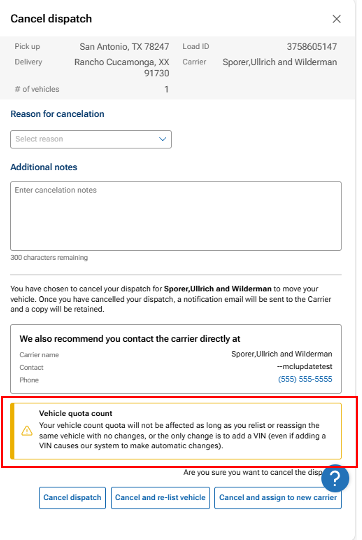
A slide out opens to select the reason for cancel, add a note, and choose to cancel, relist, or assign to a new carrier
- Cancel Dispatch
- Will not decrease vehicle quota count
- Cancel and re-list vehicle will open the Create Load page to post to the load board
- Cancel and assign to new carrier will open the Create Load page to assign to a carrier
Vehicle quota count will not be affected as long as the same vehicle is listed with no changes
View History
This button is available on loads, except loads in the “Not Signed” status
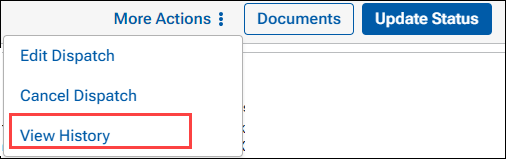
- Displays events for the load, including dispatch date, status changes, and any updates to the scheduled pick-up and delivery
- Note with dispatch
- Actual Pick Up Date entered
- Delivery Date change
- 2nd Delivery Date change
- History displays changes based on the role of the user
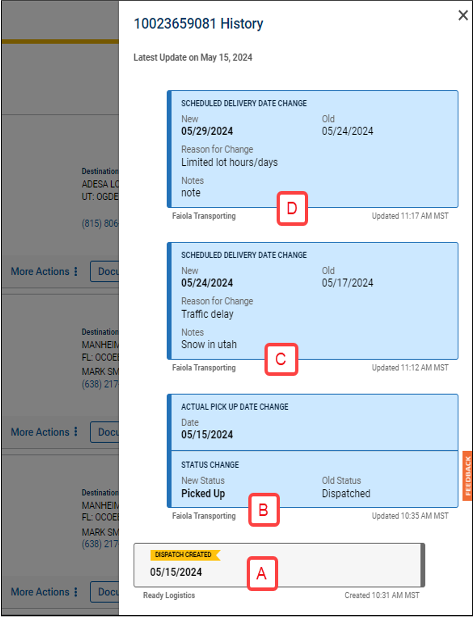
View History is available for both the Carrier view and the Shipper view.
View History is available for both the Carrier view and the Shipper view.
- The type of change
- Updated status and information
- The carrier or shipper who created the change
- The date and time of change
Updates made by the viewer (carrier or shipper) will appear in the blue shaded boxes. Updates made by the other party will appear in gray boxes. In the example, the carrier made the updates in blue.
Events are added to the View History panel in real-time.
See eBOL
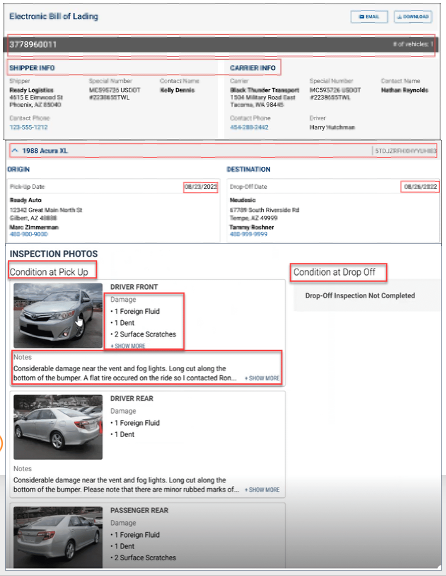
If the carrier used the mobile app to take inspection photos at pick-up and delivery, the See eBOL button will be available.
- Loads in Picked-Up status
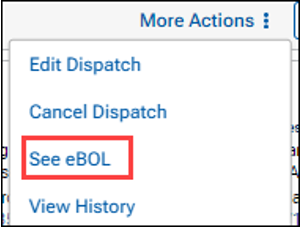
- Loads in Delivered status

Manager User Access
View and access is based on user role
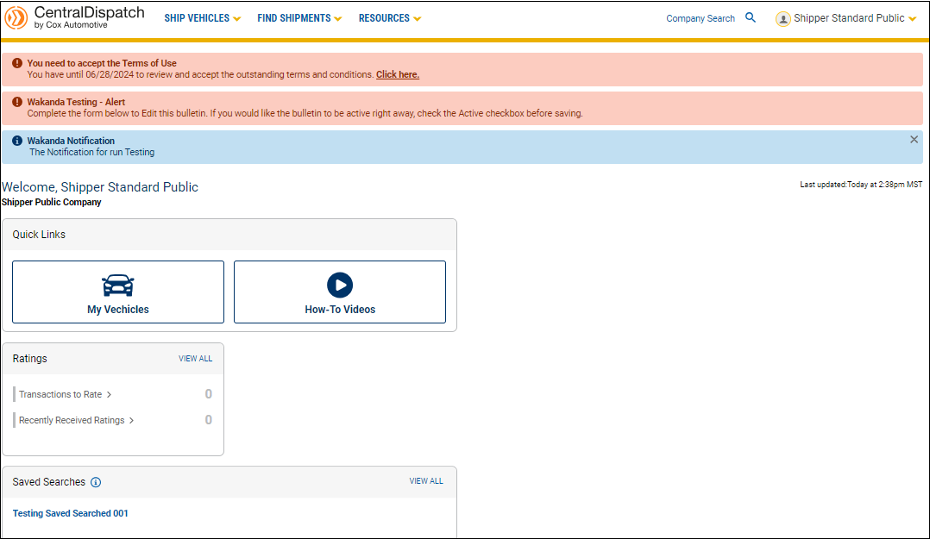
View of Standard role – without Manager User access
View on smaller device – Cell phone or tablet
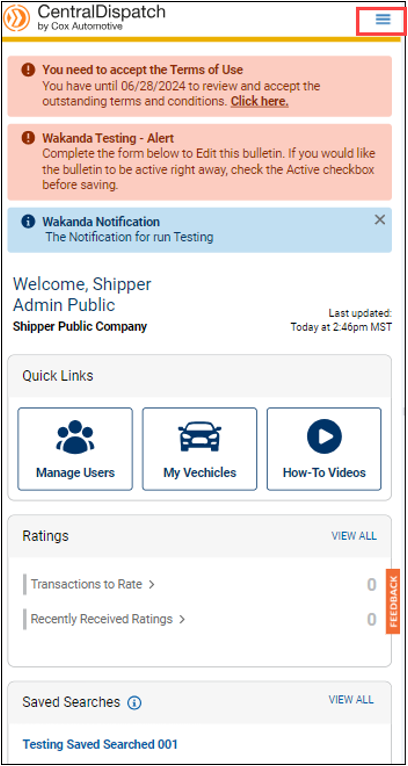
•Scroll up/down page
- Click on hamburger menu to view pages,