Accepting and Declining Dispatches on the Mobile App
Carriers will now be able to accept a load or decline a dispatch in the status of Not Signed on the mobile app instead of going through CentralDispatch.com. This enables additional functions in addition to current function of updating loads and taking inspections photos.
Note: Users with a Driver role will not have access to accept dispatches on the mobile app or see loads in the Not Signed status.
Viewing Dispatch Offers from Email Notification
When a shipper sends a new dispatch offer to a carrier, the carrier is sent an email notification with a View Dispatch link.
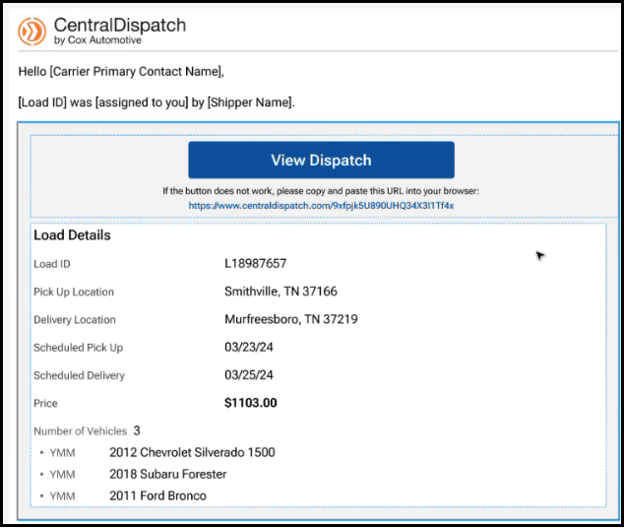
- If the carrier has the CD Mobile App downloaded, then clicking on the View Dispatch link opens the load on the Mobile App for the carrier to Accept Load or Decline the offer. Note: The Accept Load button will be updated to say ‘Accept Load’
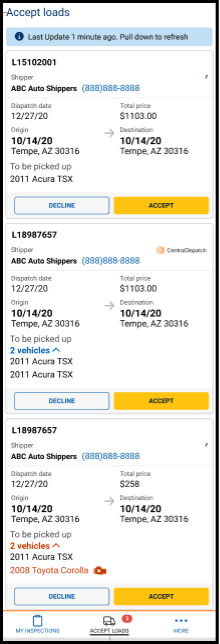
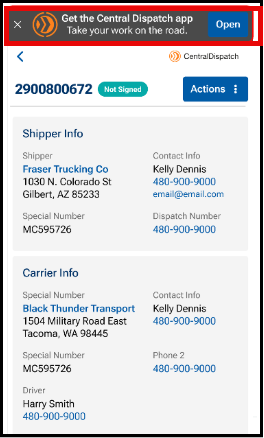
- If the carrier has not downloaded the CD Mobile App, then from the email, when the carrier clicks View Dispatch, they will be redirected to the web version of the Load Details page to view the load and click the Actions menu to accept the load.
Note: A banner will appear on the page to encourage the carrier to download the app.
Viewing Dispatch Offers on the CD Mobile App
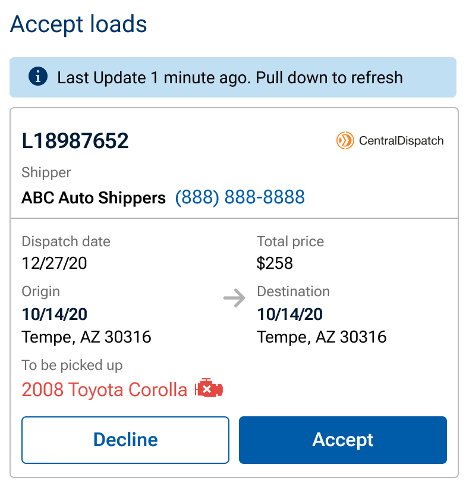
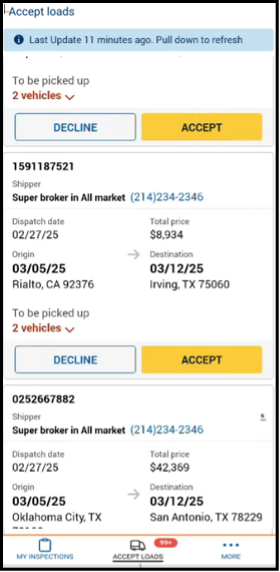
An Accept Loads tab is available at the bottom of the CD Mobile App to display offers from shippers.
- The Accept Loads tab has a bubble displaying the number of offers.
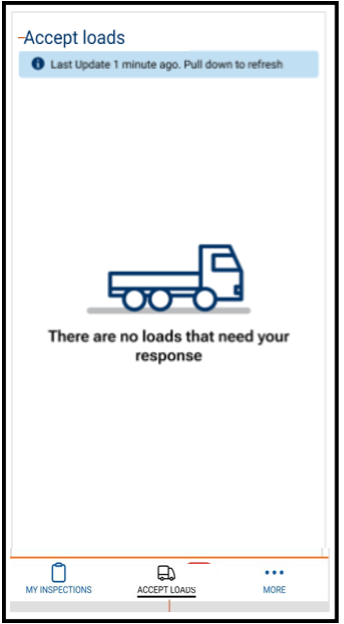
Note: If there are no offers, then the Accept Loads tab is empty when it is opened.
From the mobile app, the carrier is able to Accept or Decline offers.
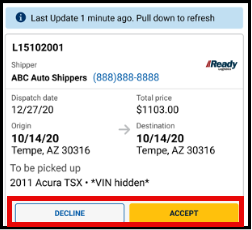
Accepting the dispatch from the mobile app
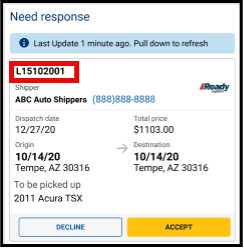
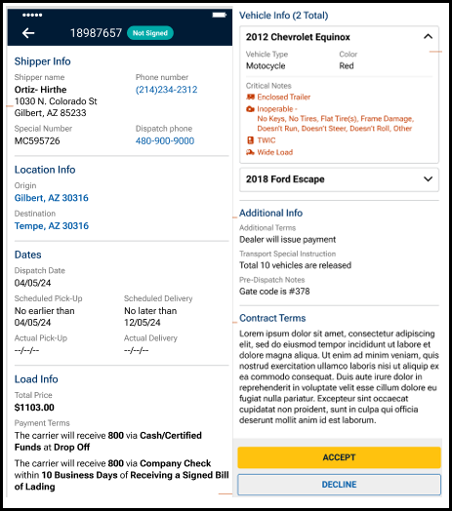
The Accept Loads tab displays a list of dispatches offered that need to be accepted or declined.
The carrier can click on the Accept Load button, the Load number, or the Decline button.
- A Not Signed status is displayed.
- Shipper information is presented in collapsible sections to show more/show less information for additional contact details
- Locations are tappable to open in map view
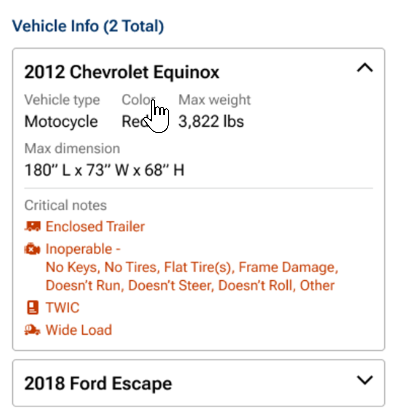
- Vehicle info has an expandable vehicle card displaying year, make, model, and critical notes.
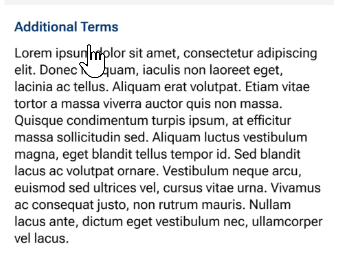
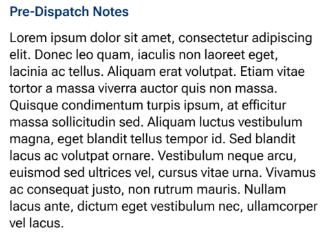
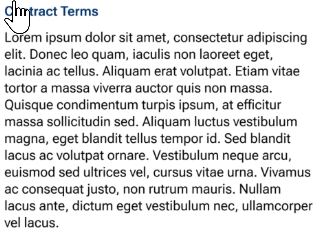
- View Contract Terms button is available. Contract Terms are accessible via a bottom-sheet modal triggered by a “View Contract Terms” button, rather than inline on the page.
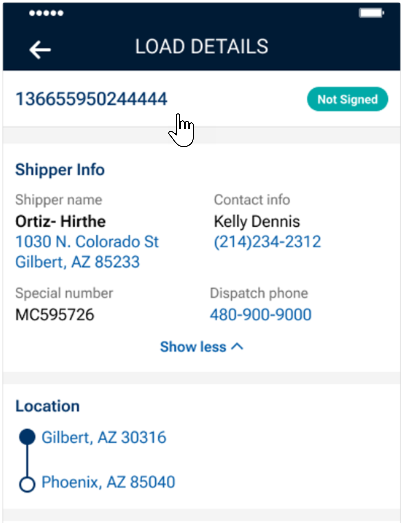
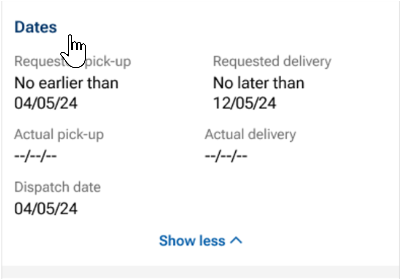
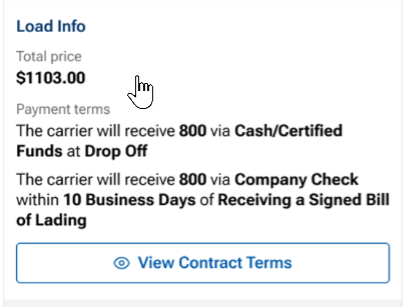
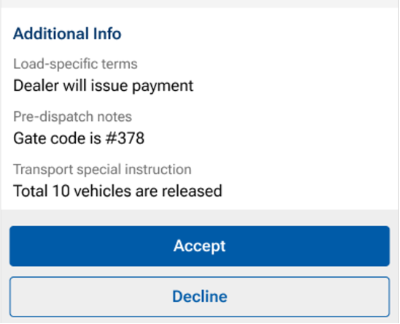
Accept Load
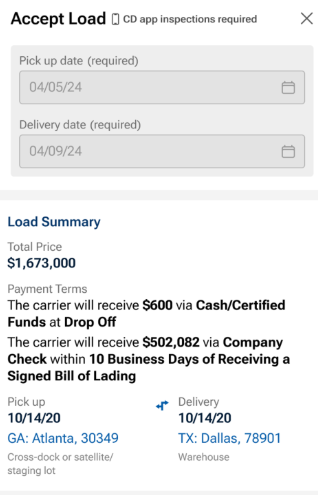
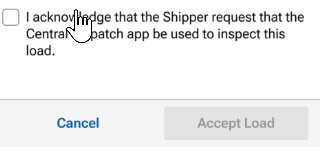
If the carrier clicks the Accept Load button, then the Load details screen appears for the carrier to review and acknowledge the terms and then click Accept Load.
- Flag is displayed informing carrier that shipper requires an inspection with CD mobile app
- Pick-up and Delivery locations are tappable to open map view
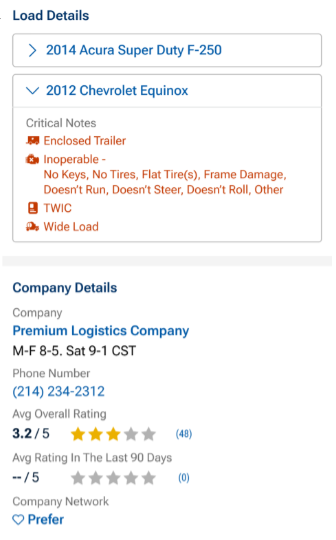
- Vehicle information is expandable to view year, make, model and critical notes
- Company details include contact information for shipper, ratings, ability to mark shipper as a preferred shipper, and warnings pulled from the FMCSA checklist
- The Accept Load button is disables until the carrier has scrolled to the button of page to review all information
Result:
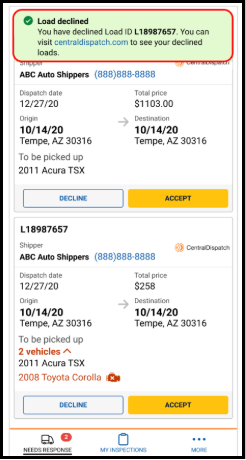
- A confirmation message appears confirming that the load has been accepted or the load has been declined

Offline status
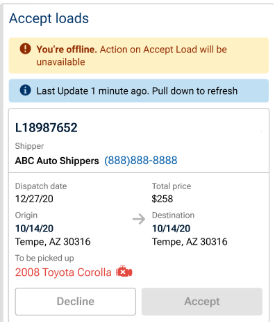
- Carriers now see an offline banner with the last connection time instead of a blocking full-screen modal.
- All action buttons are disabled while the device is offline.
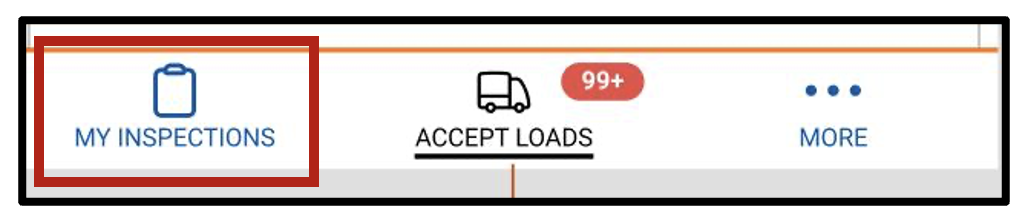
On the CD Mobile App under the My Inspections tab, the load is now available.
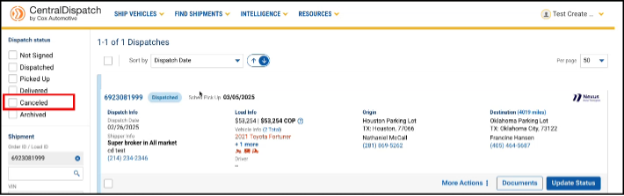
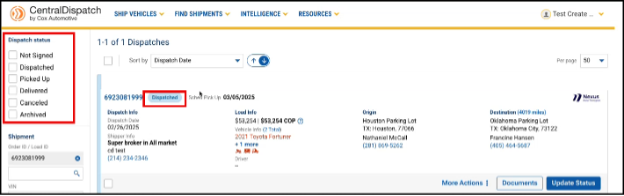
On Centraldispatch.com, on the Dispatches page, the load moves from the Not Signed status to the Dispatched status.
- If the carrier clicks on the load number on any of the offers, then the following additional information about the load displays for review.
- Shipper Information
- Location Information
- Load Dates
- Load Information
- Vehicle Information
- Notes
- Contract Terms
Note: The same information that appears on centraldispatch.com when accepting a load is visible on the mobile app.
- If the carrier clicks the Accept Load button, then a confirmation that load was accepted displays.

- On the CD Mobile App under the My Inspections tab, the load is available.

- On Centraldispatch.com the load moves from the Not Signed status on the Dispatches page to the Dispatched status
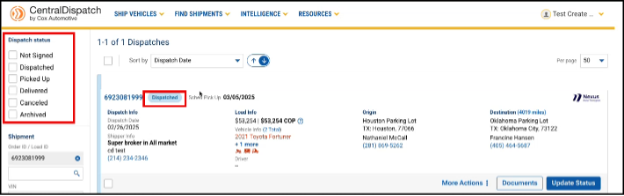
- If the carrier clicks on the Decline button
- The carrier will get a screen to confirm they want to decline the load.
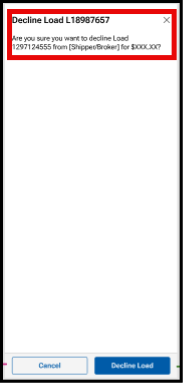
- A confirmation screen will appear, and the status of the load will change from Not Signed to Cancelled. Cancelled dispatches are not visible on the CD mobile app but display on the Dispatches page in centraldispach.com.