Hear about our powerful new marketplace security features like multi-factor authentication and User Management, and get practical tips for shipping with more safety and confidence on Central Dispatch.
Additional Enhancement to Marketplace Security
We are continuously enhancing our marketplace security based on the needs of real shippers and carriers like you. Our most recent enhancement, FMCSA verification checklist, publicly displays FMCSA details in every carrier’s company profile. This allows shippers to make more secure partnership decisions and enables carriers to attract more shippers as a secure and verified partner.
Watch our Head of Business, Lainey Sibble and Head of Product, Eric Schwartz, discuss our latest security enhancements to see how your feedback has directly helped us make Central Dispatch a better, more secure place to do business.
Want to dive deeper? See how-to for a quick guide on FMCSA verification checklist.
We’re continuously rolling out security features to help shippers and carriers build stronger business relationships with one another. Hear our Head of Business, Lainey Sibble, and our Head of Product, Eric Schwartz, discuss the importance of these features for marketplace confidence, and detail our all-new carrier verification enhancement!
What you need to know:
- FMCSA Verification Checklist has been added to provide an objective and standardized way to verify that a carrier is in good standing and authorized to transport vehicles.
- The Checklist will be viewable on the Company Overview page.
- The company’s Motor Carrier (MC) number or USDOT will be used to look up a company’s data in FMCSA/SAFER and display:
- Whether the company has authority to operate as a carrier.
INTRASTATE status for each of the fields shown below:

- Allowed to Operate
- USDOT#
- Business Type
- Carrier Operations
- MCS 150 Outdated
- Out of Service Date
INTERSTATE status for each of the fields shown below:

- Allowed to Operate
- USDOT#
- MC#
- Authority Status
- Business Type
- Carrier Operations
- MCS 150 Outdated
- Out of Service Date
Frequently Asked Questions (FAQ)
Q: What is the FMCSA?
- FMCSA stands for Federal Motor Carrier Safety Administration. They are a Department of Transportation (DOT) agency that oversees regulation of commercial motor vehicles. The FMCSA’s main goal is to reduce the number of crashes, injuries, and fatalities involving large trucks and buses.
Q: What is a Motor Carrier Number?
- An MC Number is a certificate required to operate an interstate trucking company. (Note: Carriers operating solely within a single state may not be required to obtain an MC Number).
Q: I just updated my information in FMCSA/SAFER how long will it take for the updates to show up in the FMCSA Verification Checklist?
- Once the update is submitted to FMCSA/SAFER it typically takes 48 hours for the changes to display on the FMCSA/SAFER sites. Once the updates are visible on the FMCSA/SAFER it typically takes 48 hours to reflect the changes in the FMCSA Verification Checklist.
Q: How often is checklist data refreshed?
- The data will be refreshed daily, reflected by a ‘Last Updated’ date at the bottom of the card.
Q: What is MCS-150 Form?
- An MCS-150 form is a document that must be filed with the FMCSA to obtain a USDOT number or update information on file. The form includes information about a company’s operations, types of cargo transported, and safety practices.
Q: How is carrier data pulled from the FMCSA database?
- The carrier’s Motor Carrier (MC) # or USDOT number will be used to look up their information in FMCSA/SAFER. In the event that a carrier has a missing or incorrect MC#, the verification checklist will show an ‘unable to verify’ message. Image below.
What do I do when my account says, “Unable to Verify?”
- Review FMCSA/SAFER to verify if your company information is correct on these sites.
- If the information displayed on FMCSA/SAFER is not correct or accurate contact FMCSA/SAFER directly to update information.
- What is the phone number for FMCSA/SAFER?
- 1-800-832-5660
- The information displays correct on FMCSA/SAFER what do I do next?
- If the information was updated within the last 48 hours on FMCSA/SAFER, please wait an additional 48 hours to give the FMCSA/SAFER and Central Dispatch system/sites to update.
- If the information was updated over the allotted time for the systems to sync and display on Central Dispatch, please call us at 520-800-6881.
This guide is an overview of managing listings posted to the load board in Central Dispatch.
After creating a load and assigning to the load board, shippers can manage the listings on the Manage Listings page including:
- Assign to a carrier
- Modify the listing
- Duplicate the listing
- Archive
- Delete
Under the Ship Vehicles tab, click Manage Listings

Manage Listings Page:
- Easily toggle between Manage Listings, and Assigned Loads, and shipments prior to 2025
- Filter loads by:
- Listing status, Pick-up/Delivery location, Load, or Listing ID, YMM
- Sorting options
- Status and any Flags
- Flags: Date available to ship has passed, Not showing in search if +5 days passed available to ship date
- Action buttons
- Assign
- Modify listing
- More Actions: Duplicate listing (counts toward tier), Archive, Delete

Archive tab: Duplicate listing is only available action (counts toward tier level)

Assigning a Load to a Carrier
If a listing is assigned to a carrier, then the load is available to search in the Assigned Loads tab.
- Use the filters on the left-hand side to search for the load. Available options for searching include Listing Status, Location, Order ID, Load ID, or VIN
- From the load card, under Listings, click the Assign button

Result: The Assign Dispatch page opens in a new window
3. Under Carrier Information, in the Company Name field, begin typing in the carrier’s name and select from the list

Result: Slide bar will appear with a carrier scorecard including performance data, FMCSA data and a summary of any warnings associated with the carrier to allow for additional investigation. Warning could indicate a recent change in phone number, or email address and are indicated with the triangle icon.

- Carrier name, scorecard, and any carrier warnings display below the carrier selection, making them easier to review
- Click on trash can icon to remove carrier

4. Review all information on the Assign Dispatch page that was populated from the Listing and update if needed
- Origin and Destination
- Vehicle Information
- Pick Up and Delivery Dates
- Pricing and Payment Information
- Additional Information, including Load ID, terms, and any notes
5. Click Assign Dispatch

Result: At the top of the screen, a confirmation appears and the screen opens to the dispatch found on the Assigned Loads page to be able to Edit Dispatch Information, Cancel Dispatch and re-list or assign to a new carrier.
Assist with Editing a Listing
If a listing is assigned to a carrier, then the load is available to search in the Assigned Loads tab.
- Find load and click on the Modify Listing button
- The Modify Listing screen will display and you can update any information

- Once complete with updating any information, click on Modify Listing at bottom of screen
- Note: Adding a vehicle or changing vehicle information will count toward vehicle count for tier

Assist with Archiving a Listing
If a listing is assigned to a carrier, then the load is available to search in the Assigned Loads tab.
Note: Listings that are 30 days from posting date will be auto-archived
- Use the filters on the left-hand side to search for load. Available options for searching include Listing Status, Location, Order ID, Load ID, or VIN
- From the load card, click the More Actions button, and then Archive from the drop-down menu

3. From the pop-up, click Archive Listing to continue
- Note: Archived listings cannot be returned to Active

Result: At the top of the screen, the confirmation appears.

Note: View Archived Listing on the Manager Listings page. Duplicate listing is the only button available for archived listings. If a listing is duplicated from an Archived Load, it will count toward vehicle quota limit for tier if any vehicle information has changed
Assist with Duplicating a Listing
- Use the filters on the left-hand side to search for load. Available options for searching include Listing Status, Location, Order ID, Load ID, or VIN
- From the load card, click the More Actions button and then Duplicate Listing from the drop-down menu

3. The Listing screens will open with the information from the duplicated listing. Update any needed fields and click on Modify Listing

Note: If a listing is copied, it will count toward vehicle quota limit for tier if any vehicle information has changed
Assist with Canceling or Deleting a Listing
If the listing is assigned to a carrier, the load will be available to search in Assigned Loads tab.
- Use the filters on the left-hand side to search for load. Available options for searching include Listing Status, Location, Order ID, Load ID, or VIN
- From the load card, click the More Actions button, and then select Delete from the drop-down menu

3. On the pop-up window, click Delete Listing to continue

Result: At the top of the screen, the confirmation appears

Note: Listings cannot be cancelled from the Listings tab because they have not been assigned to a carrier. Assist with an Active listing with a flag
Assist with an Active Listing with a Flag
- Date Available to Ship has Passed: Flag alerts shipper to act when available to ship date is 4 or more days past
- Not showing in search: Flag alerts shipper load is no longer viewable in search when available to ship date is 5 or more days past

- When assigning to a carrier, the dates will be required to be updated
- Click the Modify button to update dates
- Click the More Actions button to Archive or Delete the listing
How to Update a Load’s Status Manually
- Navigate to the Ship Vehicles tab and select Assigned Loads
- Follow these steps to update the load’s status
- Navigate to the desired load
- For units showing in Dispatched status:
- Click Update Status
- From the Update Status slide-out, use the calendar icon to manually enter the Actual Pick-up Date
- Click Update Status to finalize

- Use the calendar icon to manually enter the Actual Delivery Date
- Click Update Status to finalize

- Note: The pick-up and drop-off dates can not be added in the same action, and must be submitted separately
- For units showing in Picked-Up status:
- Click Update Status
- From the Update Status slide-out, use the calendar icon to manually enter the Actual Drop-off Date
- Click Update Status to finalize
- For units showing in Picked-Up status:
We’ve revamped the Manage Listing experience with powerful new functionality and a fresh, intuitive interface. Get ready to enjoy a smoother, more efficient way to manage your listings.
Want the details? See how-to for a quick guide on using the new enhancement.
Our latest marketplace enhancements wouldn’t have been possible without feedback from shippers and carriers like you. Hear our Head of Business, Lainey Sibble, talk about the latest improvements to the Central Dispatch platform, and how all of you helped us get there.
¡Bienvenido a Central Dispatch! Vea cómo publicar vehículos, elegir un socio con confianza y enviarlos a los transportistas en la plataforma.
Transcript:
Central Dispatch hace que tomar el control del transporte de su vehículo sea fácil y seguro con una plataforma digital ágil y de autoservicio. Aquí le explicamos cómo funciona.
Posting & Searching
En primer lugar, usted deberá publicar el vehículo que desea transportar. Introduzca la ubicación de recogida, la ubicación de entrega, el tipo de remolque y los detalles del vehículo.
Puede usar la herramienta Price Check para ver la tarifa actual del mercado para trabajos similares y asegurarse de obtener una tarifa competitiva. Los usuarios de Central Dispatch Premium pueden usar Price Check Plus, que muestra aún más datos en tiempo real para decisiones mejor informadas y ofrece precios predictivos con IA para ayudarle a conseguir la tarifa más óptima.
A partir de ahí, puede publicar su carga en el tablero general o asignarla directamente a un transportista preferido, todo desde el mismo panel.
Después de publicar su anuncio, puede esperar una llamada en 30 minutos o menos. Estamos asociados con miles de transportistas, y siempre están buscando nuevas cargas.
Partnering / Ratings / Reviews
Asegúrese de revisar siempre el perfil del transportista que aparece en Central Dispatch antes de trabajar con ellos, para que pueda estar seguro de que está trabajando con un transportista cualificado.
La tarjeta de calificaciones del transportista (carrier scorecard) le ofrece un vistazo rápido de sus calificaciones y su historial de trabajo, además de alertas sobre cualquier autorización FMCSA faltante o vencida. Para más detalles, visite su perfil de empresa,
categorías de puntualidad, comunicación y documentación.
Allí encontrará toda su información de la FMCSA , para que pueda verificar que el transportista esté activo y autorizado. Revise los documentos de seguro incluidos en su perfil y contacte al agente para confirmar que la información del seguro esté actualizada.
También podrá ver la calificación general del transportista y las calificaciones en diferentes categorías de desempeño, como puntualidad, comunicación y documentación.
Central Dispatch proporciona valoraciones y reseñas cada una de las transacciones, para que pueda ver Su desempeño en cada uno de los trabajos que han aceptado en nuestra plataforma.
Una vez que haya elegido el transportista adecuado para usted, enviarlos será muy fácil gracias a la gestión totalmente electrónica de los envios, ¡sin necesidad de papeleo!
Puede gestionar todos sus envíos en un solo lugar a través de la página de Manage Listings. Aquí puede despachar un vehículo o revisar qué vehículos están publicados en el marketplace, despachados o ya entregados.
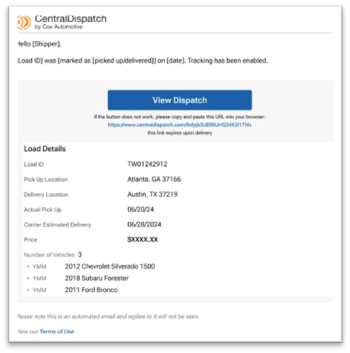
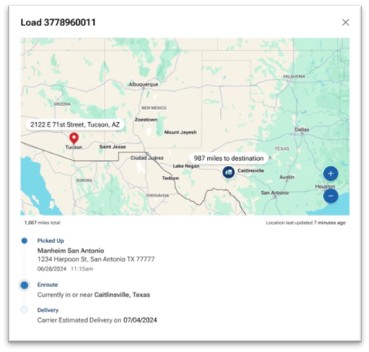
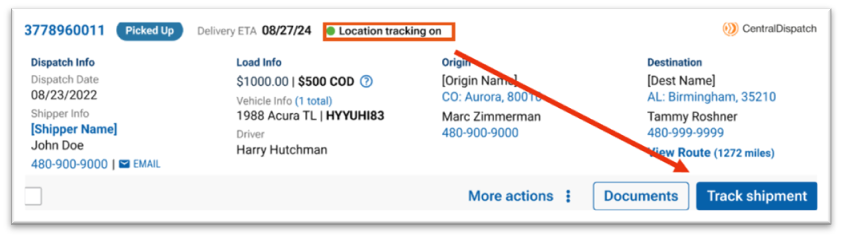
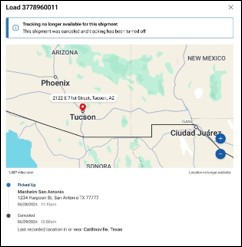
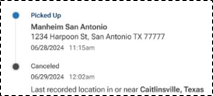
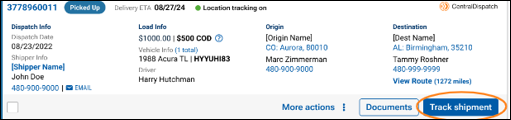
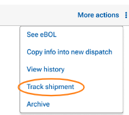
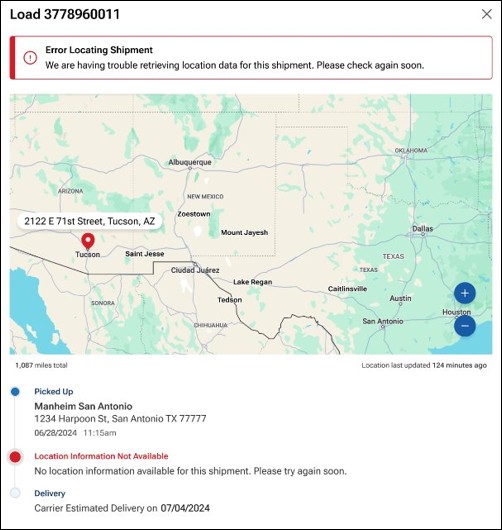
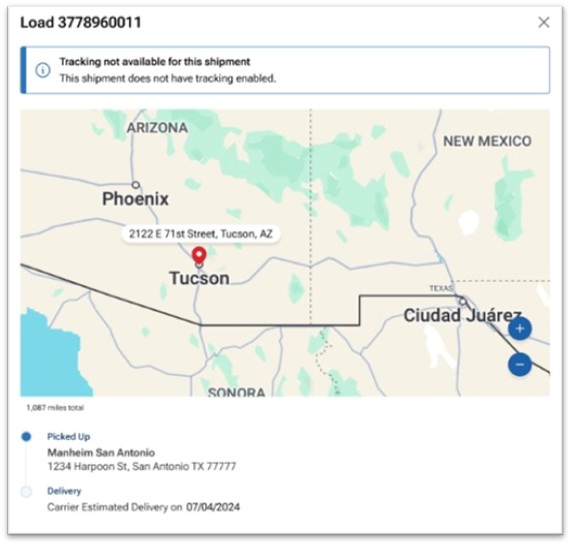
Para los envíos con seguimiento en tiempo real, simplemente selecciona el botón “Track Shipment” para ver la ubicación en vivo del vehículo en un mapa interactivo, así como las actualizaciones más recientes del estado de entrega.
Además, la gestión de su equipo también es fácil con el nuevo sistema de gestión de usuarios. Los propietarios de las cuentas pueden crear perfiles únicos para cada empleado o contratista, asignarles un rol y cambiar los permisos de sus cuentas, garantizando que la información comercial sensible esté protegida y eliminando los riesgos de usar un solo inicio de sesión.
Una vez finalizado un trabajo, utilice el sistema de valoracion de las transacciones para calificar y reseñar a su transportista. Sea lo más justo y minucioso posible al describir su desempeño, para ayudar a otros distribuidores en su eleccion.
Outro
¡Siempre estamos añadiendo nuevas funciones, así que manténgase al tanto de la sección ‘What’s New’ en nuestro sitio web para obtener información sobre las ultimas novedades en la plataforma.
Entonces, ¿está listo para dejar de correr riesgos con el transporte de su vehículo? ¡Tome el control con Central Dispatch hoy mismo!
This August, we’re enhancing Central Dispatch to be an all-in-one, end-to-end transportation solution for both shippers and carriers. From API integrations, to Private Marketplaces, to a new mobile app for carriers — Central Dispatch delivers unmatched trust, efficiency, and connections at scale in one central platform. Take a look at some of the updates that are coming, and check back soon for more exciting announcements!
New Private Marketplaces
Private Marketplaces give shippers an exclusive space to interact directly with their curated network of carriers, and we’re the only vehicle logistics brand in the industry operating private marketplaces at scale today. Ready Logistics is now live with over 400,000 vehicles already shipped, and Nexus Auto Transport and SGT Auto Transport are coming soon, providing thousands of additional opportunities for carriers.
Central Dispatch Carrier Mobile App
Take control of your vehicle transportation from anywhere with the Central Dispatch mobile app for carriers! At launch, the app will include inspection capabilities for both private and public marketplaces for unmatched transparency into vehicle condition. This will also forge stronger connections between partners as shippers will be able to access documentation and EBOL for inspections completed in the app.


A Growing Suite of APIs
With seamless connections to third-party technology providers, you’ll be able to tackle any transportation need on Central Dispatch. Enjoy an end-to-end logistics solution and boost your efficiency with API integrations. In addition to posting and editing your loads through our listings API, our brand new fulfillment API allows you to manage and receive updates about your dispatch throughout the transportation lifecycle.
Enhanced Dashboards
Both shippers and carriers get instant access to more modern user interfaces, complete with new tools built to deliver even more control and visibility into the transportation process. The dashboard will serve as a central “command center,” with a cleaner, more efficient experience for shippers and carriers, with quick links to the most frequently used functions, a ratings widget, and more.
Redesigned Dispatch Experience
Both shippers and carriers can take advantage of our improved dispatch experience. Shippers now have better visibility from listing through delivery, while carriers will enjoy a more streamlined way to manage dispatches, assign loads to specific drivers, and complete inspections with our new mobile app.
Keep checking back for more details and announcements as we lead up to the launch!