The Transactional Ratings system from Central Dispatch lets you leave in-depth reviews about what it was like to work with a certain shipper or carrier on our platform.
You can rate a business overall and in three distinct categories for each job they perform. You can write reviews describing your experience in more detail, and even reply to comments written about your business.
Today we’ll show you how you can use this new rating system to give helpful, honest feedback, so that you and others can make better partnering decisions and grow your business.
The “Overview” page gives you a general idea of how you’re being rated on Central Dispatch.
You’ll see your company information, your current overall rating (calculated by average), and reviews of your business that have been marked as “most helpful” by other users.
Under “Average Detail Ratings” you’ll see your current rating for each distinct Transactional Ratings category — timeliness, communication, and documentation. Like your overall rating, these are calculated by average. Hover over the “i” for more information on how we define each category.
Scroll through the “Most Helpful Reviews,” to find out which reviews of your business are getting the most hits, and exactly what your partners are saying about you.
View how they’ve rated you in each category, their written review, how many total reviews they’ve left on the site, and how many other users have marked their review as “helpful.”
The Overview page also gives you a quick link to rate your recent transactions (under “Your Connection”) as well as a link to view all of your business’ reviews in more detail, here near the Helpful Reviews.
You can also get there by simply clicking the “All Ratings” tab near the top of the dashboard.
Ratings
On the “All Ratings” page, you’ll first see a visual breakdown of your current overall rating, and a complete list of every review of your business.
You can sort this list by the number of stars attached to each review, to quickly get a clear idea of what people liked about working with you, and what problems may have come up during a job.
You also have the option to reply to any review of your business. Please remember to be fair and courteous when replying to a review. Every reply goes through a 72-hour review period, to make sure our content policy is being followed.
Pending
The “Pending” page is where you’ll rate and review the businesses you’ve worked with in the past 60 days. After 60 days, any pending transaction ratings you have will disappear.
You can rate both completed and canceled transactions that were accepted by a partner. This ensures every partner on our platform is held accountable for their performance for jobs they finished — and for jobs they didn’t.
On the page, you’ll see the company’s name, order ID, and some more specific information about each job. To begin rating a transaction, simply give it an overall rating of 1-5 stars. This will bring up an expanded menu, where you can rate a shipper or carrier on their timeliness, communication, and documentation.
Note that your ratings for each category do not impact the overall rating. Also note that reviews cannot be edited after they’re submitted and star ratings go live on the website the moment you leave them. So it’s very important to understand what to be thinking about for each category before you rate. Let’s go over those in more detail.
For overall rating, youshould think about the general experience working with this person — not just the outcome of the job. Would you feel comfortable doing business with them again? Would you recommend them to others?
Timeliness refers to how closely they met timing expectations outlined in your contract for pickup, delivery, and any other checkpoints. Did they complete delivery or pickup within 72 hours of the estimated time? Were they late? If so, how late?
Your communication rating should consider how professional and responsive a partner was during a job. Did they promptly communicate information like updates, changes, and delays? Did you ever have trouble getting in touch with them?
Documentation includes the completion and accuracy of all job documents, such as eBOL, insurance information, transit forms, and invoices. Was everything filled out correctly? Did paperwork arrive late?
To give even more detailed feedback, leave a short written review describing your experience. What specifically did they do well? What kinds of problems, if any, did you run into?
Leaving a 1-2 star rating for a transaction will prompt you to leave a written review, to encourage responsible use of a negative rating.
You’ll also be prompted to reach out directly to the other party. So if you think any disputes can be solved privately, be sure to take advantage of this feature before posting.
However, it’s important to note that leaving a written review, and rating users in each of the three categories, are both optional. You can always just leave one overall rating if you’d like.
But we highly recommend going the extra mile. It helps everyone identify if a certain carrier or shipper is right for them, and gives other users a more complete picture of your business practices.
Well, that’s all for now. Thanks for taking a few minutes with us to discuss our new transactional ratings system. As always, please reach out to us with any further questions.
The all-new Central Dispatch user management feature lets business owners give employees their own personal Central Dispatch logins.
Account owners will now have more control over how they run their business on Central Dispatch. They’ll decide which employees or contractors can access certain features, decide who gets to view sensitive information, and eliminate the risks of sharing credentials of a single, universal login.
To access the Manage Users page, click your name from any page and select Manage Users from the account dropdown. Only users with the role of Owner, Admin, or Member Manager can access the Manage Users page.
Here, you’ll see your company name in the top left, along with a list of all your organization members who are active Central Dispatch users in the active tab.
You’ll also see their assigned role, contact information, and some actions you can take as the account owner.
Adding new users is easy. Just click the yellow “Add Users” button at the top right of your screen. This will bring up a window where you’ll enter their email and select their role. Read the descriptions to view permissions associated with the role.
Once you have their information entered, hit “Add User,” and an invitation will be sent out to the email address you entered. Members of your team will need to accept the invite before becoming active users.
To view users who you’ve invited that have yet to accept, go to the “Pending” tab. Here you can see the date you sent out the invite, and resend or cancel the invite if necessary.
Remember that the role you assign each team member will impact what they can and can’t do on Central Dispatch.
Drivers and Standard roles can only access and update their own profile, including email address, cell phone number, and username.
While Owners, Admins, and Member Managers are able to add new users and fully manage all other user profiles.
To change a person’s role, click “Edit” here in the Actions column, and select a new role.
To remove a user, simply click the “Remove” button in the Actions column, and click again to confirm the removal in the pop up window.
That’s all for now! We hope you’ll enjoy all the benefits of this new user management feature. As always, please reach out to us with any further questions.
Let’s take a look at what’s new in search. The new search layout allows you to filter and sort live results, all from a single page. We have also reduced the number of clicks. No need to click “search” or “enter” after selecting filters.
Saved searches and filters are found on the listings page. Just click into the saved search to open it. Easily see the saved search you were viewing, along with the number of listings associated with it.
Filters are also available to view for the search. Click the “X” to delete any of the filters, or scroll down the page to any of the filters and then click save. Click the “clear” button to return to a view of all listings.
The browser can be used to manually update listings. Sorting options are at the top of the listings page. And the listing card contains the most important information, including price and price per mile, the vehicle information, company information including ratings, hours of operation and the time zone, and phone number, pickup and delivery information, posted date, and desired pickup date.
And the information is available no matter the size of your screen. Thank you for using Central Dispatch.
Watch Head of Business Lainey Sibble, and Head of Product Eric Schwartz, break down all the enhancements Central Dispatch has implemented this year to create an end-to-end solution that streamlines your core business.
Watch our product leads in this special interview talk about their plans to continuously listen to customer feedback, and develop that feedback into real features that help them solve real challenges.
Watch Head of Business Lainey Sibble explain how Central Dispatch’s new integrations and enhancements help you do all your transportation work more efficiently in one place!
Head of Business, Lainey Sibble and Head of Product, Eric Schwartz, explain all the new features Central Dispatch has rolled out to create a true end-to-end transportation solution that streamline your shipping management.
Hear how Central Dispatch’s all-new marketplace integrations bring together disparate private marketplaces into a single location, so you can find profitable loads without having to switch systems or visit other sites, and shippers get an exclusive space to interact directly with their curated network of carriers.
Central Dispatch Mobile App provides live updates on location and vehicle status
- Delivery tracking is automatically enabled after completion of a pickup inspection on the Central Dispatch Mobile App
- The dispatch card will have a bullet to indicate if tracking is on or off and the Track Shipment button will be available when tracking is enabled
- Location-sharing will automatically end when the delivery inspection is complete or if a shipment is cancelled
- Real-time location will automatically update every five miles while enroute (this may vary for private marketplaces)
- To protect carrier privacy and safety, location is approximate within .03 miles
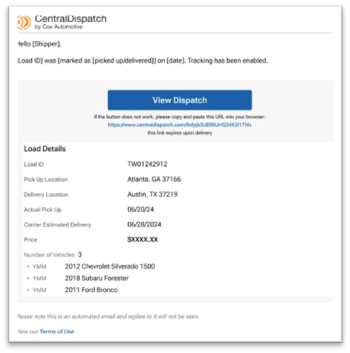
1. After the pickup and delivery inspection is complete, the shipper will receive an email with the status of the load and a link to view the location of the vehicle on map
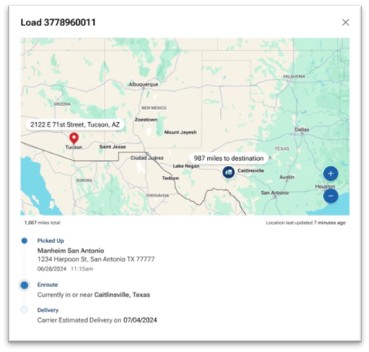
2. Map will display approximate location, timestamp of last update, miles remaining
3. If the carrier completed a pickup inspection tracking will be enabled, the dispatch card will have a bullet indicating Locations tracking on and Track Shipment button will be available to view real-time location at any time
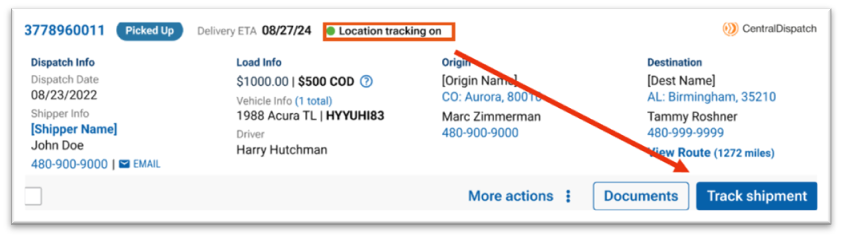
4. If an inspection has not been completed, the dispatch card will display a bullet stating Location tracking off

Map Views
Shippers will continue to get emails after pickup and delivery inspection when using the CD Mobile App, the email will also include a link to view real-time tracking
After delivered, the map view will display a pin at the location of the delivery inspection


If the dispatch is archived, map view will be available
If cancelled, the map view will display last recorded location, time and date and tracking will stop
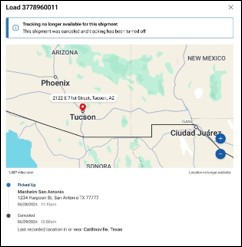
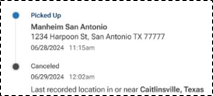
Track Shipment button
View real-time tracking anytime by clicking on the Track Shipment button on the dispatch card for orders that are in a Picked-Up status
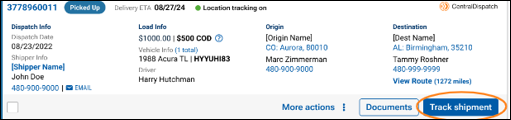
For loads in a Delivered, Cancelled or Archived status the Track Shipment button will be available under More Actions
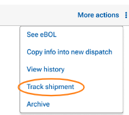
Note: Track Shipment will be available is inspection was completed with mobile app
Privacy, Safety, and Location Sharing
• To protect privacy and safety, the carrier’s location will always be shown with an approximate radius view
• Location data will only be available for the shipper account that is managing the vehicle’s transportation
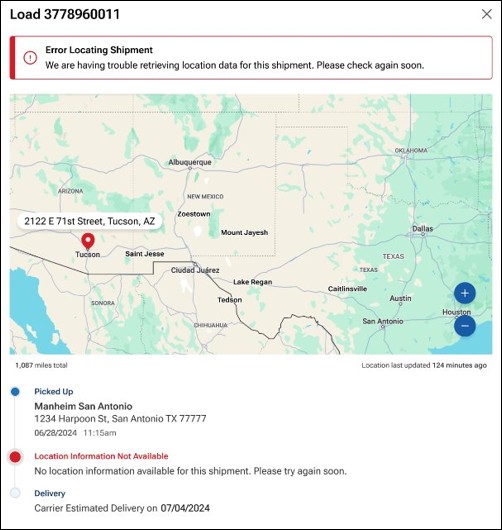
Error Messages
“Error Locating Shipment“
This error message may appear if:
- Location permissions have been disabled
- The carrier’s device is on Airplane Mode or in an area with poor service
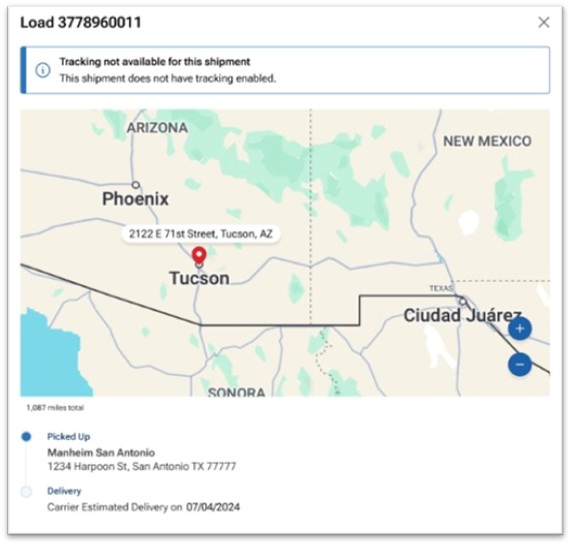
“Tracking not available for this shipment“
This message may appear if:
- A pickup inspection was not completed.
- The pickup inspection was completed prior to the deployment of real-time tracking.