Preferred Carrier Offers – Carrier Guide
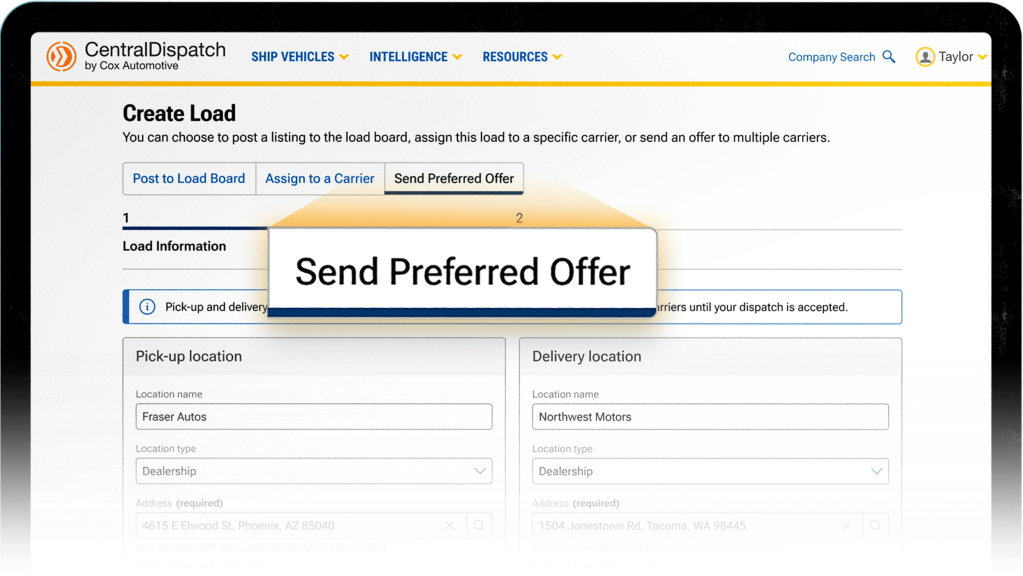
Shippers are able to send offers for loads directly to a carrier instead of posting on the load. A shipper is able to send an offer to up to 5 carriers at a time and select a timeframe for the carrier to accept the offer. The system will automatically dispatch it to the first carrier to accept the offer.
Step 1: View Offers
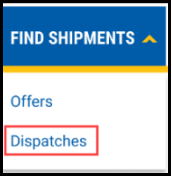
From your dashboard, click on the Find Shipments menu and then Offers.
Result: Offers that Needs your response will display.
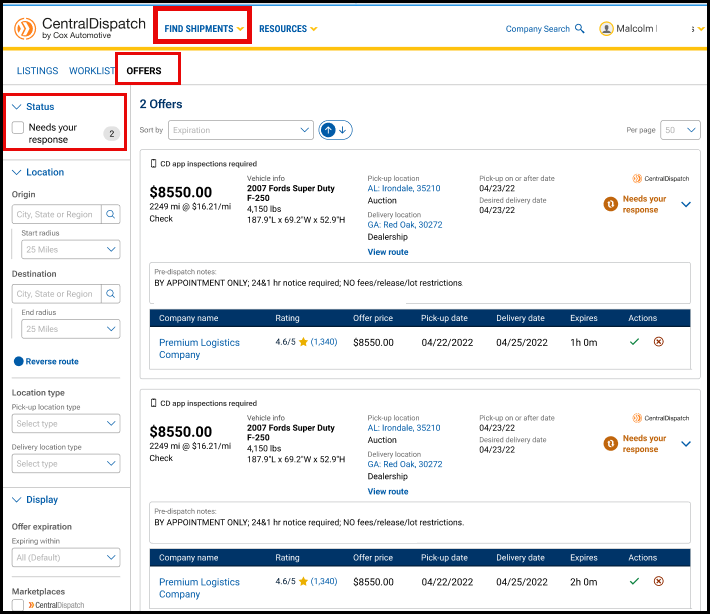
Note: A shipper can send an offer to up to 5 carriers. The offer will no longer be displayed under the Offers tab if:
- The offer expires
- Another carrier accepts the offer
- The shipper removes the offer
Step 2: Review Load Details
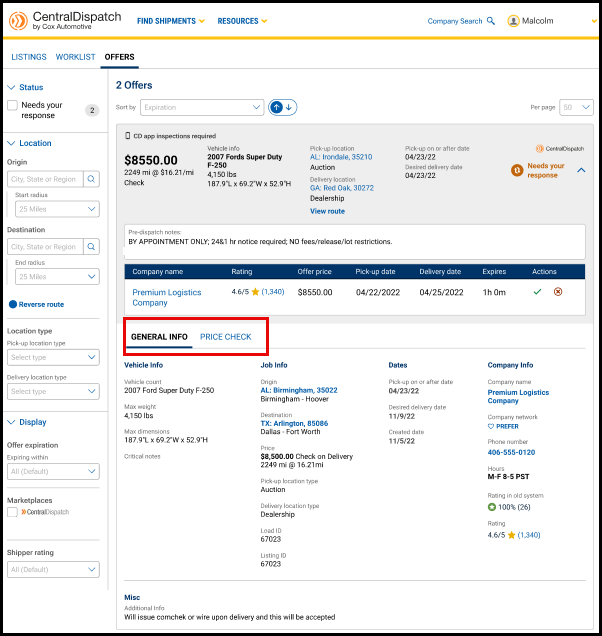
Review the rate, vehicle information, pickup, delivery, and any special instructions. Offers will also include the name of the shipper and offer expiration time.
Click on the down arrow to view additional information
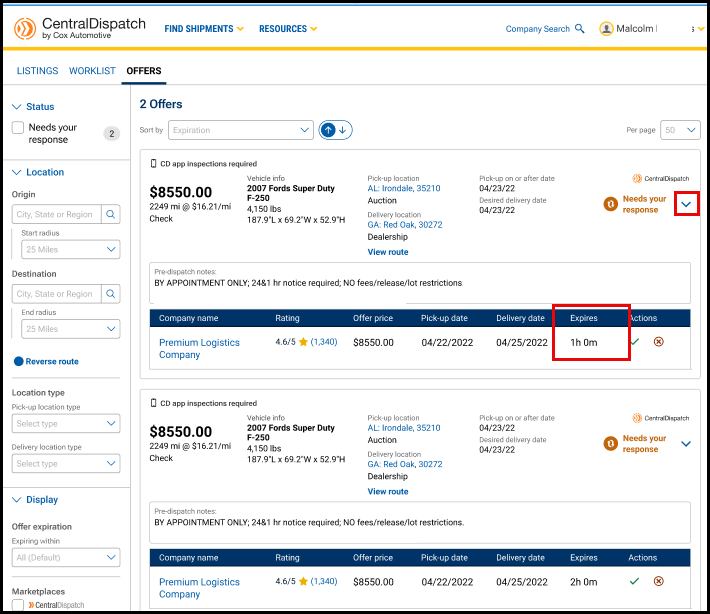
Result: Review additional General Info and Price Check information to compare the price with similar loads if the add-on has been selected with your subscription.
Step 3: Accept the Offer
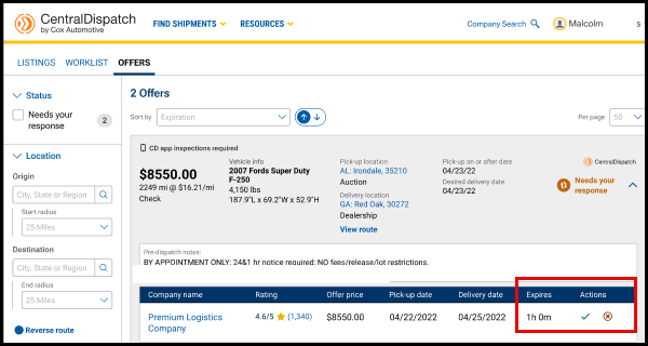
Click the Checkmark icon under the Actions icon to Accept Offer.
- Click the X icon if you would like to decline the offer
- If no selection is made, the offer will no longer be displayed when it expires or if it is accepted by another carrier
Step 4: Confirm Accepting Offer
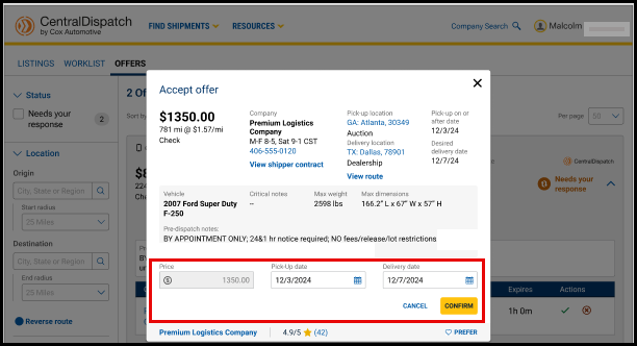
Enter the Pick-up date and Delivery date and click Confirm.
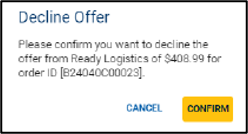
- A pop-up will appear to confirm if you are declining the offer
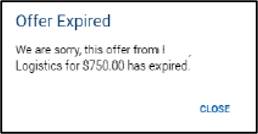
- If you have not updated your screen, and try to action an expired, already accepted, or removed offer, a pop-up will appear advising that the offer has expired
Result: After accepting the offer, the load will be displayed under the Find Shipments tab and Dispatches page.